
Windows 11 Application Update Strategy – Patch My PC, WinGet, and Microsoft Store
Category: Windows 11 / System Maintenance
Purpose: Automate updates for third-party Windows applications
Target Audience: Home users, power users, IT professionals
Date: 12/28/2025
Overview
Keeping third-party Windows applications up to date is critical for security, stability, and performance, but manually checking each vendor is inefficient and error prone.
Patch My PC Home Updater is a free, lightweight utility that automatically scans for outdated applications and updates them silently in the background. It complements Windows Update and Microsoft Store auto-updates by handling non-Store desktop applications.
This guide documents how to install, configure, and automate Patch My PC Home Updater on Windows 11.
What Patch My PC Home Updater Does
Patch My PC Home Updater focuses on third-party application patching, not Windows itself.
Key Capabilities
-
Scans installed applications for outdated versions
-
Updates supported apps automatically or on demand
-
Supports silent installs (no pop-ups)
-
Uses Windows Task Scheduler for automation
-
Can install or uninstall supported apps
-
Portable (no traditional installer required)
What It Does Not Do
-
❌ Does not update Microsoft Store apps
-
❌ Does not manage Windows Updates
-
❌ Only updates applications included in its supported catalog
Supported Application Types (Examples)
Patch My PC supports hundreds of popular applications, including:
-
Browsers (Chrome, Firefox, Edge)
-
Media tools (VLC, 4K Video Downloader)
-
Utilities (Notepad++, 7-Zip)
-
VPN clients (Proton VPN)
-
Vendor tools (Raspberry Pi Imager)
Applications like Battle.net, Steam, Discord, and GPU drivers are intentionally excluded since they handle their own updates internally.
Installation
-
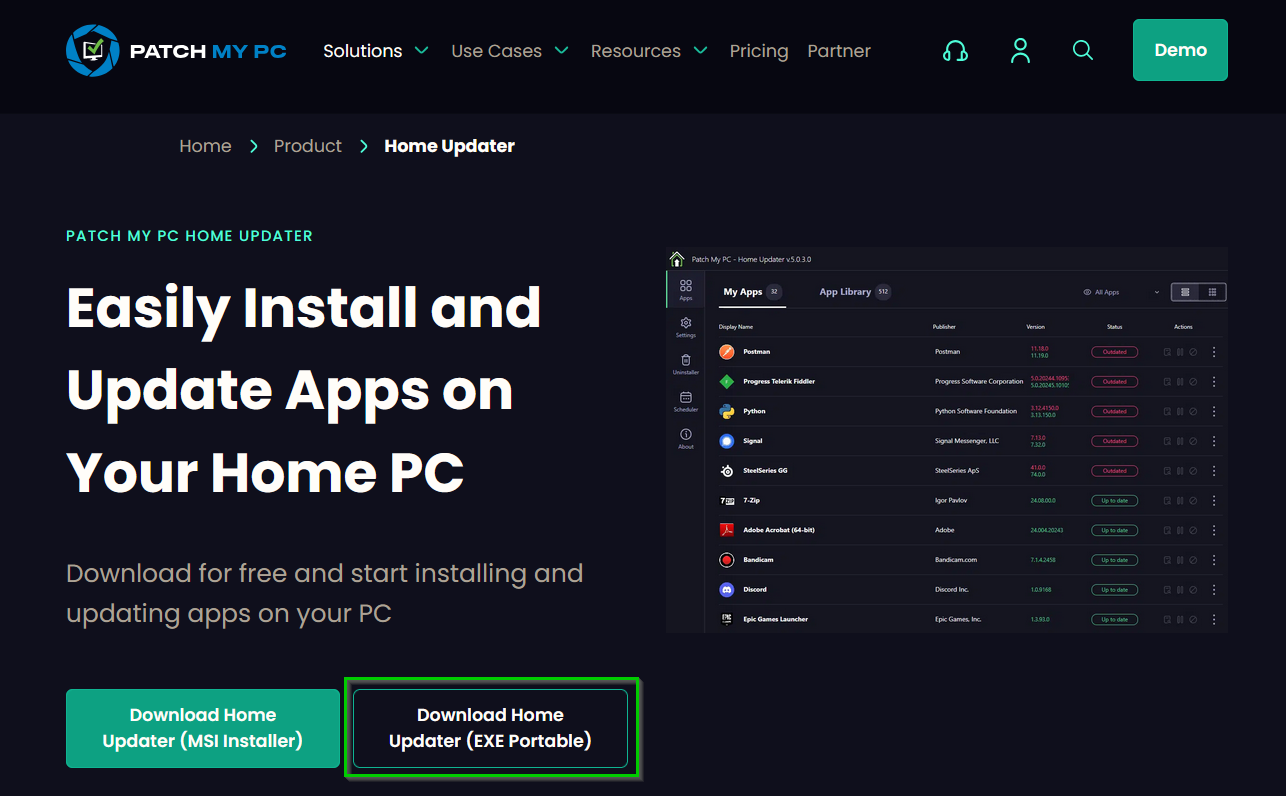
Download Patch My PC Home Updater from the official site:
https://patchmypc.com/home-updater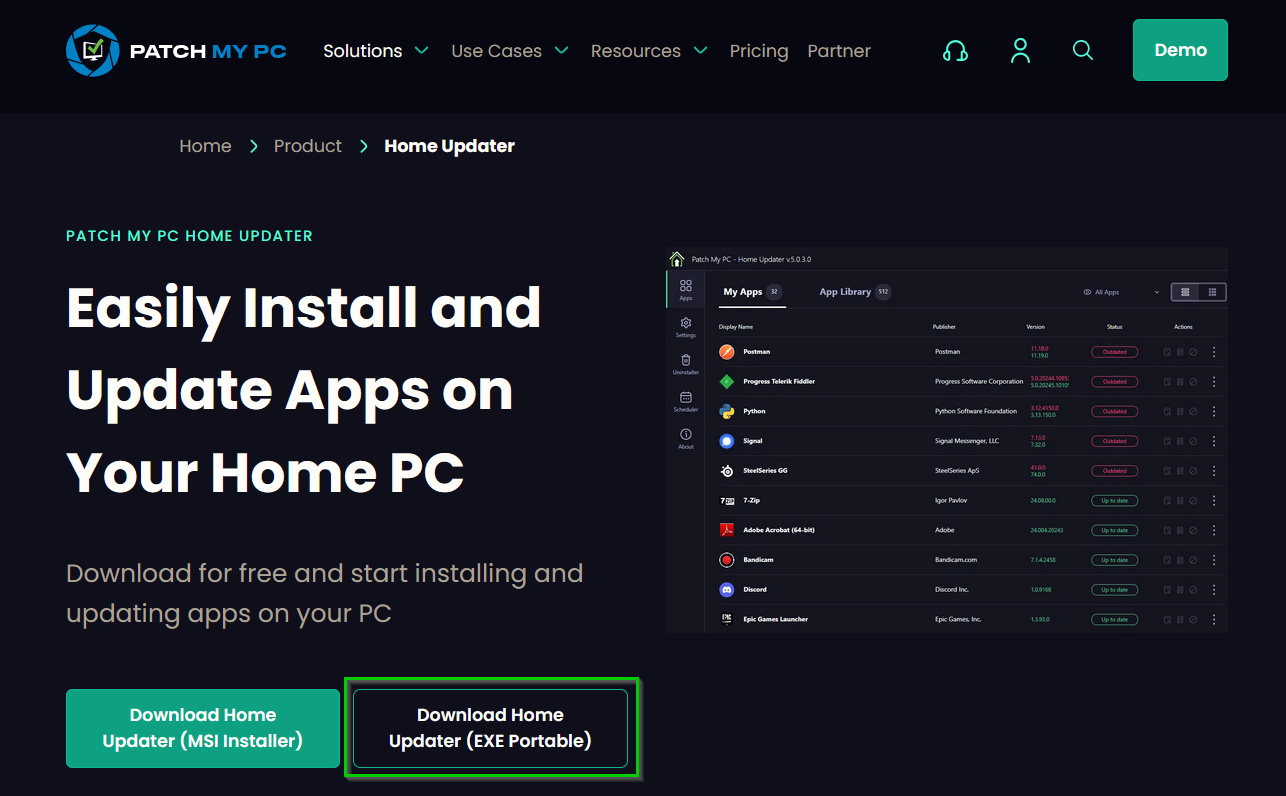
-
Run
PatchMyPC.exe(run as administrator for best functionality) -
No installation wizard, no account, no ads
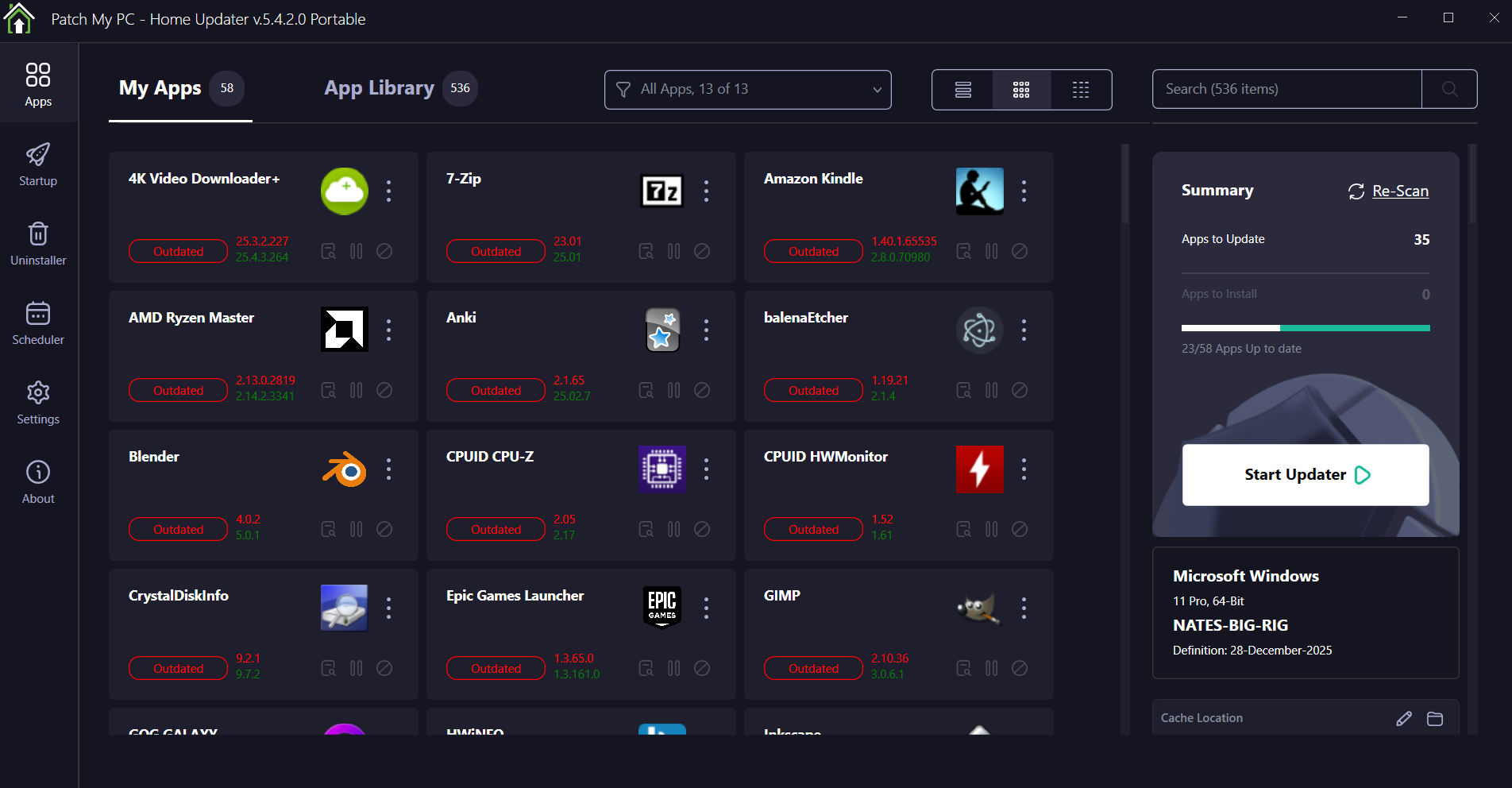
The application will immediately scan your system.
Initial Update Baseline
On first launch:
-
Outdated apps appear in red
-
Up-to-date apps appear in green
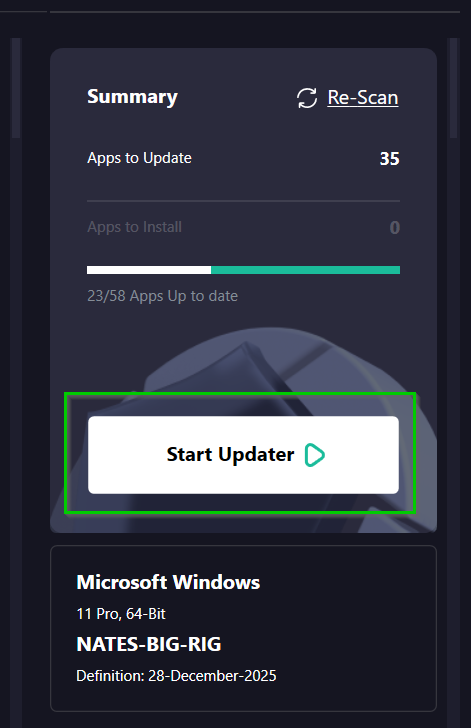
Click Perform Updates once to bring all supported apps fully up to date.
This establishes a clean baseline before enabling automation.
Recommended Configuration
Open Settings (gear icon) and apply the following:
Safety Settings
-
✅ Create restore point before updating
-
✅ Skip updates if an app is currently running
Silent Operation
-
✅ Enable silent updates
-
✅ Suppress reboot prompts
-
✅ Disable post-install auto-launch
Cleanup
-
✅ Delete installers after installation
These settings ensure updates run quietly and safely in the background.
Application Selection
Under Settings → Applications:
-
Review the supported app list
-
Uncheck any apps you prefer to update manually
-
Leave common utilities and browsers enabled
This gives you granular control over what Patch My PC manages.
Automatic Scheduling (Core Feature)
Patch My PC uses Windows Task Scheduler for automation.
-
Go to Settings → Scheduling
-
Enable Automatically update applications
-
Recommended schedule:
-
Frequency: Weekly
-
Day: Sunday
-
Time: Early morning (e.g., 3:00 AM)
-
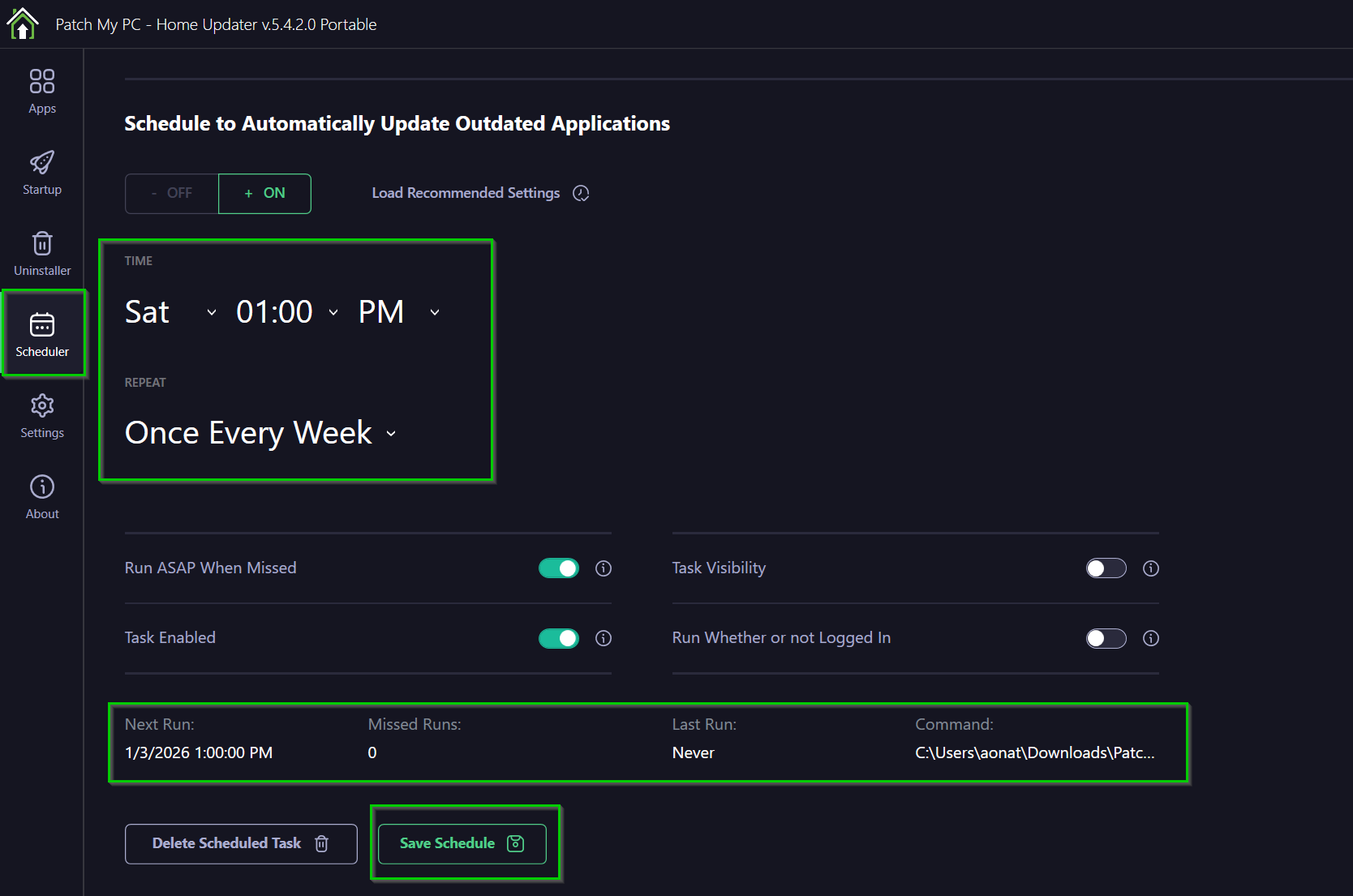
Once enabled, Patch My PC will run automatically without user interaction.
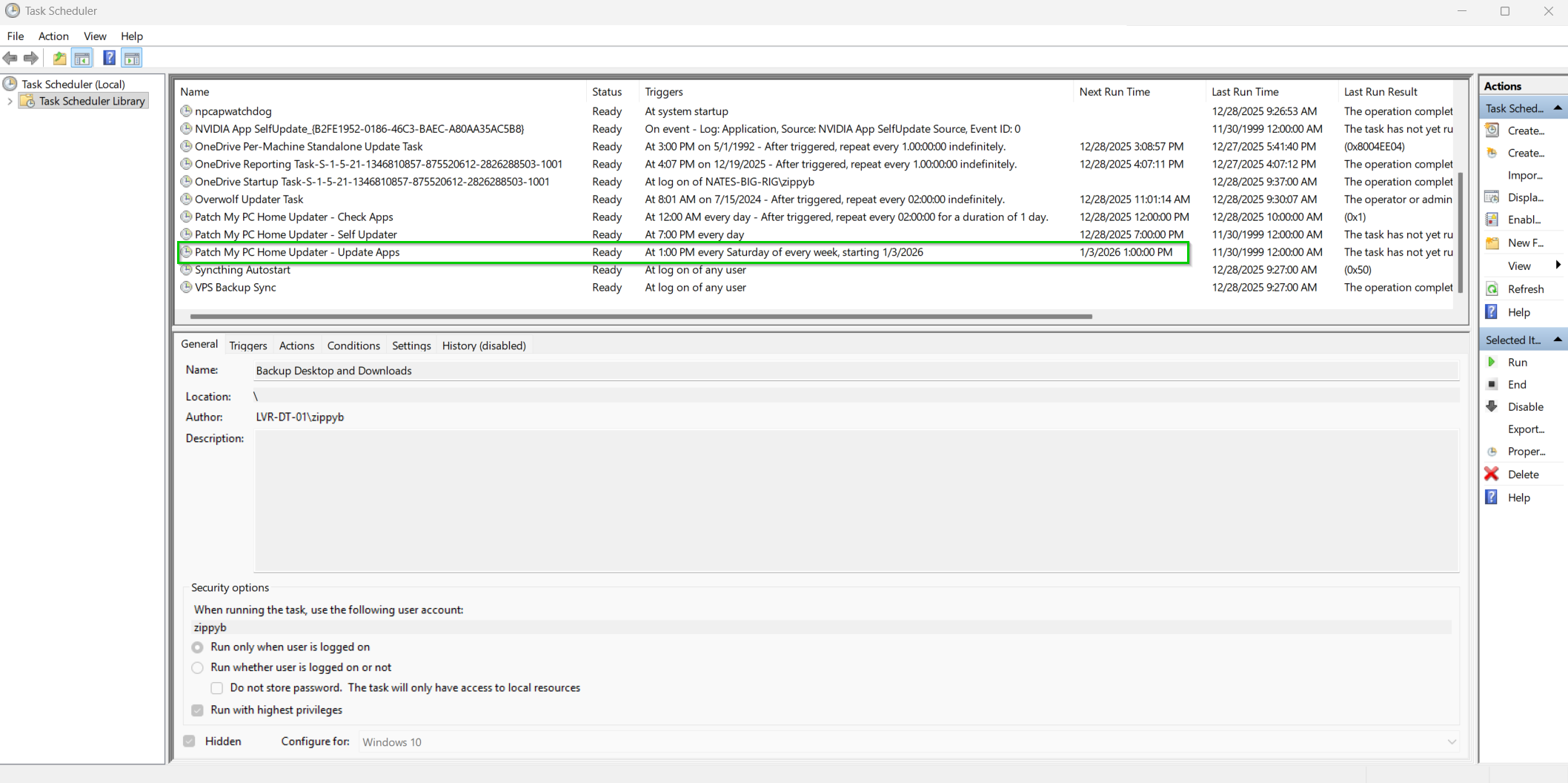
Verifying the Scheduled Task (Optional)
To confirm the task exists:
-
Press Win + R
-
Run:
taskschd.msc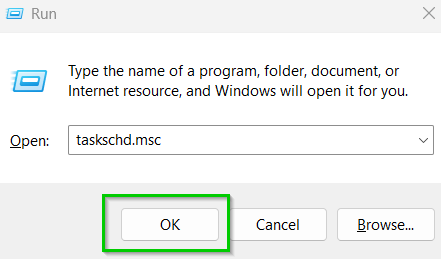
-
Navigate to:
Task Scheduler Library → Patch My PC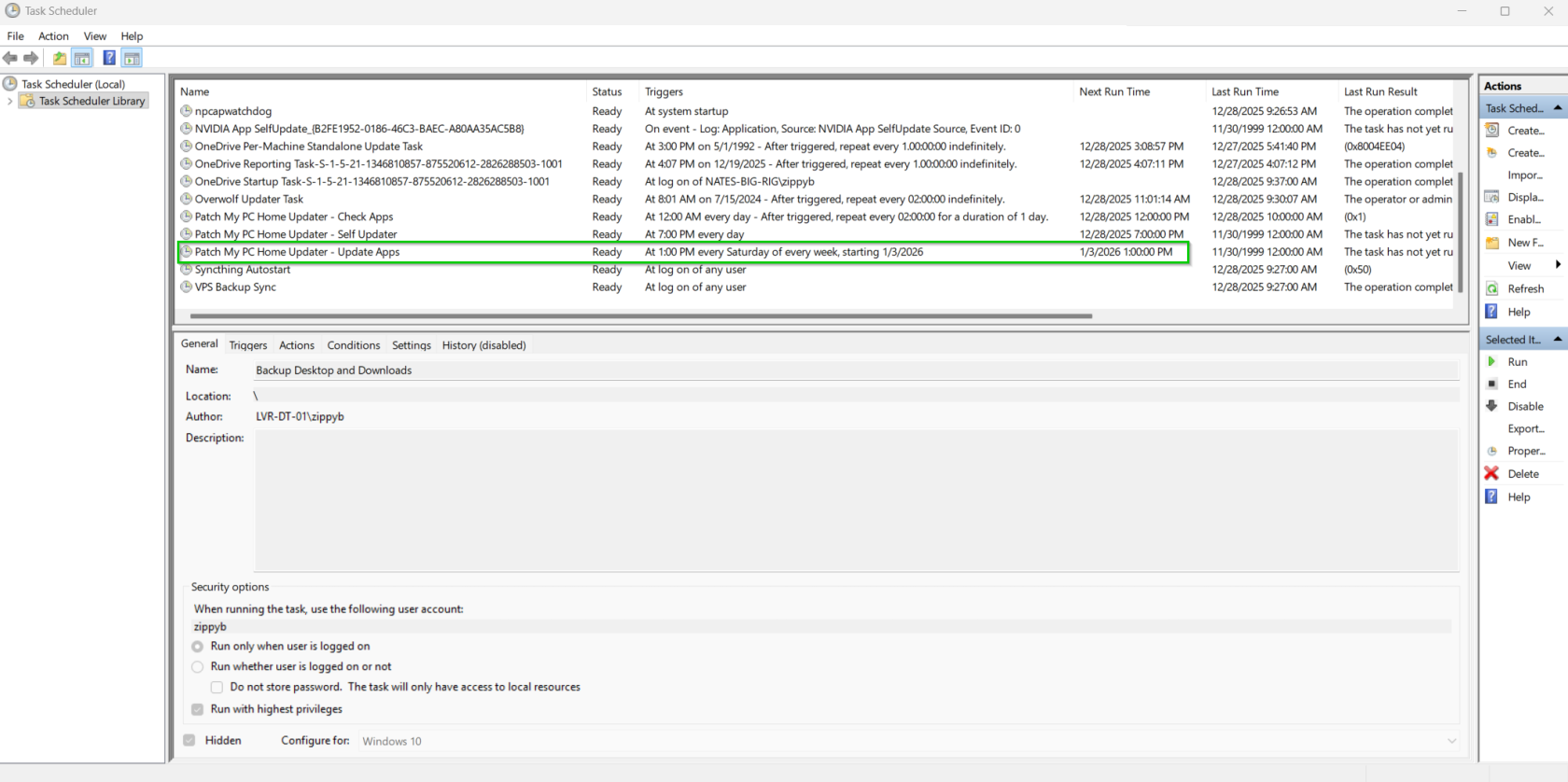
Recommended Companion: WinGet
For broader application coverage, Patch My PC Home Updater pairs effectively with WinGet (Windows Package Manager). While Patch My PC focuses on common third-party desktop applications, WinGet excels at managing developer tools, command-line utilities, and Microsoft-maintained packages.
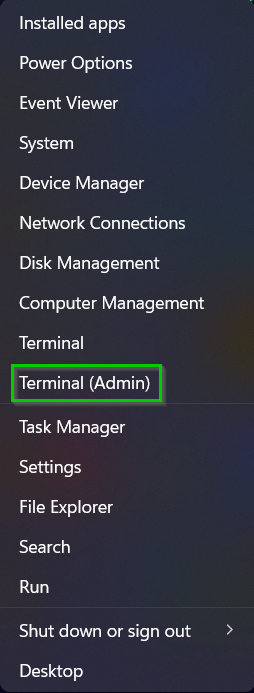
Right click start button > Run Terminal as administrator
WinGet Command
That error just means the folder C:\Logs doesn’t exist, so PowerShell can’t create winget.log inside it.
Run this once to create the folder, then rerun your WinGet command.
Create Folder
New-Item -Path "C:\Logs" -ItemType Directory -Force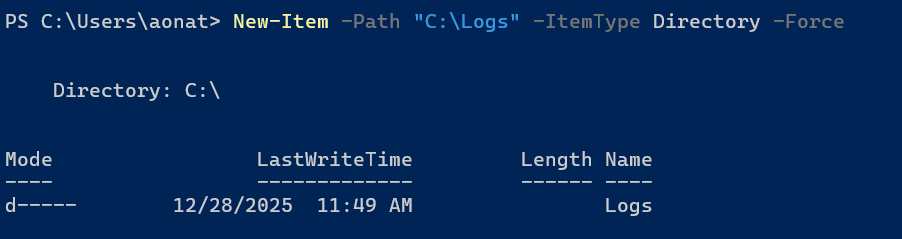
Then run this command
winget upgrade --allThis will show everything happening in the terminal window:
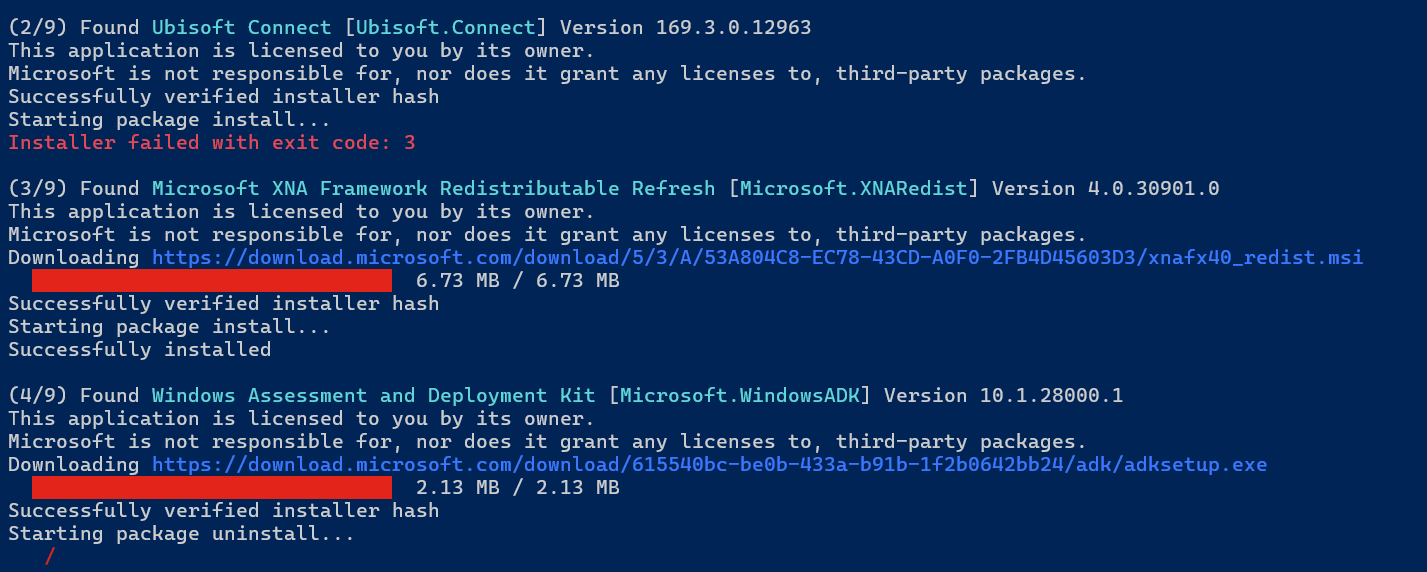
Note Ubisoft connect failed because it sux and it probably needs a game to be launched before updating
To run silently and just record to the log file we can run this:
winget upgrade --all --silent --accept-package-agreements --accept-source-agreements >> C:\Logs\winget.log 2>&1Optional (.ps1 script for better logging)
If you want the log to include timestamps and also capture errors cleanly:
Copy the code below in NPP and save as a .ps1 file
New-Item -Path "C:\Logs" -ItemType Directory -Force
"==== $(Get-Date) ====" | Out-File -FilePath "C:\Logs\winget.log" -Append -Encoding utf8
winget upgrade --all --silent --accept-package-agreements --accept-source-agreements 2>&1 | Out-File -FilePath "C:\Logs\winget.log" -Append -Encoding utf8
This command updates all supported WinGet-managed applications silently and is well-suited for automation through Task Scheduler and also provides a log file at C:\Logs\ for any errors.
Best Practice Update Coverage
A layered approach provides the most reliable results:
-
Patch My PC - Browsers, utilities, media tools, VPN clients
-
WinGet - Developer tools, CLI utilities, Microsoft-maintained packages
-
Microsoft Store - Store applications (auto-updates enabled)
These tools operate independently, do not conflict, and together provide near-complete application update coverage on Windows 11.
Security & Reliability Notes
-
Patch My PC is widely trusted in both home and enterprise environments
-
Uses vendor-provided installers with no repackaging
-
No account creation or telemetry tracking required
-
Optional system restore points provide rollback protection during updates
Final Notes
Patch My PC Home Updater significantly reduces manual maintenance while improving overall system security and reliability.
When combined with WinGet automation and Microsoft Store auto-updates, it creates a fully automated, low-maintenance application update strategy suitable for both home labs and professional Windows 11 environments.