
RouteTrack Pi — gpsd Installation & GPS Validation
Date: December 24th, 2025
Category: Raspberry Pi / GPS / Linux Services
Backlink: RouteTrack Pi — Connecting GPS Hardware
Project ContextGoal
This page documents the installation, configuration, and validation of gpsd, the GPS daemon used by the RouteTrack Pi project.
At this stage, the system has:covers:
-
AInstallingverifiedgpsdRaspberryandPiGPSOS Litetools (64-bit)GlobalinstallationPositioning Satellite Daemon Tools) -
StableConfirmingnetworkingthewithUSBautomaticGPSWi‑Fireceiverfailoveris outputting raw NMEA sentences -
ACreatingconnectedaandstabledetected/dev/gps0USBdeviceGPSsymlinkreceivervia(GlobalSatudevBU‑353N)rules -
ARunningconfirmed serial device exposed at/dev/ttyUSB*
The goal of this phase is to establish a known‑good GPS data source, validate live GPS fixes, and lock the GPS stack before any application‑level integration begins.
Once this page is complete, the GPS subsystem should not require further modification.
gpsd Overview
gpsd isreliably as a Globalstandalone Positionsystemd System Daemonservice that:
Reads raw NMEA data from GPS devices-
AbstractsValidatingdevice‑specificthatdetailsGPS data is readable throughgpspipe - I
serviceExposeshadGPStodata viause alocalstandTCPalonesocket Allows multiple applications to consume GPS data simultaneously
This project relies onbecause gpsd aswouldn't work out of the singlebox authoritativewith interface between themy GPS hardwareReciever.
allusing higher‑levela services.
InstallingInstall gpsd and+ Client Utilitiestools
It is always a good idea to update and upgrade a new system before doing anything, but I'll go ahead and show that here instead of leaving this info out:
Run:
sudo apt update
-y && sudo apt upgrade -y && sudo apt auto-remove && sudo apt clean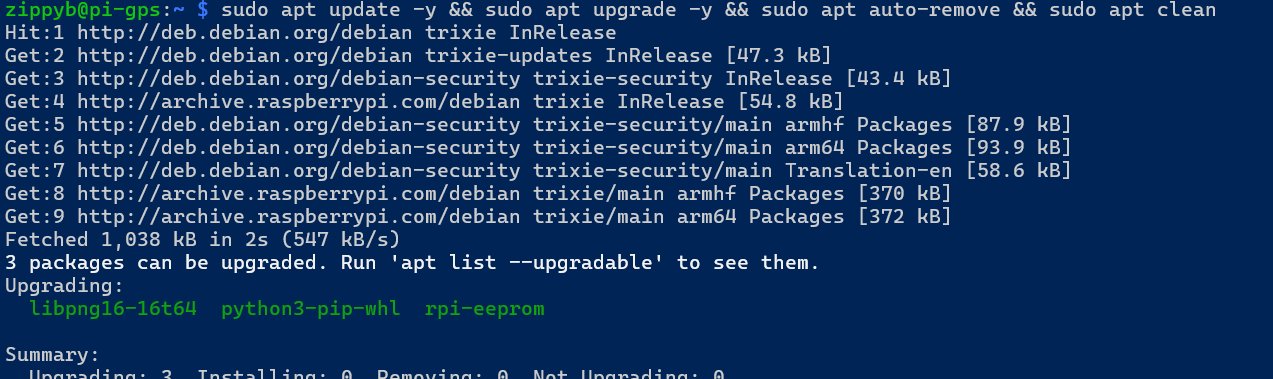
Install gpsd and supporting client tools using the system package manager:
sudo apt updatesudo apt install -y gpsd gpsd-clients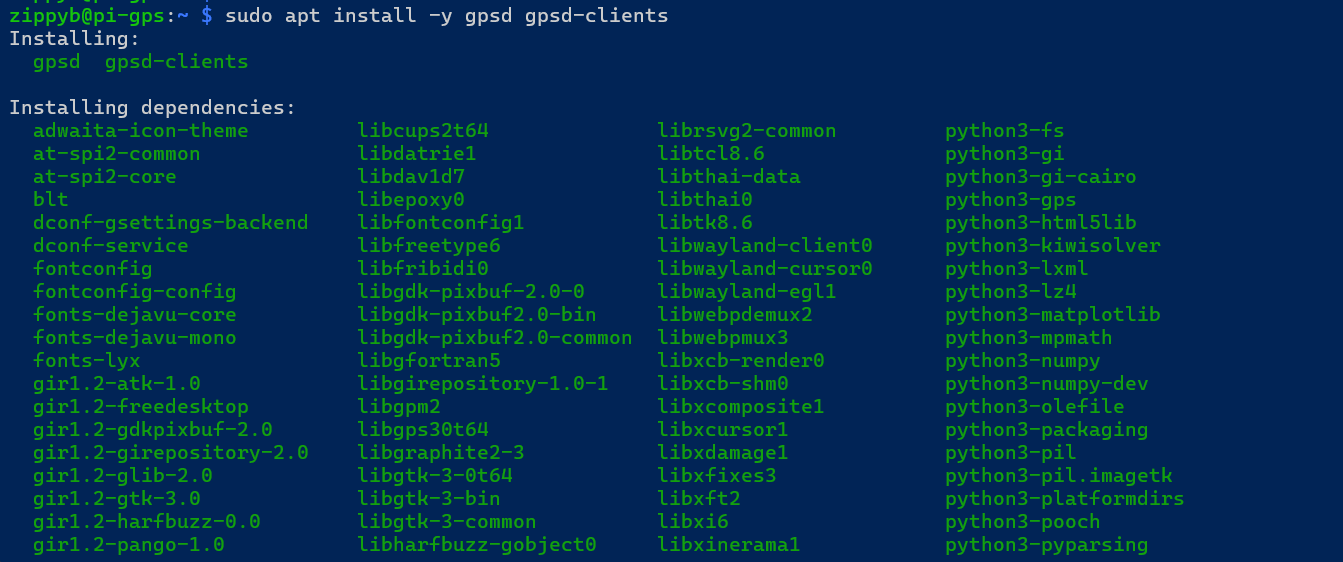
The following packages are installed:installs:
-
gpsd— GPS daemon(daemon) -
gpsd-clients— validation and debugging tools (gpspipe,cgps,etc.)(client tools)
Confirm the GPS receiver is detected
NoPlug third‑partyin repositoriesthe orUSB manualGPS buildsreceiver, arethen required.verify the device appears:
ls -l /dev/ttyUSB*example:

Linux sees the GPS receiver.
gpsdValidate Serviceraw ModelNMEA (Socketoutput Activation)from the GPS
OnBefore Raspberryinvolving Pigpsd, OS,verify gpsddesignedactually totransmitting:
sudo usingstty -F /dev/ttyUSB0 4800 cs8 -cstopb -parenb -ixon -ixoff -crtscts -echo
sudo timeout 8 cat /dev/ttyUSB0 | head -n 20
Expected output should look like:
$GPGGA,...
$GPGSA,...
$GPRMC,...
If you see NMEA sentences, the receiver is working at systemd4800 socket activationbaud.
Create a stable GPS symlink /dev/gps0 (udev rule)
KeyThe characteristics:GPS device may sometimes appear as a different tty device, so we create a stable symlink called /dev/gps0.
Create the udev rule
sudo nano /etc/udev/rules.d/10-gps-pl2303.rulesPaste:
SUBSYSTEM=="tty", ATTRS{idVendor}=="067b", ATTRS{idProduct}=="23a3", SYMLINK+="gps0"These id's come from udev's info:
-
gpsdidVendor=067bdoes not run continuously by default -
TheidProduct=23a3daemon
Reload whenudev and trigger:
sudo udevadm control --reload-rules
sudo udevadm trigger
sudo udevadm settle
Verify:
ls -l /dev/gps0Expected:

Disable gpsd.socket and build a clientstandalone connectsgpsd service
Socket activation can cause inconsistent behavior during testing, so this project uses a dedicated standalone systemd service.
Disable/mask the socket unit
sudo systemctl disable --now gpsd.socket
sudo systemctl mask gpsd.socket
Create gpsd-standalone.service
Create the service:
sudo nano /etc/systemd/system/gpsd-standalone.serviceThis is the code for setting up the new service:
[Unit]
Description=GPSD Standalone (RouteTrack)
After=network.target
Wants=network.target

[Service]
Type=simple
User=gpsd
Group=dialout
ExecStart=/usr/sbin/gpsd -N -n -b -s 4800 -S 2947 /dev/gps0
Restart=on-failure
RestartSec=2

[Install]
WantedBy=multi-user.target
Important Notes
-
-s 4800forces correct baud rate -
Resource-Susage2947isbindsminimizedgpsdwhentoGPSportdata2947is(localhost) -
We intentionally do not
activelyuseconsumed-F /run/gpsd.sockbecause it caused permission errors for thegpsduser under systemd. -
This service uses
/dev/gps0so the device name stays consistent.
ThisEnable project+ intentionally uses the default socket‑based model.
No custom service overrides are applied unless explicitly required.
Verifying gpsd Socket Status
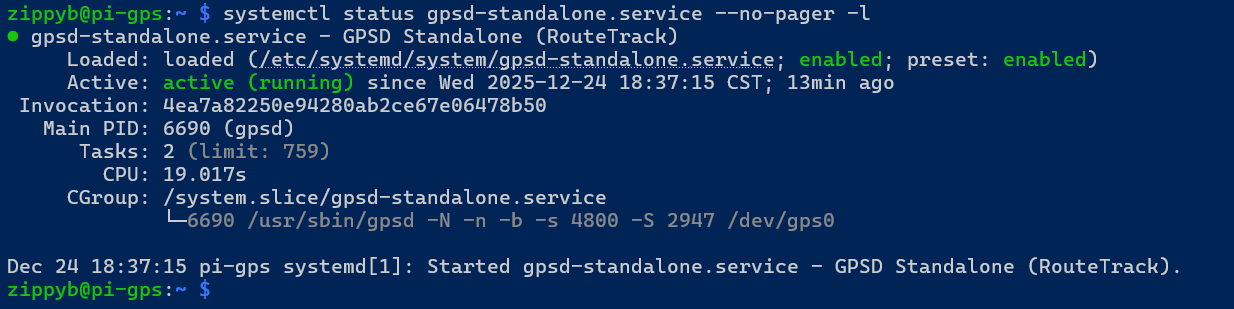
Confirm that the gpsd socket is present and enabled:start:
sudo systemctl statusdaemon-reload
gpsd.socketsudo systemctl enable --now gpsd-standalone.serviceExpectedCheck behavior:status:
systemctl status gpsd-standalone.service --no-pager -l TheNotice socket unitit is loadedenabled, active and listeningrunning the line from the ExecStart:
The service may show as inactive until accessed by a client
ValidatingConfirm GPS Data with gpspipe
The primary validation tool used in this project is gpspipe.
Run the following command:
gpspipe -w -n 10This command:
Connects to the localgpsdsocketOutputs GPS data in JSON formatAutomatically activates thegpsdservice
Expected output characteristics:
Presence ofTPVclass messagesmodevalue of3(3D fix)ValidlatandlonvaluesOptional altitude, speed, and track data
📷 Screenshot Placeholder: Capture gpspipe -w output showing TPV messages with a valid fix.
Additional Validation Commands
The following commands may be used to further validate GPS operation:
gpspipe -r
Displays raw NMEA sentences directly from the GPS receiver.
cgps
Provides a curses‑based real‑time GPS status display.
📷 Screenshot Placeholder: Capture cgps output showing satellite lock and position data.
Network Socket Verification
While gpsd is active, verify that it is listening on theport expected2947
local ports:
Run:
ss -ltnp | grep 2947
ExpectedIt results:is listening on ipv4 and ipv6 ports:

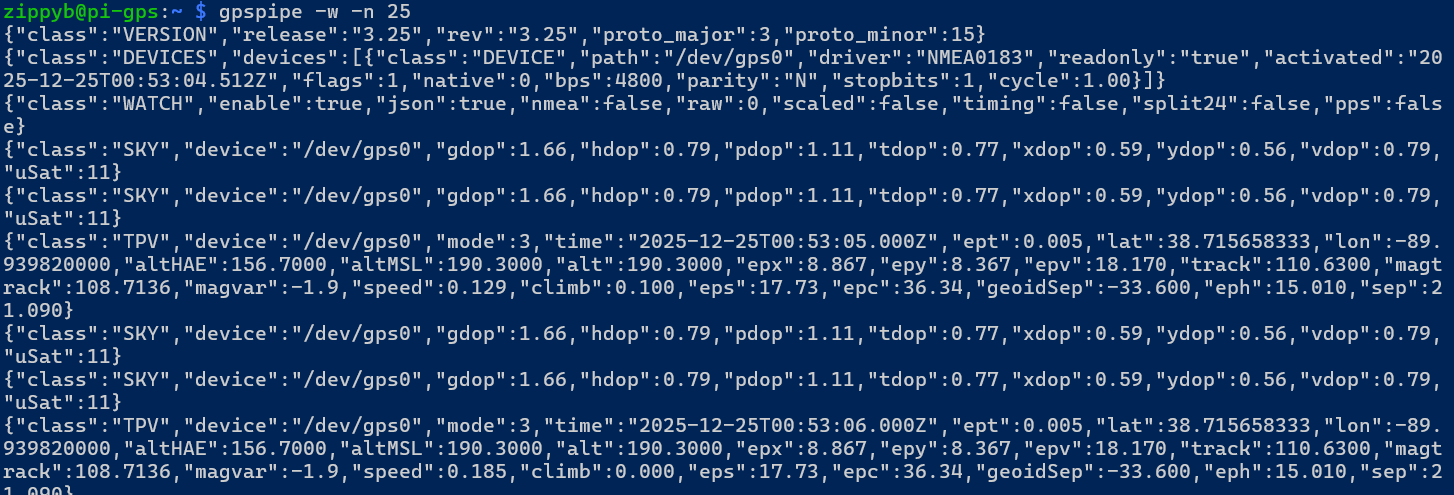
Validate GPS data through gpsd (JSON output)
Run:
gpspipe -w -n 25✅ Expected:
-
Listener on127.0.0.1:2947TPV Optional IPv6 listener on[::1]:2947
This confirms that gpsd is accessible to local applications.
📷 Screenshot Placeholder: Capture socket listening output.
Known‑Good GPS State
At this point, the GPS subsystem is considered locked and validated when all of the following are true:
GPS hardware is detected as/dev/ttyUSB*gpsd.socketis enabled and functionalgpspipeproduces TPVmessages-
ASKYstable 3D fix (mode: 3) is achievedmessages -
Latitudemode:when a fix is establishedand3 -
latitude/longitude values
update in real timeupdating
OnceExample thisindicators stateshowing is reached, no further changes to thesome GPS stackcoordinates:
Common
Pitfalls (Avoided)
The following configuration mistakes were intentionally avoided:
Manually forcinggpsdto bind to a deviceDisabling socket activationRunning multiple GPS daemonsUsing virtual environments that break Python GPS bindingsHard‑coding serial device paths
Sticking to the default system configuration ensures long‑term stability.
Current Status
At the conclusion of this phase:
gpsdis installed and functioning correctlyLive GPS data has been validatedSocket activation behavior is confirmedThe GPS data source is stable and reliable
The system is now ready for application‑level GPS consumption.
Next Steps
The next phase of the project will cover:
Building a lightweight GPS data access layerExposing GPS data to applicationsPreparing data structures for logging and visualization
No further GPS daemon configuration will be required.