
RouteTrack Pi — gpsd Installation & GPS Validation
Date: December 24th, 2025
Category: Raspberry Pi / GPS / Linux Services
Backlink: RouteTrack Pi — Connecting GPS Hardware
Project Context
This page documents the installation, configuration, and validation of gpsd, the GPS daemon used by the RouteTrack Pi project.
At this stage, the system has:
-
A verified Raspberry Pi OS Lite (64-bit) installation
-
Stable networking with automatic Wi‑Fi failover
-
A connected and detected USB GPS receiver (GlobalSat BU‑353N)
-
A confirmed serial device exposed at
/dev/ttyUSB*
The goal of this phase is to establish a known‑good GPS data source, validate live GPS fixes, and lock the GPS stack before any application‑level integration begins.
Once this page is complete, the GPS subsystem should not require further modification.
gpsd Overview
gpsd is a Global Position System Daemon that:
-
Reads raw NMEA data from GPS devices
-
Abstracts device‑specific details
-
Exposes GPS data via a local TCP socket
-
Allows multiple applications to consume GPS data simultaneously
This project relies on gpsd as the single authoritative interface between the GPS hardware and all higher‑level services.
Installing gpsd and Client Utilities
It is always a good idea to update and upgrade a new system before doing anything, but I'll go ahead and show that here instead of leaving this info out:
sudo apt update -y && sudo apt upgrade -y && sudo apt auto-remove && sudo apt clean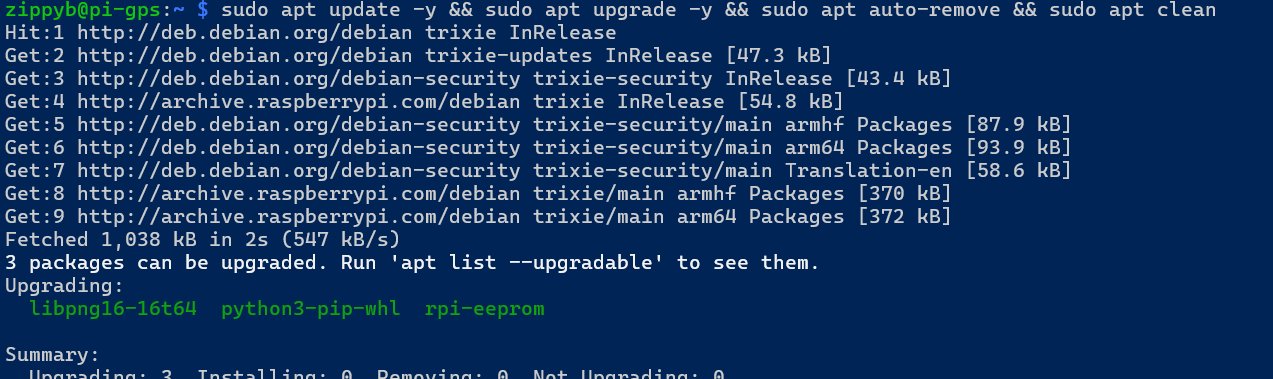
Install gpsd and supporting client tools using the system package manager:
sudo apt updatesudo apt install -y gpsd gpsd-clients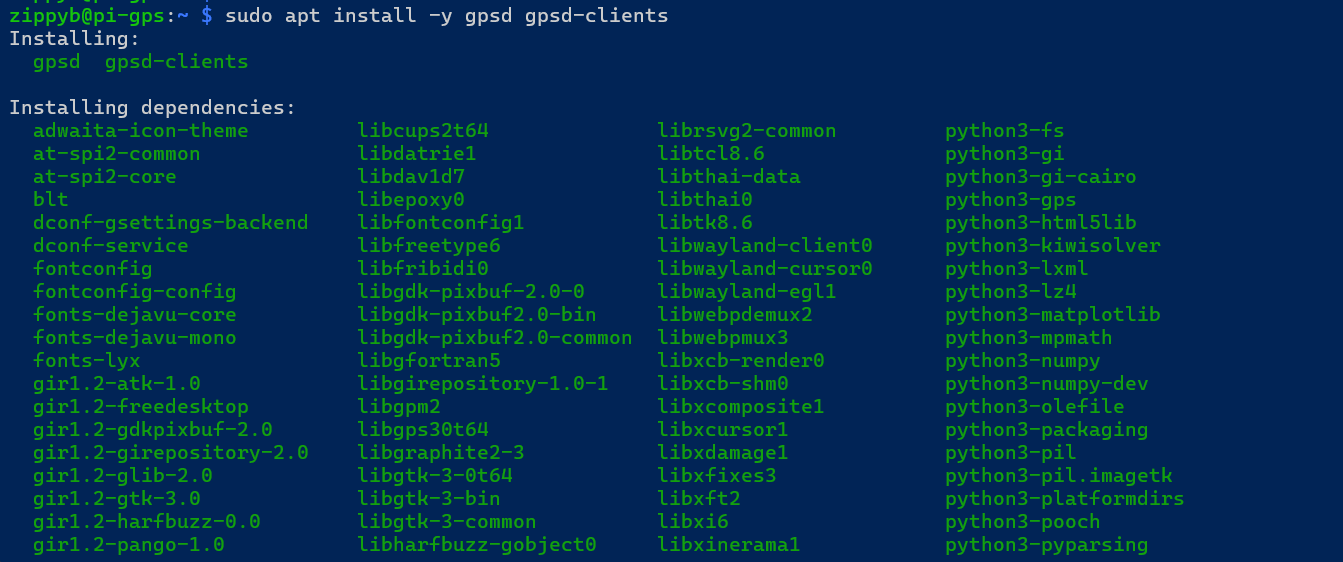
The following packages are installed:
-
gpsd— GPS daemon -
gpsd-clients— validation and debugging tools (gpspipe,cgps, etc.)
No third‑party repositories or manual builds are required.
gpsd Service Model (Socket Activation)
On Raspberry Pi OS, gpsd is designed to run using systemd socket activation.
Key characteristics:
-
gpsddoes not run continuously by default -
The daemon starts automatically when a client connects
-
Resource usage is minimized when GPS data is not actively consumed
This project intentionally uses the default socket‑based model.
No custom service overrides are applied unless explicitly required.
Verifying gpsd Socket Status
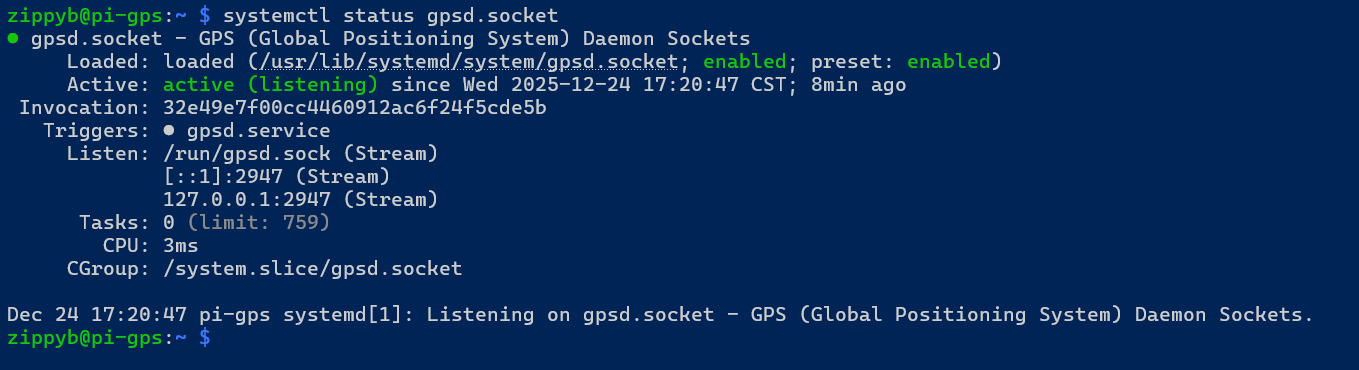
Confirm that the gpsd socket is present and enabled:
sudo systemctl status gpsd.socketExpected behavior:
-
The socket unit is loaded and listening
-
The service may show as inactive until accessed by a client
Validating GPS Data with gpspipe
The primary validation tool used in this project is gpspipe.
Run the following command:
gpspipe -w -n 10This command:
-
Connects to the local
gpsdsocket -
Outputs GPS data in JSON format
-
Automatically activates the
gpsdservice
Expected output characteristics:
-
Presence of
TPVclass messages -
modevalue of3(3D fix) -
Valid
latandlonvalues -
Optional altitude, speed, and track data
📷 Screenshot Placeholder: Capture gpspipe -w output showing TPV messages with a valid fix.
Additional Validation Commands
The following commands may be used to further validate GPS operation:
gpspipe -r
Displays raw NMEA sentences directly from the GPS receiver.
cgps
Provides a curses‑based real‑time GPS status display.
📷 Screenshot Placeholder: Capture cgps output showing satellite lock and position data.
Network Socket Verification
While gpsd is active, verify that it is listening on the expected local ports:
ss -ltnp | grep 2947
Expected results:
-
Listener on
127.0.0.1:2947 -
Optional IPv6 listener on
[::1]:2947
This confirms that gpsd is accessible to local applications.
📷 Screenshot Placeholder: Capture socket listening output.
Known‑Good GPS State
At this point, the GPS subsystem is considered locked and validated when all of the following are true:
-
GPS hardware is detected as
/dev/ttyUSB* -
gpsd.socketis enabled and functional -
gpspipeproduces TPV messages -
A stable 3D fix (
mode: 3) is achieved -
Latitude and longitude values update in real time
Once this state is reached, no further changes to the GPS stack are required.
Common Pitfalls (Avoided)
The following configuration mistakes were intentionally avoided:
-
Manually forcing
gpsdto bind to a device -
Disabling socket activation
-
Running multiple GPS daemons
-
Using virtual environments that break Python GPS bindings
-
Hard‑coding serial device paths
Sticking to the default system configuration ensures long‑term stability.
Current Status
At the conclusion of this phase:
-
gpsdis installed and functioning correctly -
Live GPS data has been validated
-
Socket activation behavior is confirmed
-
The GPS data source is stable and reliable
The system is now ready for application‑level GPS consumption.
Next Steps
The next phase of the project will cover:
-
Building a lightweight GPS data access layer
-
Exposing GPS data to applications
-
Preparing data structures for logging and visualization
No further GPS daemon configuration will be required.