
RouteTrack Pi — Connecting GPS Hardware
Date: December 24th, 2025
Category: Raspberry Pi / GPS / Hardware
Backlink: RouteTrack Pi – Initial Setup & Networking
Project Context
This page documents the physical GPS hardware selection and connection phase of the RouteTrack Pi project.
At this stage, the Raspberry Pi has:
-
A verified Raspberry Pi OS Lite (64-bit) installation
-
Stable headless SSH access
-
Multiple Wi‑Fi networks configured with automatic failover
-
Reliable cooling and power
The goal of this phase is to introduce the GPS hardware only, verify that it is detected correctly by the operating system, and prepare the system for GPS daemon (gpsd) integration in the next phase.
No GPS services are configured on this page.
GPS Hardware Used
Device: GlobalSat BU‑353N USB GPS Receiver
The GlobalSat BU‑353N was selected due to its long-standing Linux compatibility, high sensitivity, and suitability for vehicle-based deployments.
Key characteristics:
-
USB-powered (no external power required)
-
High-sensitivity GPS receiver
-
NMEA 0183 output
-
Built‑in magnetic mount for vehicle use
-
Water‑resistant housing (IPX6)
-
Wide operating temperature range
-
Native compatibility with Linux, macOS, Windows, and Android
This model is commonly used with gpsd and does not require proprietary drivers.
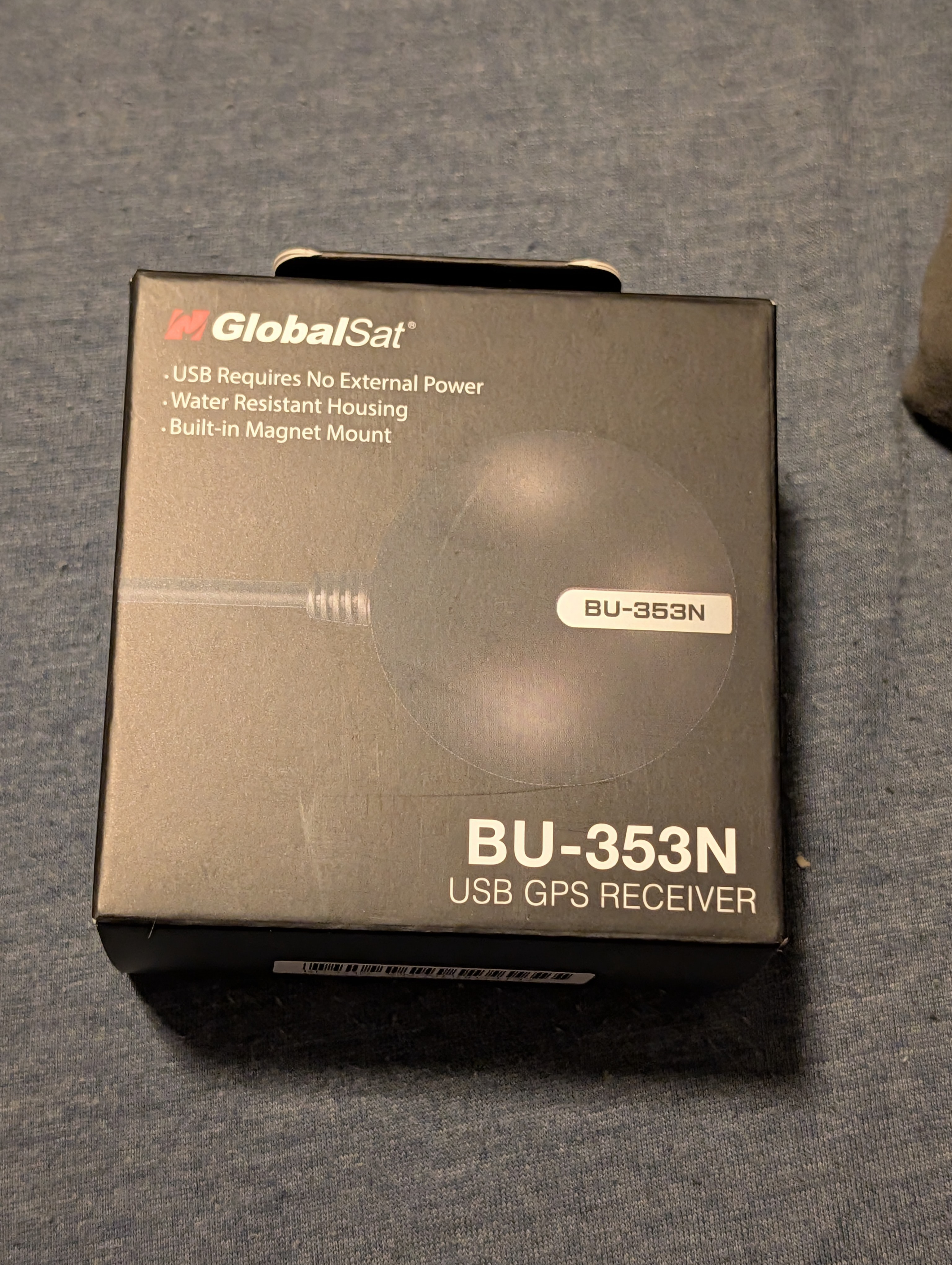
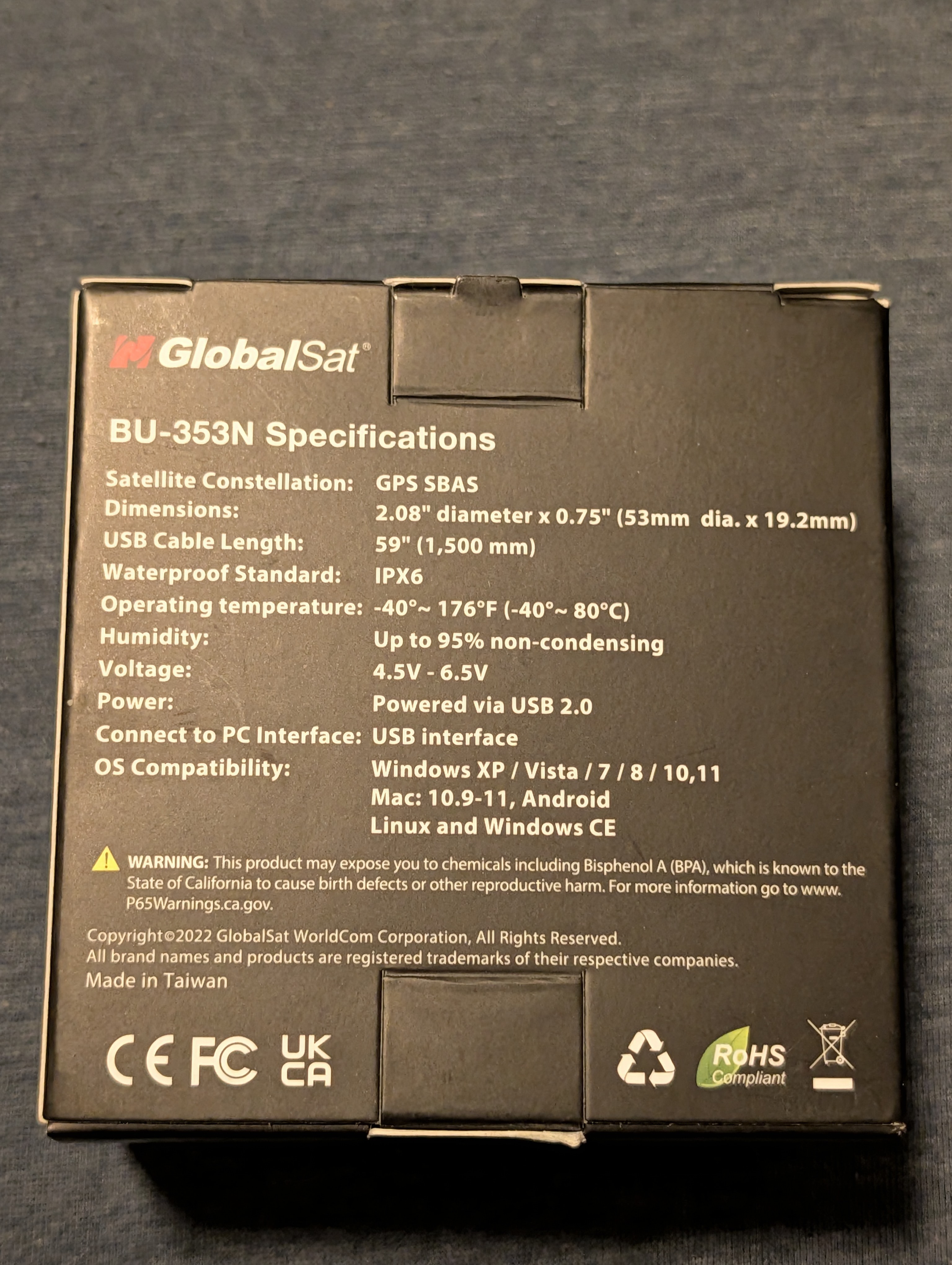
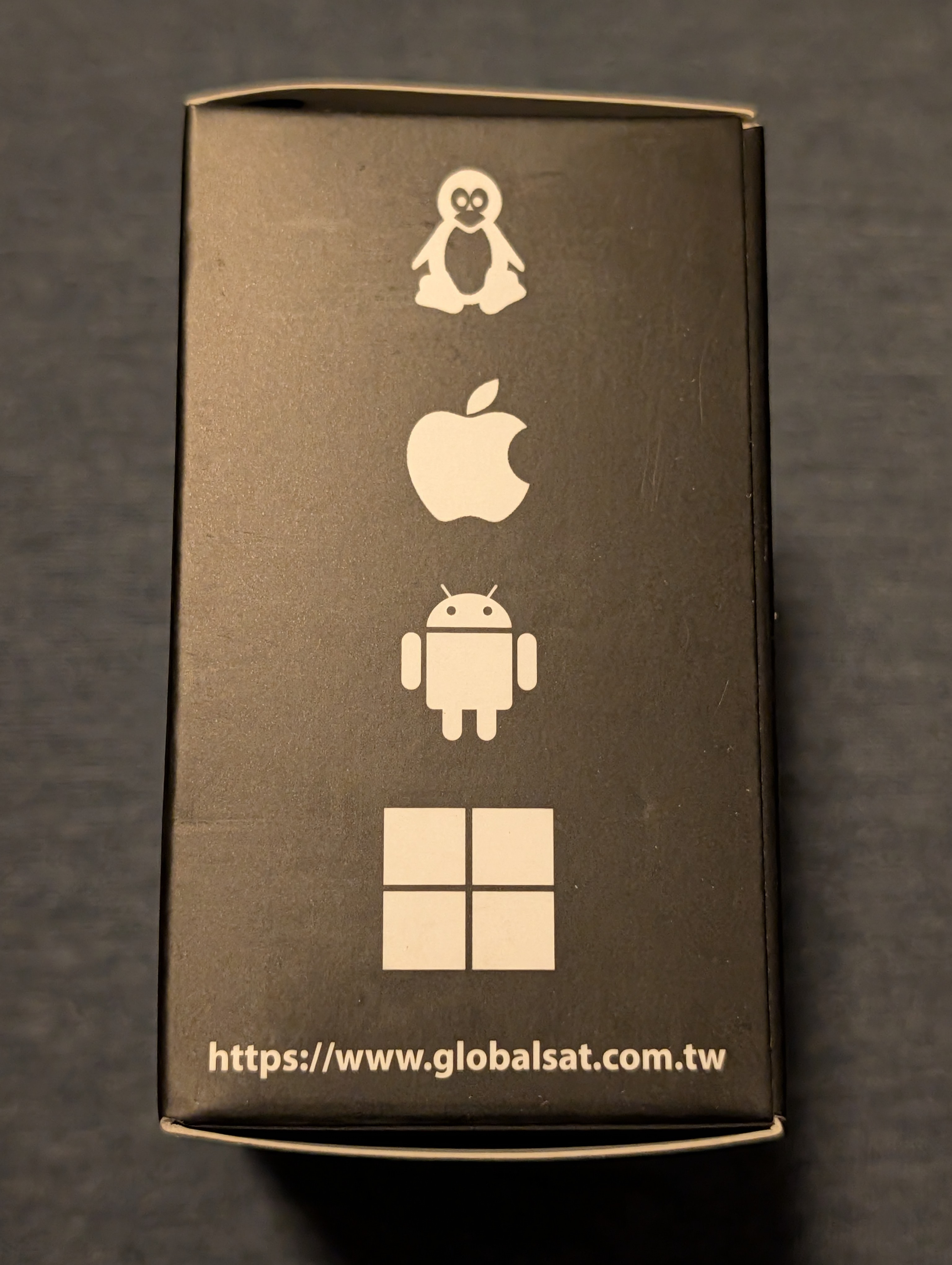
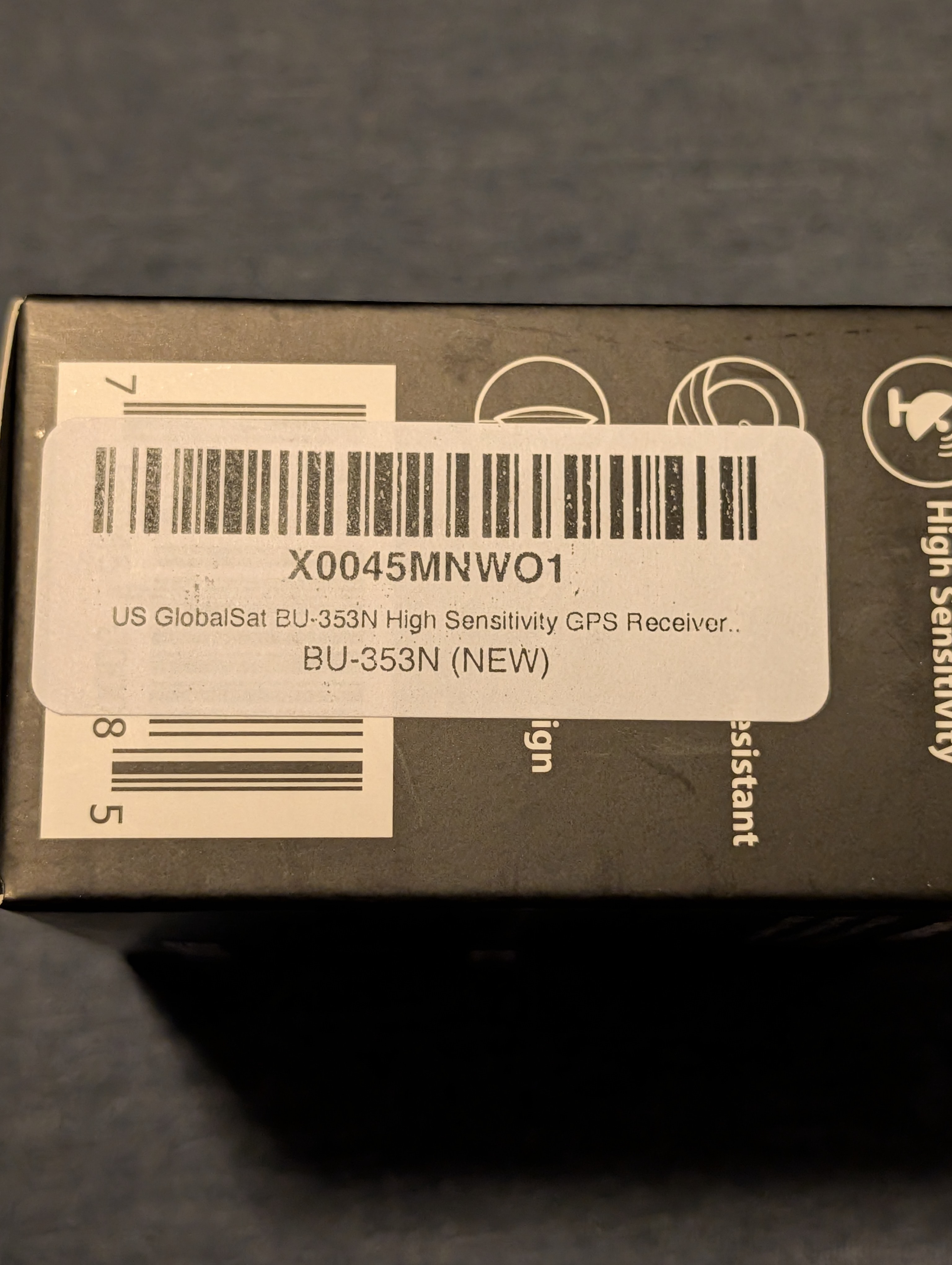
GPS Hardware Photos
The following photos document the exact GPS hardware used for this project.
Photos included:
-
Retail packaging (front)
-
Retail packaging (specifications)
-
OS compatibility indicators
-
Model and part number label
|
|
|
|
|
|
Physical Connection
The GPS receiver was connected directly to the Raspberry Pi using a standard USB port.
Connection notes:
-
No drivers were installed manually
-
The device powered on immediately upon connection
-
No GPIO wiring or configuration was required
-
The receiver will ultimately be mounted in a vehicle using the integrated magnetic base
At this point, the GPS device is physically present but not yet consumed by any software services.
USB Device Detection
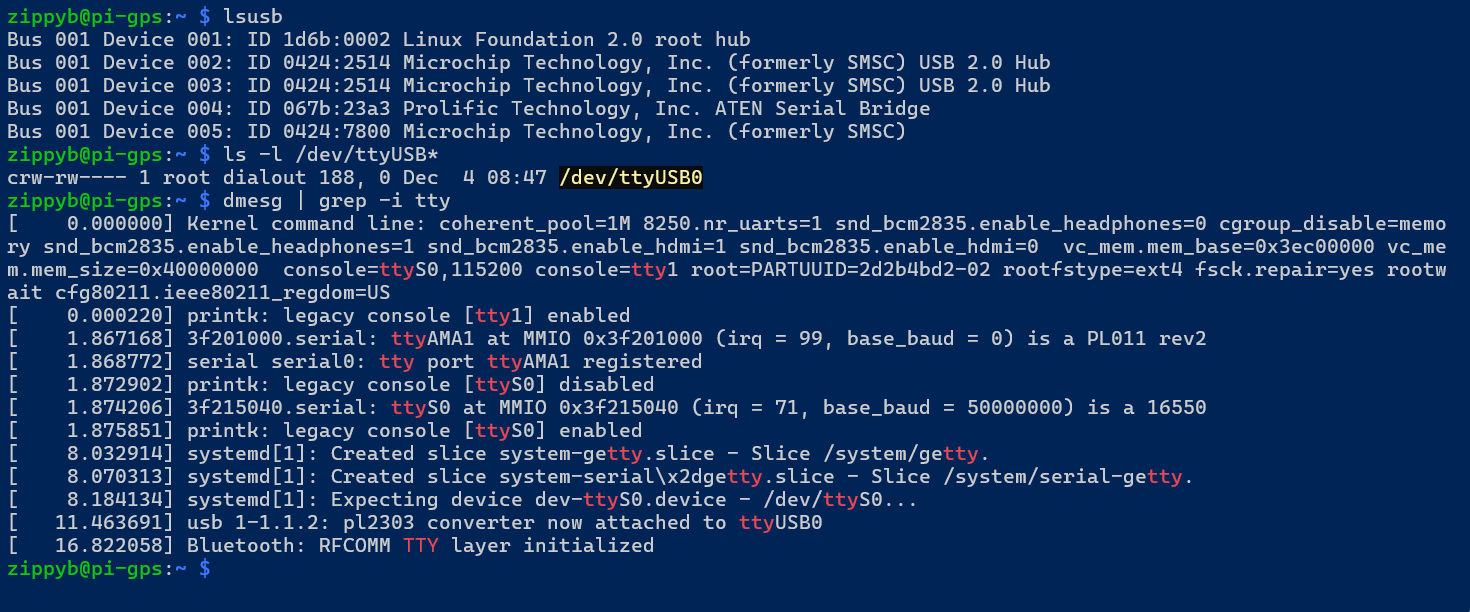
After connecting the GPS receiver, the system was checked to ensure that the USB device was detected correctly by the Linux kernel.
The following commands are used to validate USB detection:
lsusbls -l /dev/ttyUSB*dmesg | grep -i ttyExpected results:
-
The GlobalSat device appears in
lsusb -
A serial device (typically
/dev/ttyUSB0) is created -
Kernel messages indicate a USB‑to‑serial adapter attachment
Here is the results of those commands:
GPS Data Flow Overview
Before configuring any services, it is important to understand the intended data flow:
USB GPS Receiver
      ↓
Linux USB‑Serial Driver
      ↓
/dev/ttyUSB*
      ↓
gpsd
      ↓
Applications / Logging / Web UI
This project uses gpsd as the central interface between raw GPS data and higher‑level applications.
Configuration and validation of gpsd will be covered in the next phase.
Current Status
At the conclusion of this phase:
-
GPS hardware has been physically connected
-
USB device detection has been verified
-
No drivers or custom configuration were required
-
No GPS services have been enabled yet
The system is now ready for GPS daemon installation and validation.
Next Steps
The next phase of the project will cover:
-
Installing
gpsdand GPS client utilities -
Verifying socket activation
-
Confirming live GPS fixes using
gpspipe -
Validating TPV and satellite data
This will establish a known‑good GPS data source before any application‑level integration begins.
Revision #1
Created December 24th, 2025
Author: Nate Nash