
RouteTrack Pi – Initial Setup & Networking
Date: December 21st, 2025
Category: Raspberry Pi / Linux / Networking
Backlink: RouteTrack Pi Overview
🧠 Project Overview
This page documents the initial setup and networking foundation for a Raspberry Pi–based GPS logging and mapping project designed for in-vehicle use.
The long-term goal of this project is to build a reliable, headless system capable of:
-
GPS route logging
-
Automatic stop detection
-
Time-on-site tracking
-
Mileage calculation
-
Syncing data to a VPS for web-based visualization
This entry focuses on hardware bring-up, OS selection, headless access, and resilient Wi-Fi configuration.
📦 Hardware Used (Initial Phase)
-
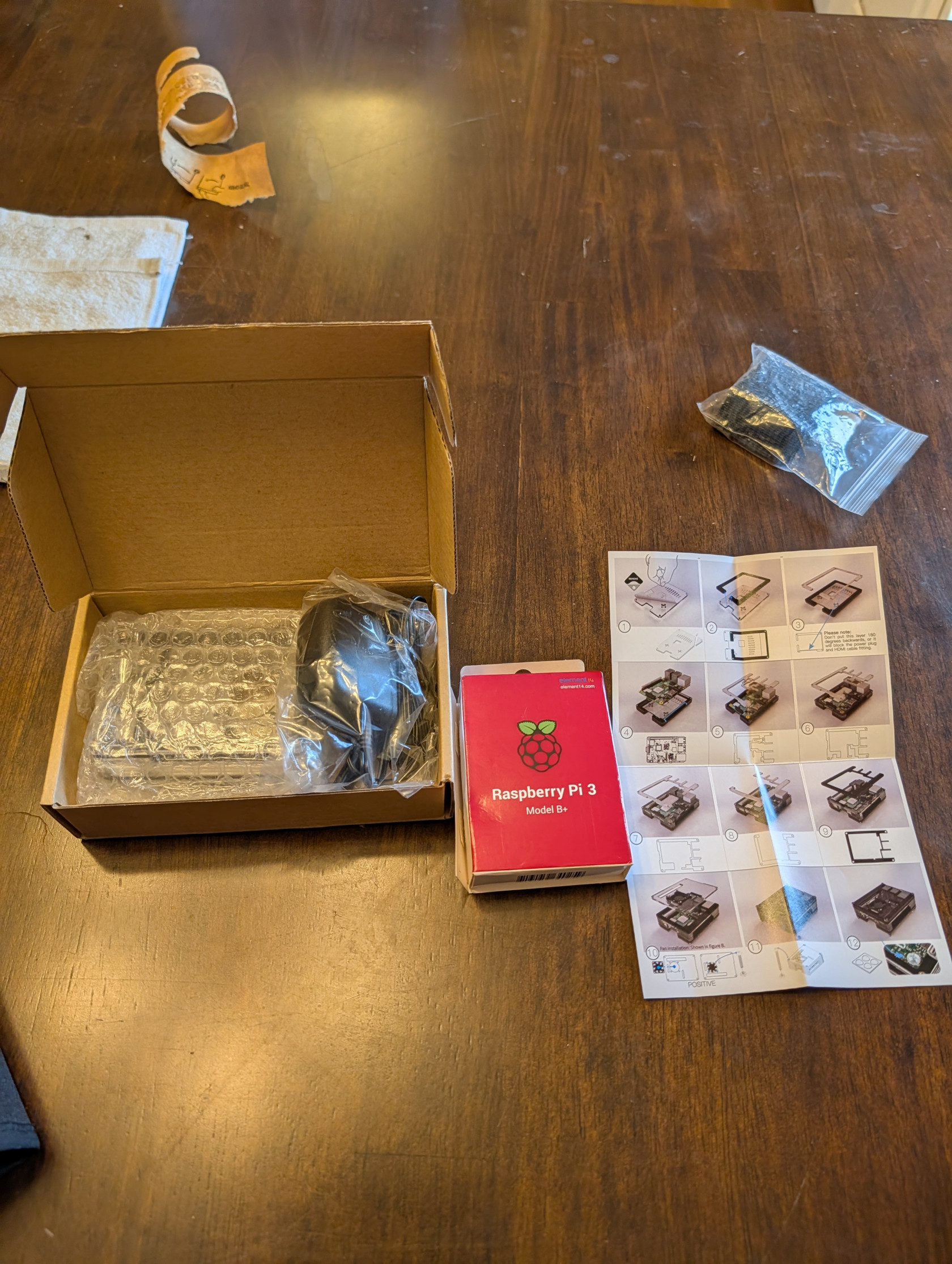
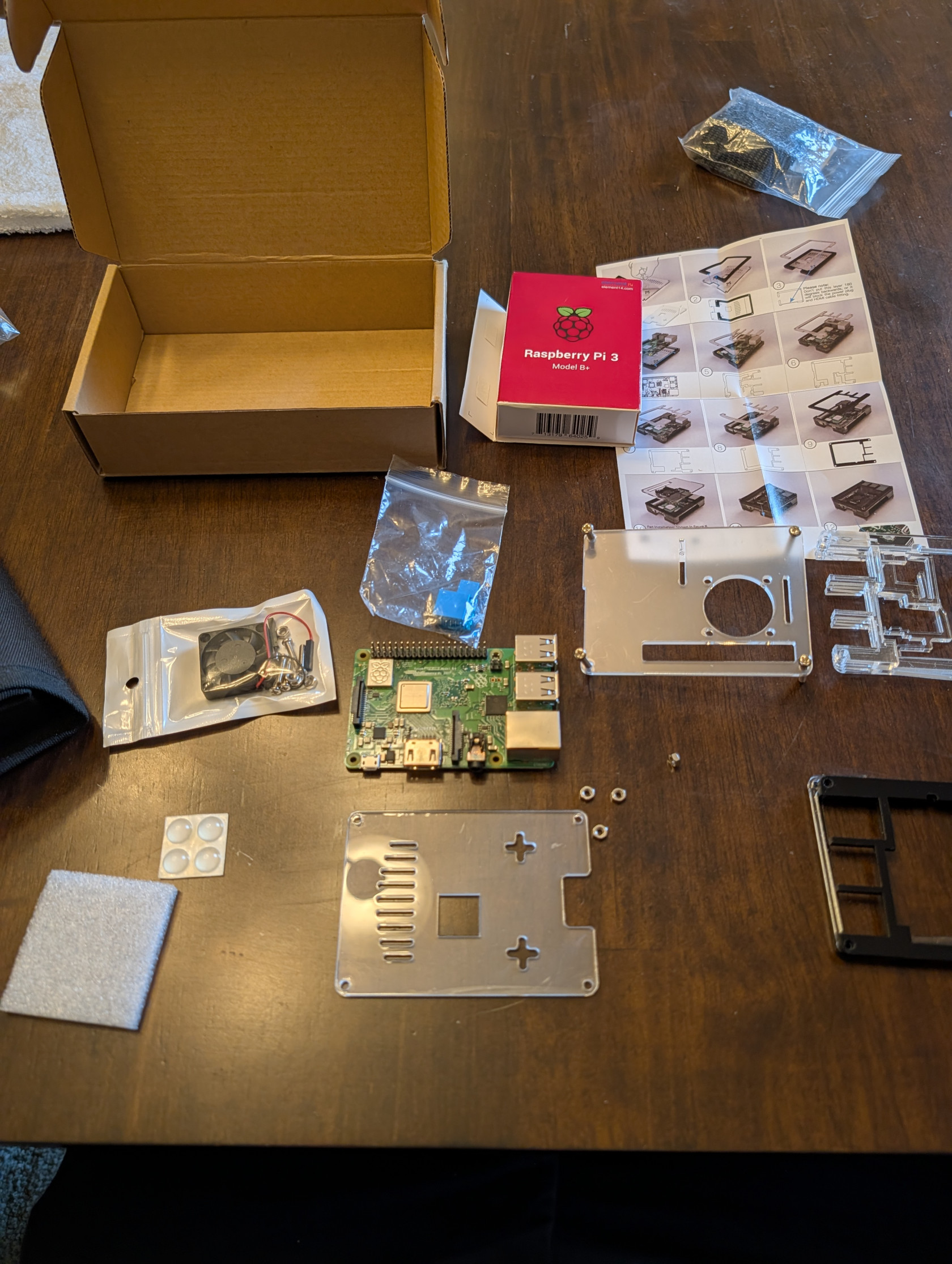
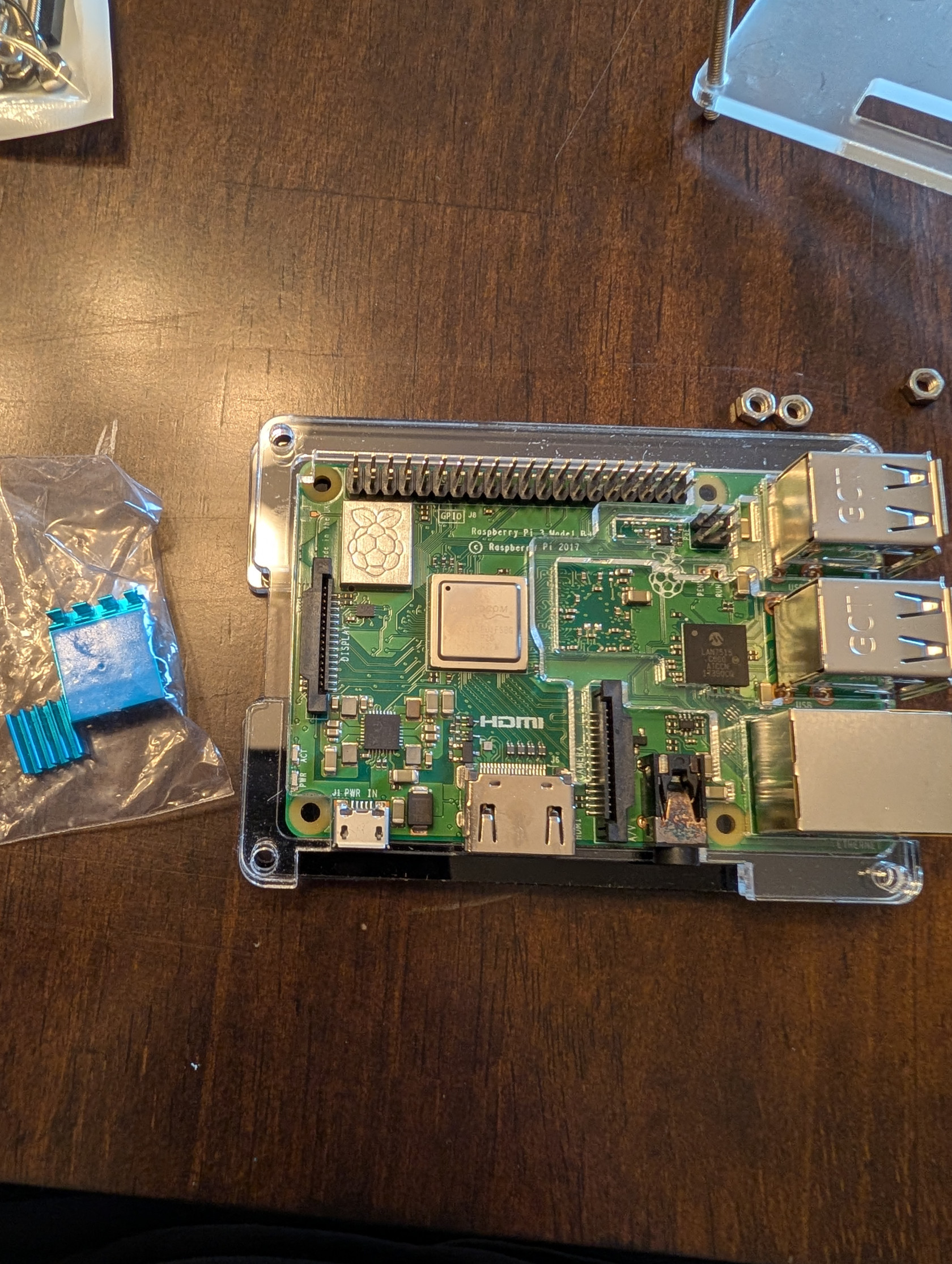
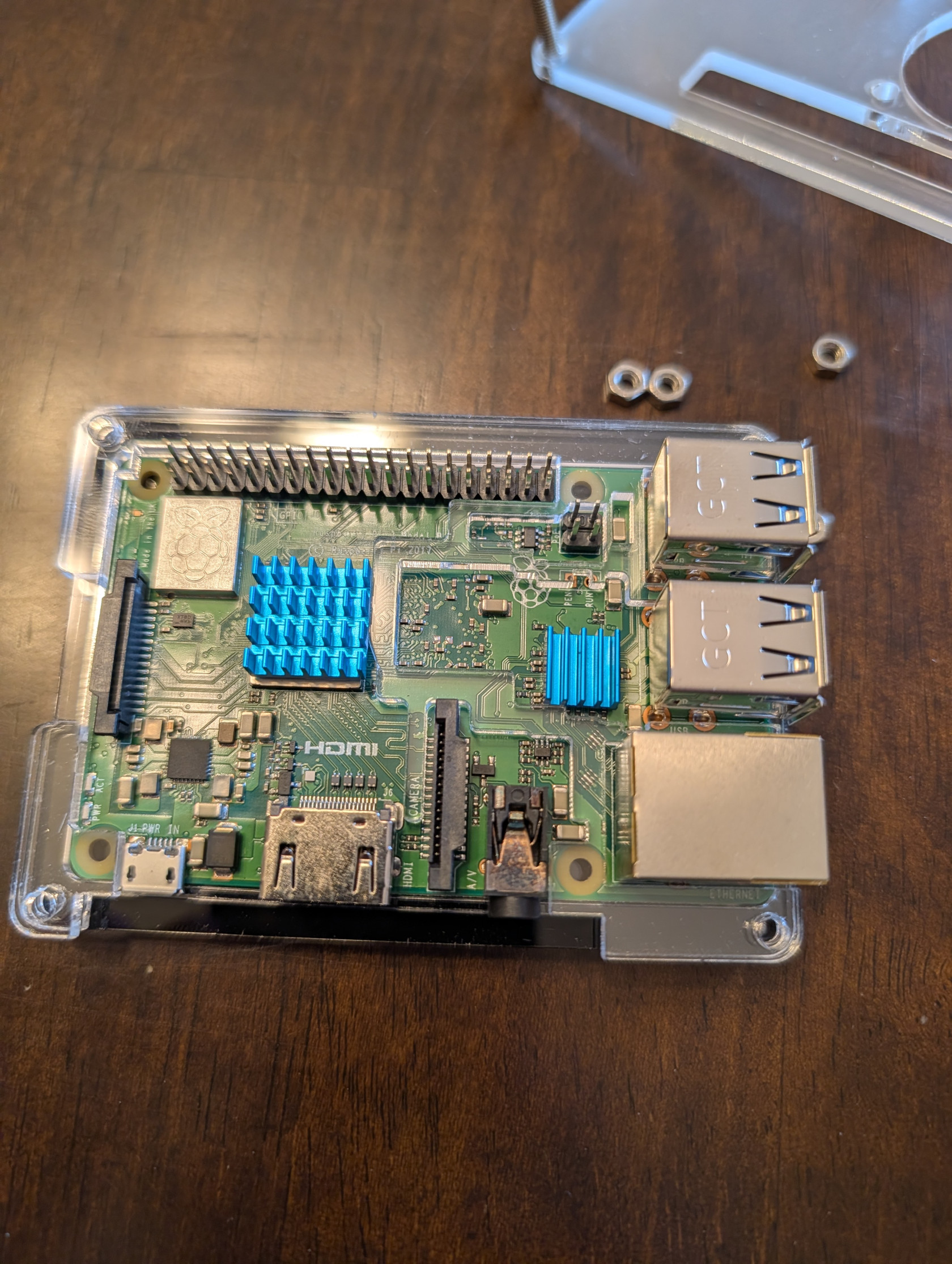
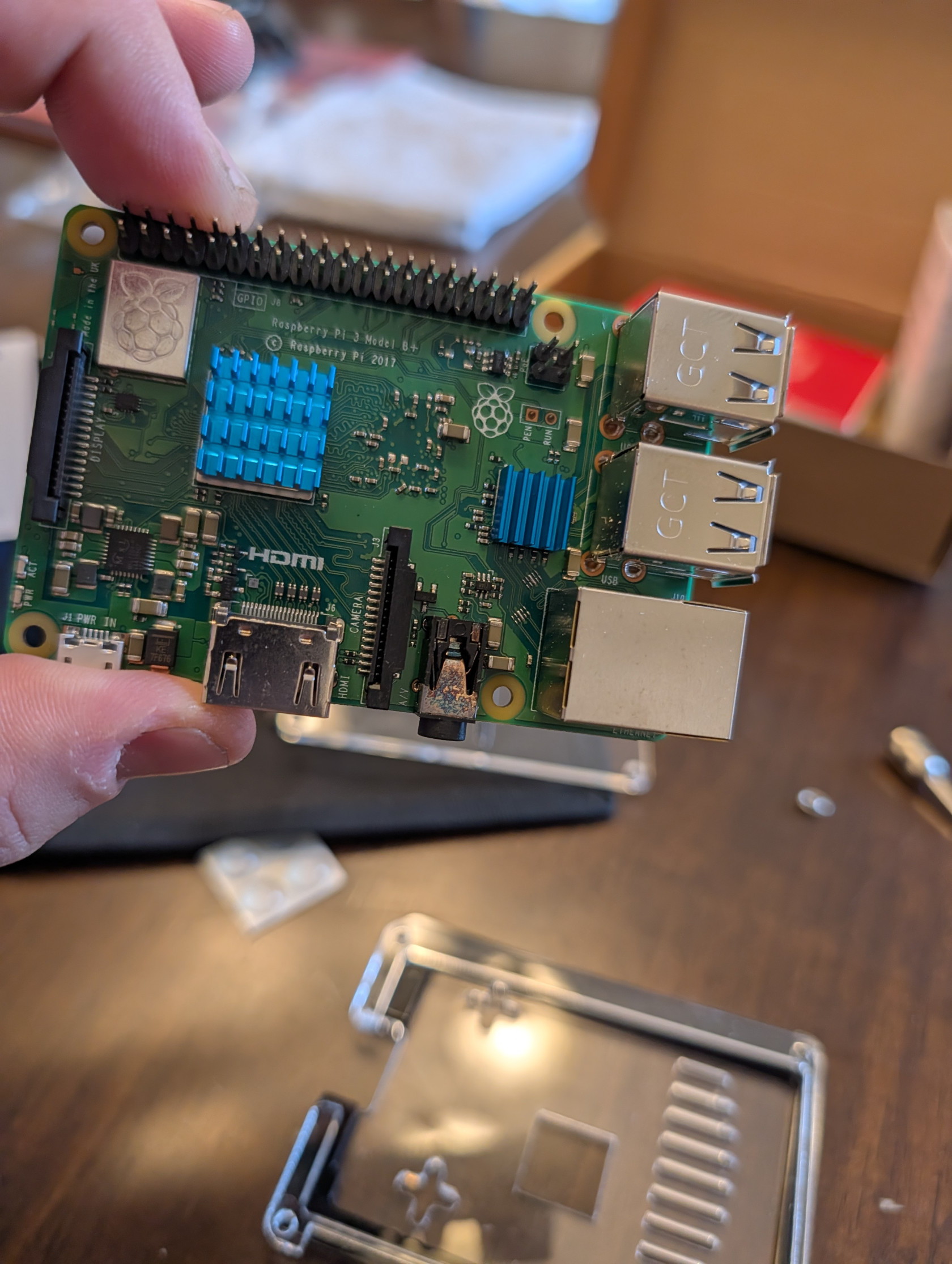
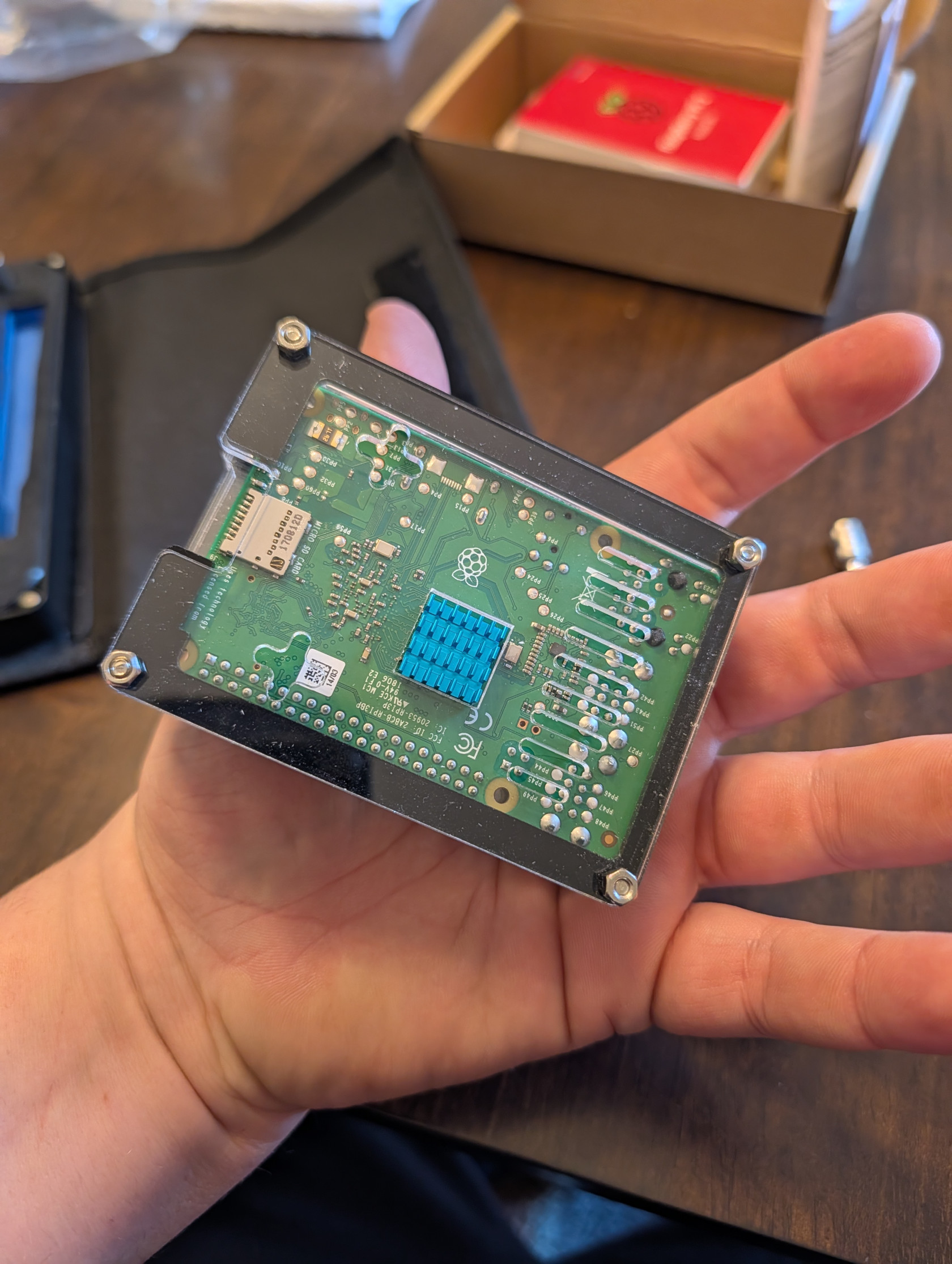
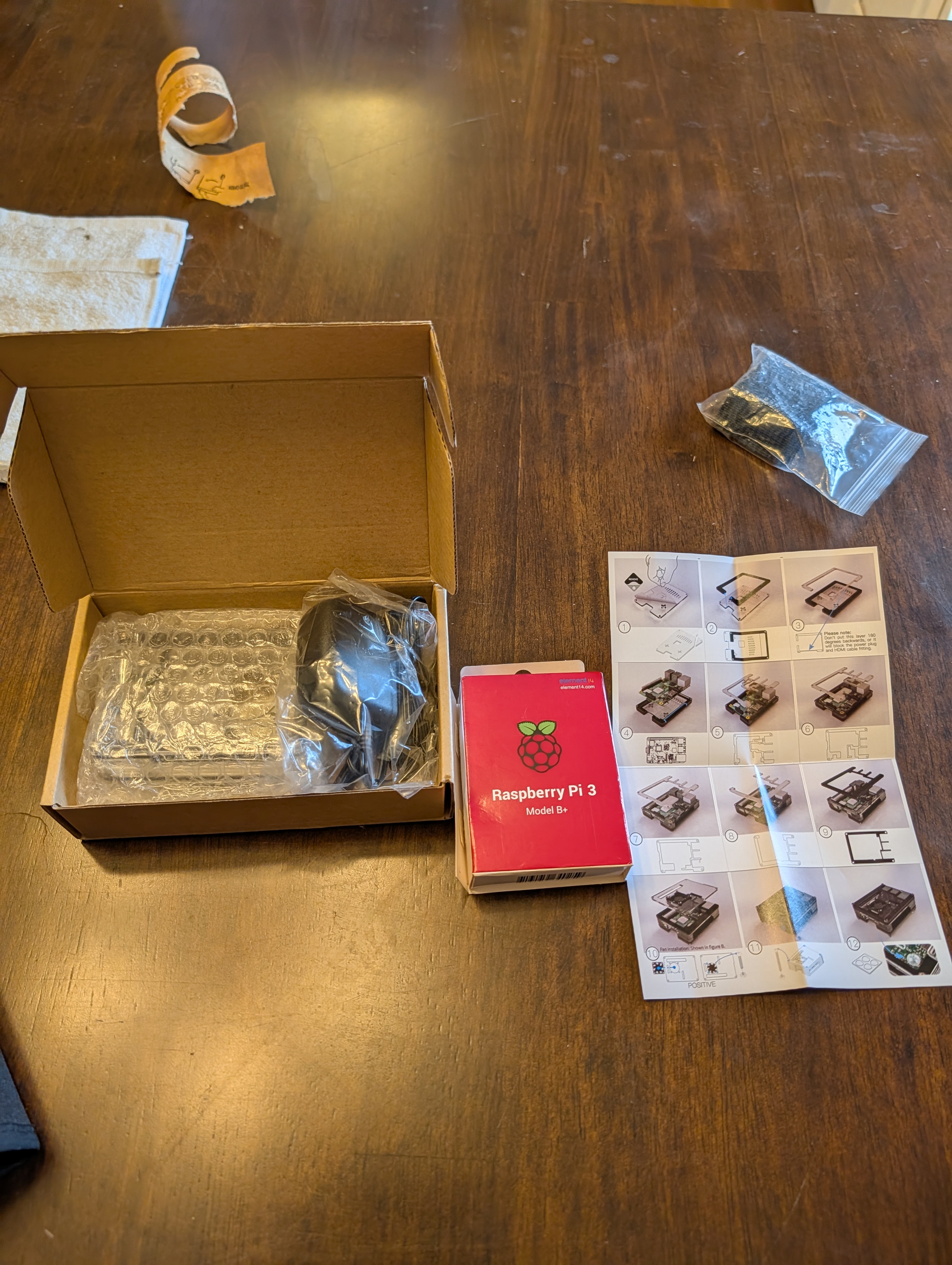
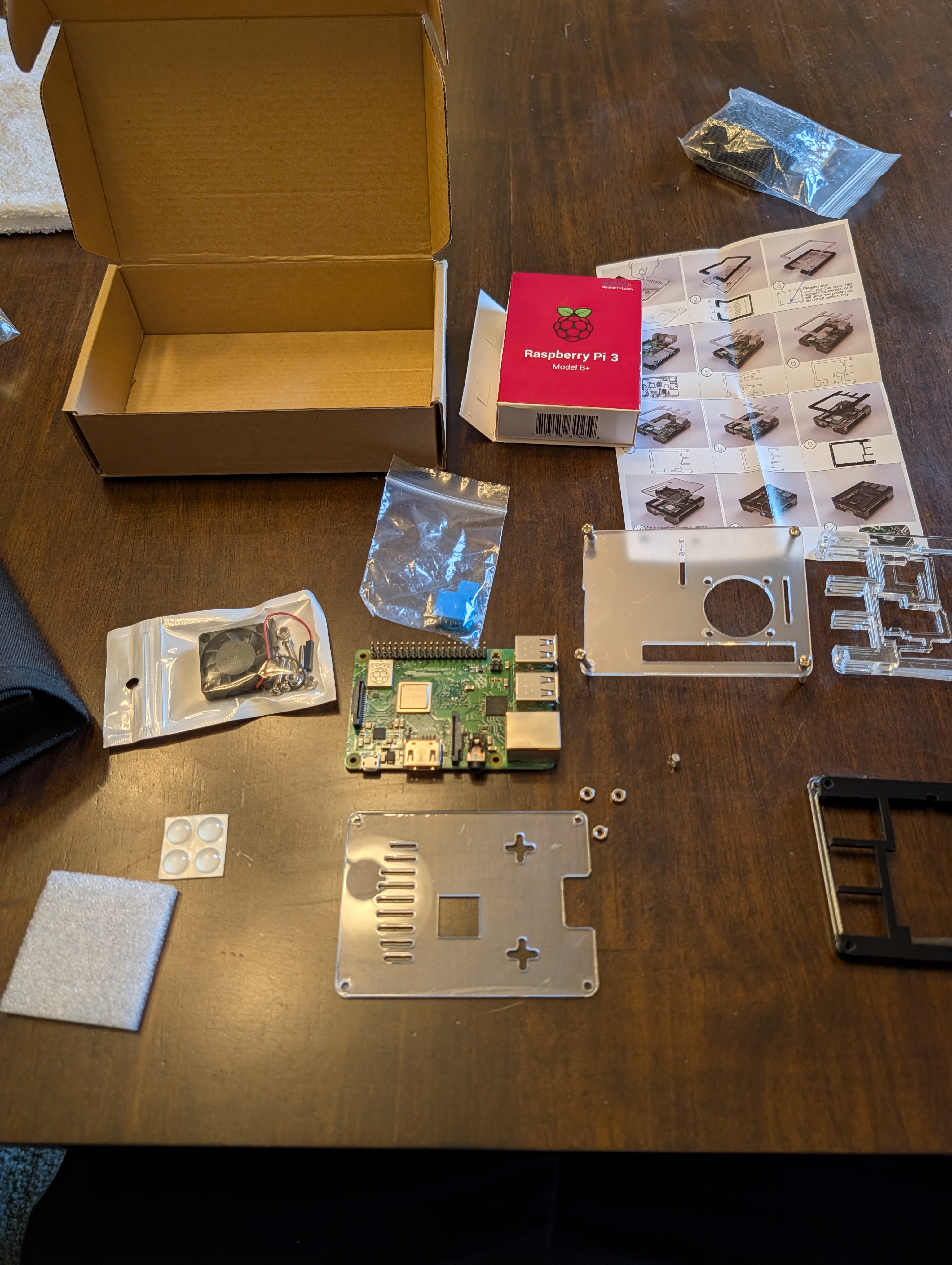
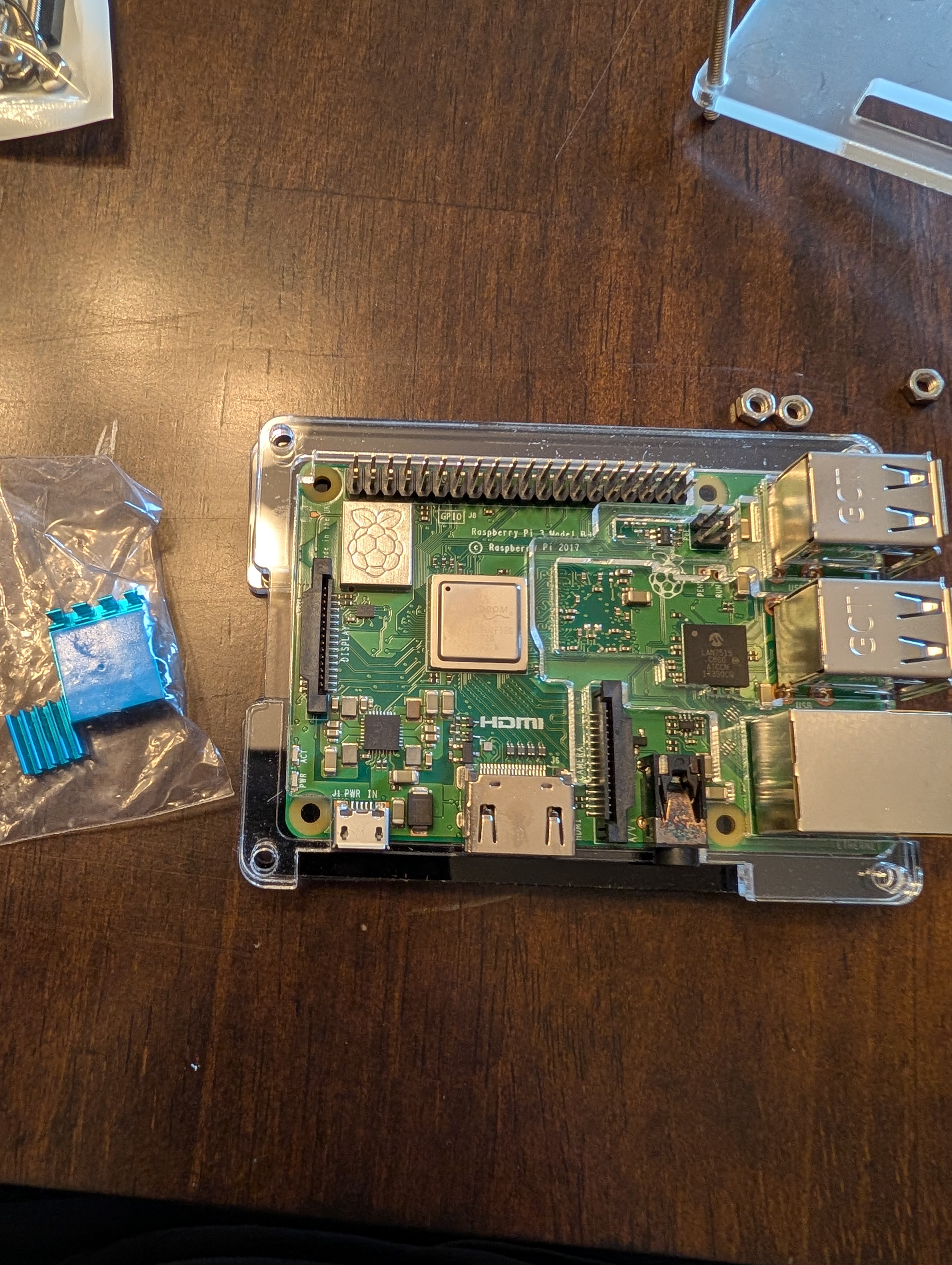
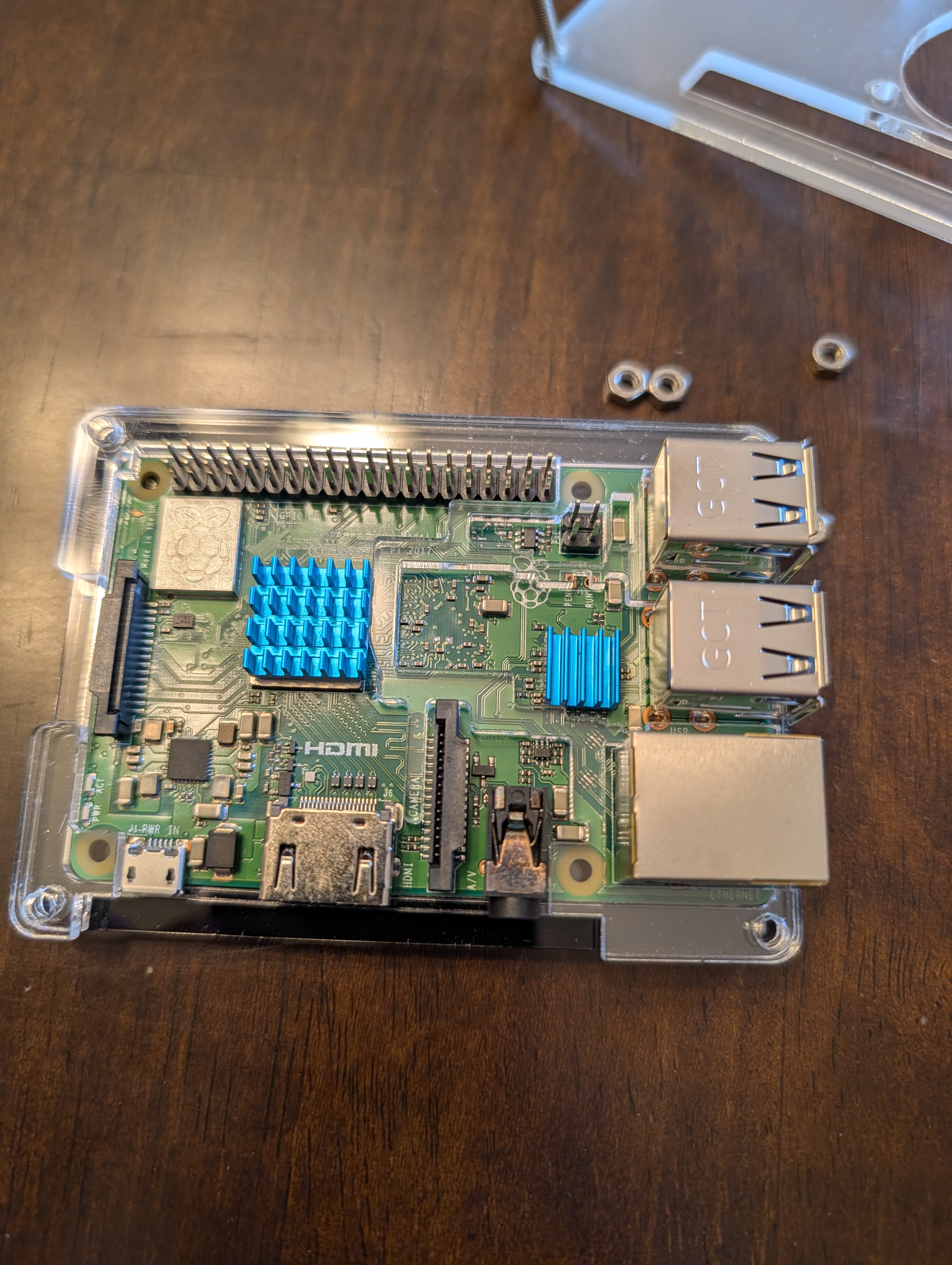
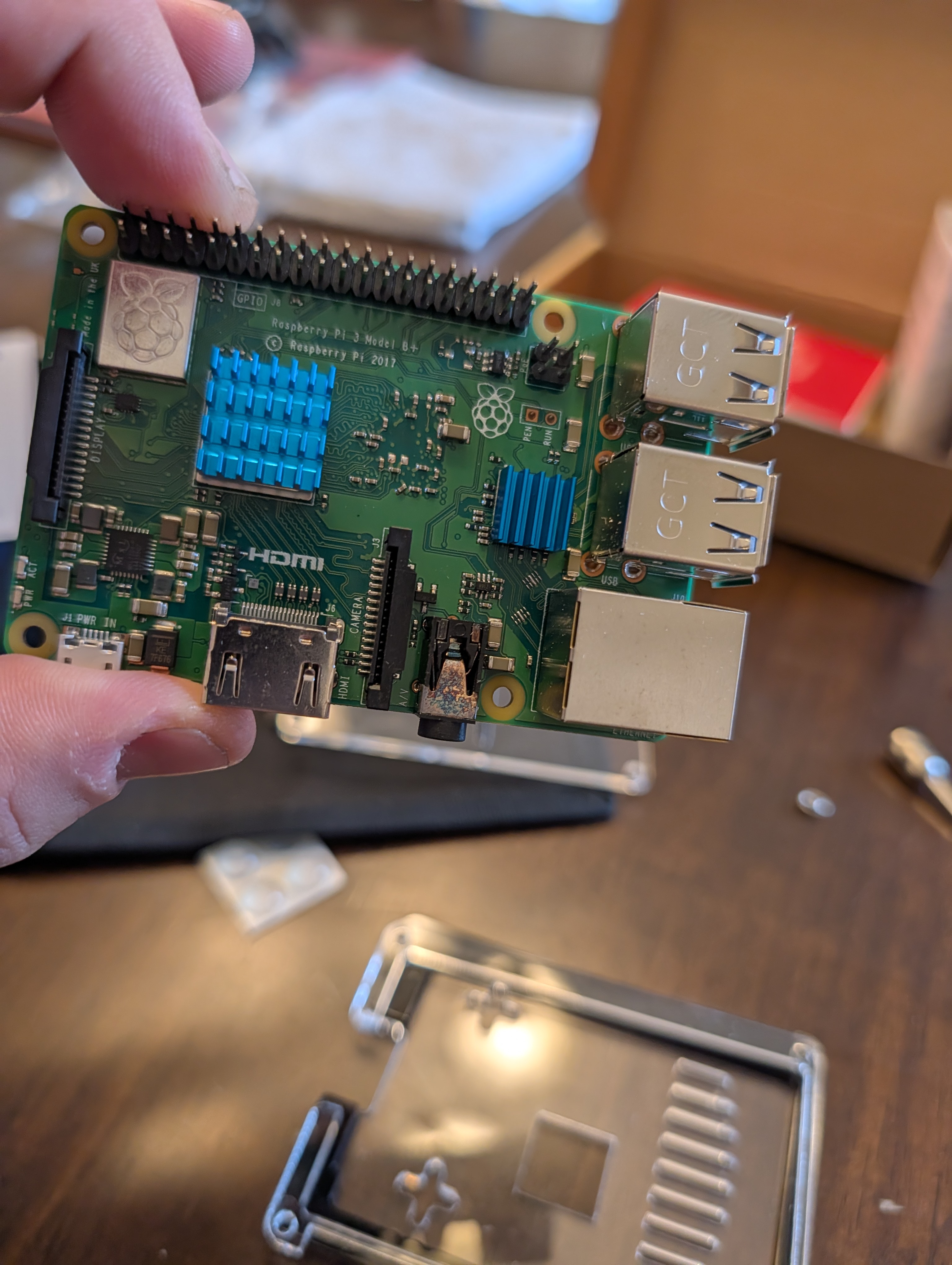
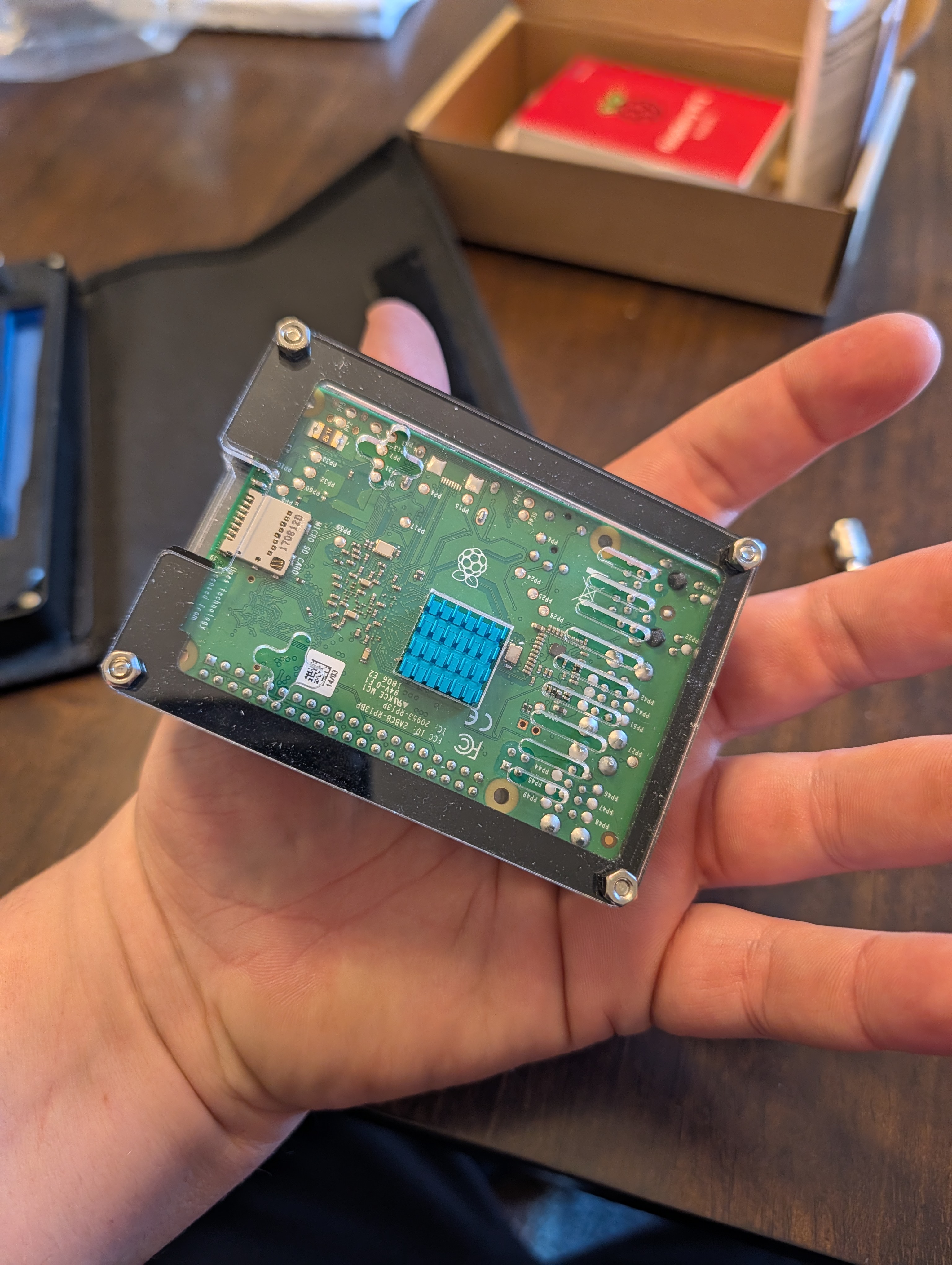
Raspberry Pi 3 B+
-
128 GB microSD card
-
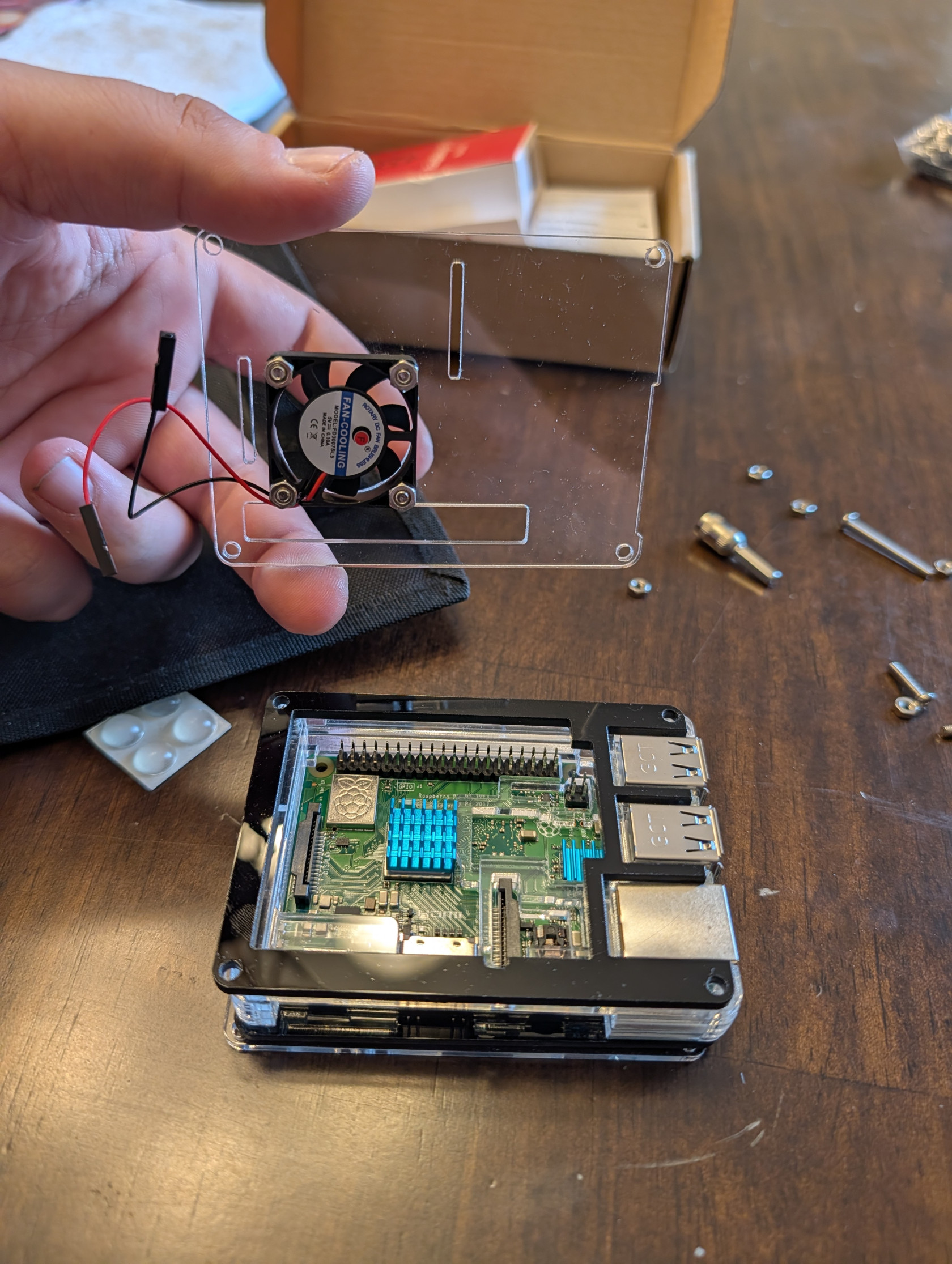
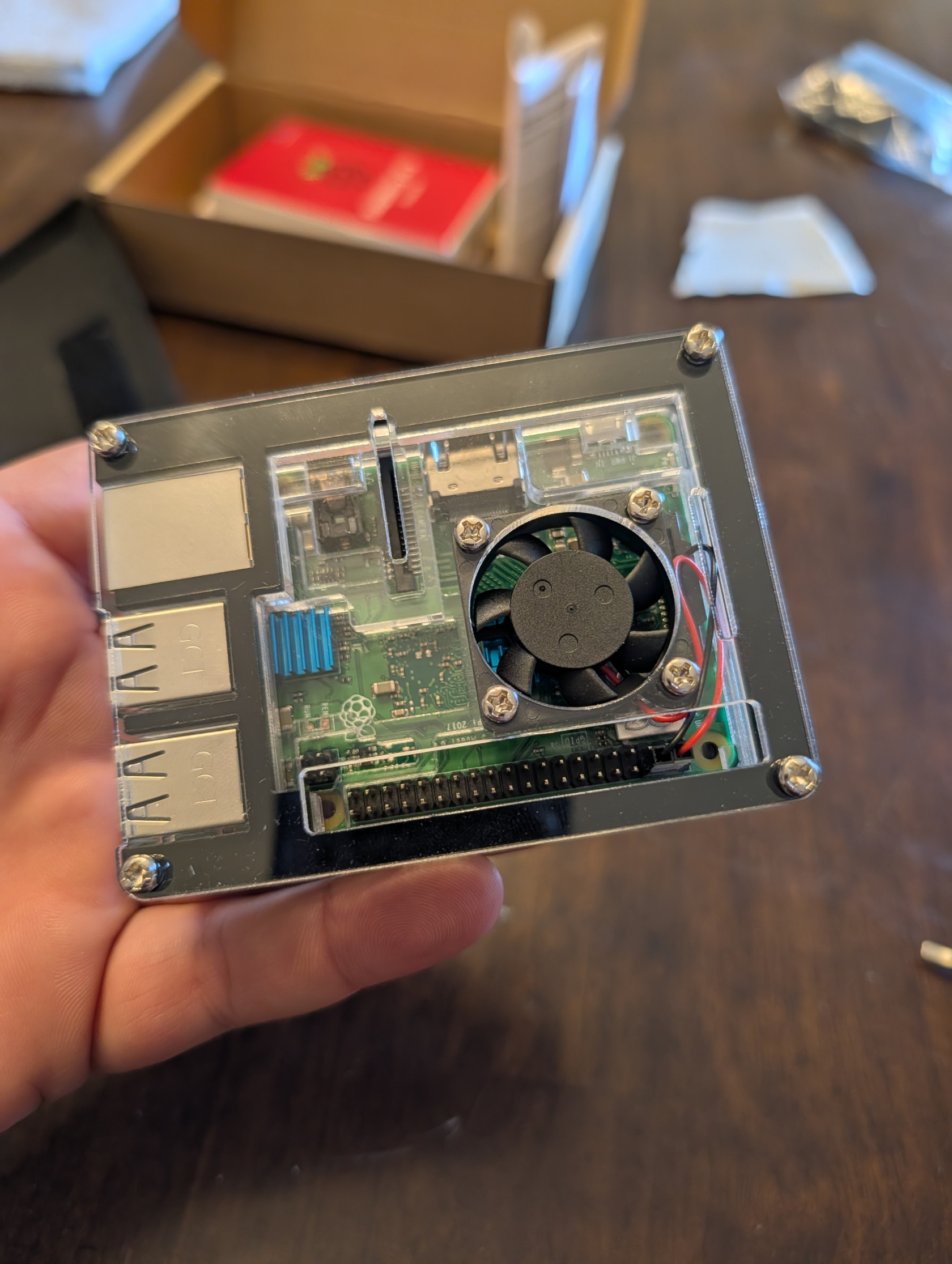
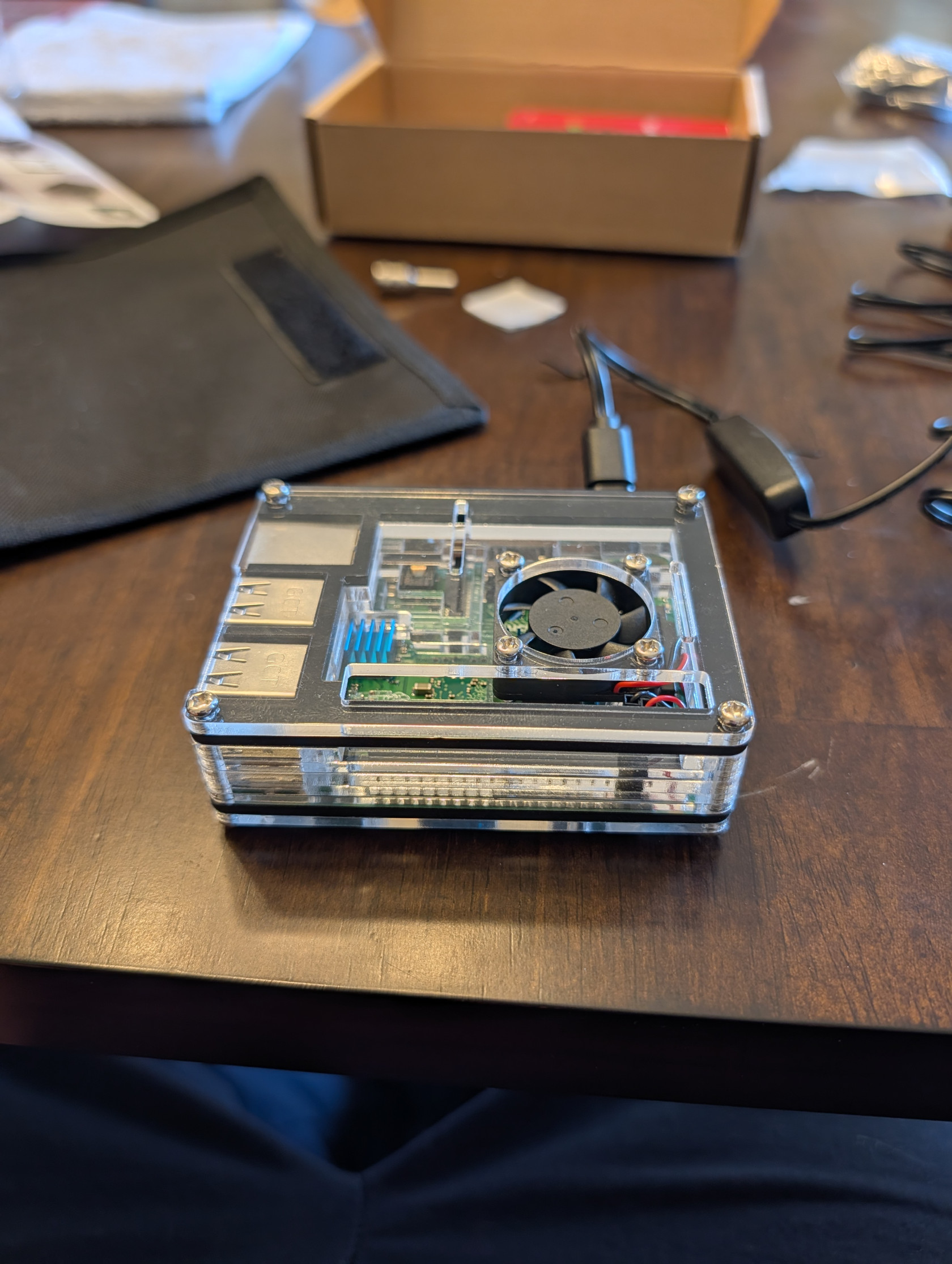
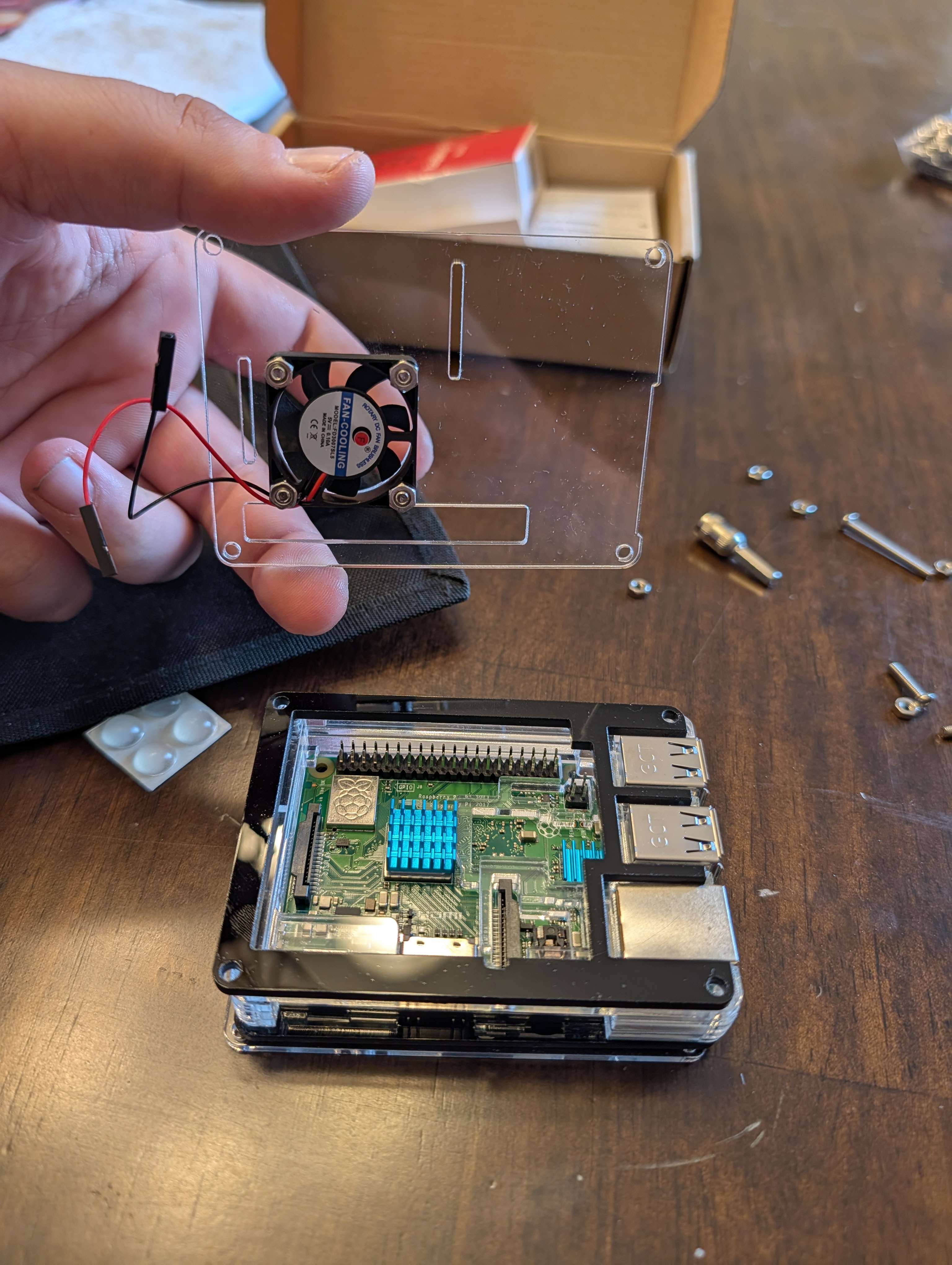
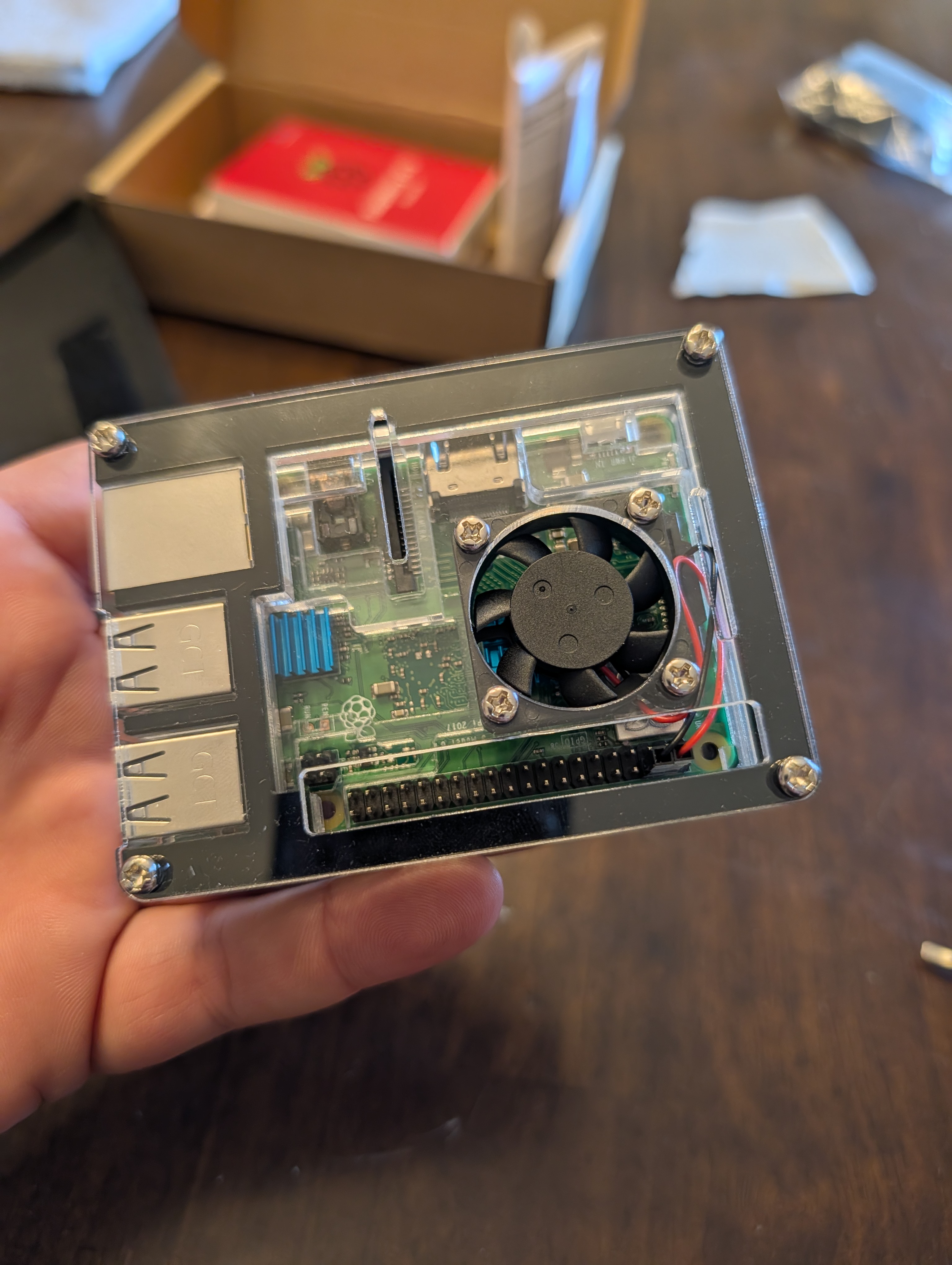
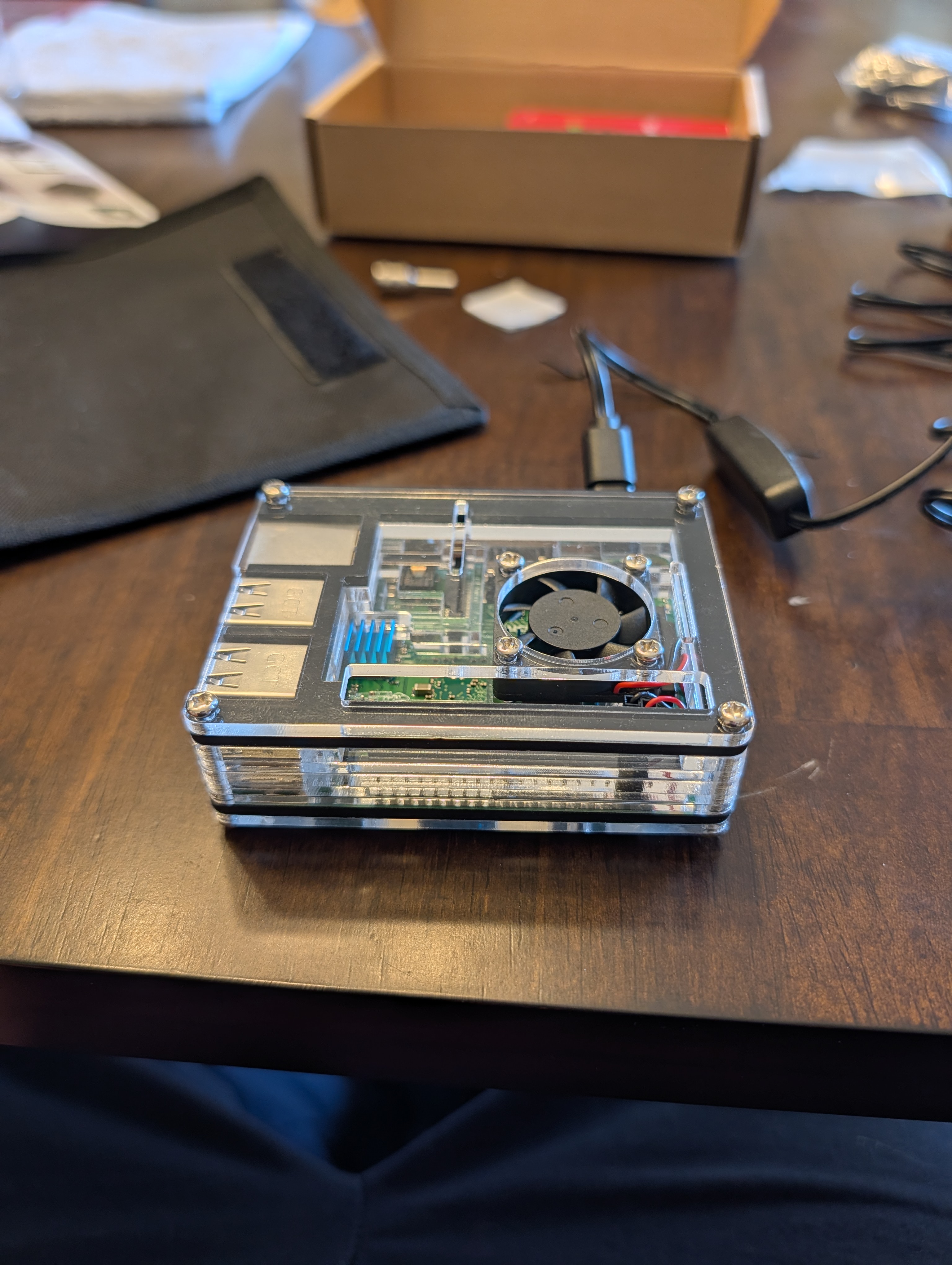
Active cooling fan (wired directly to 5 V)
-
Phone hotspot (temporary network access)
-
Home Wi-Fi (persistent network access)
🔌 Cooling & Power Verification
The cooling fan was wired directly to the Raspberry Pi’s 5 V rail:
-
Pin 4 → 5 V (red wire)
-
Pin 6 → Ground (black wire)
Results:
-
Fan spins immediately on power-up
-
No GPIO or software control required
-
Consistent airflow suitable for a vehicle environment
An always-on fan was chosen for simplicity and reliability.
🖥️ Operating System Selection
Installed OS:
-
Raspberry Pi OS Lite (
32-64-bit)
Reasoning:
-
Lower memory overhead (ideal for Pi 3 B+ with 1 GB RAM)
-
Headless by design (no desktop services running)
-
Best compatibility with:
-
gpsd -
Python and Node.js tooling
-
systemd services
-
Networking utilities
-
-
Proven stability for long-running deployments
The OS was written using Raspberry Pi Imager with Advanced Options enabled:
-
SSH enabled
-
Username and password set
-
Wi-Fi configured for initial hotspot access
-
Custom hostname configured (
pi-gps)
💻 Headless SSH Access
After first boot:
-
The Pi appeared on the phone hotspot
-
SSH access was established using JuiceSSH (Android)
-
No monitor or keyboard was required
This confirmed:
-
OS integrity
-
Network stack functionality
-
Full remote administration capability
📶 Wi-Fi Management (Scanning, Adding, Deleting)
This project uses NetworkManager on Raspberry Pi OS, so Wi-Fi is managed using the nmcli command-line tool.
Scan for available Wi-Fi networks
sudo nmcli dev wifi rescan
sudo nmcli dev wifi list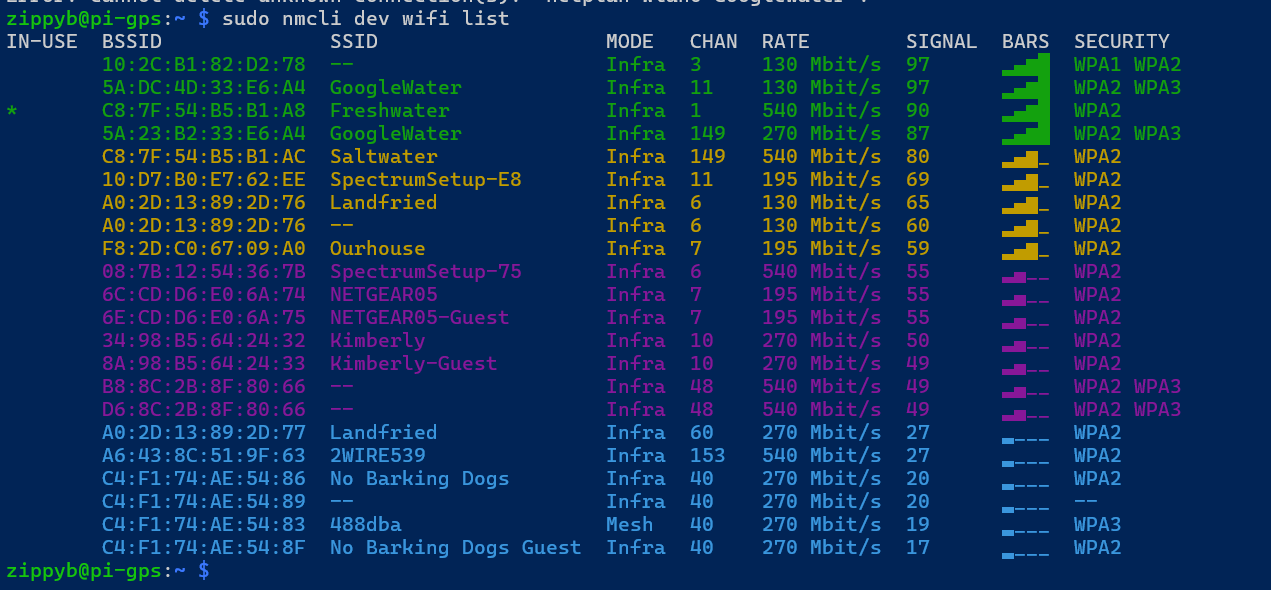
Check current network status
sudo nmcli device status
sudo nmcli -f GENERAL.CONNECTION,GENERAL.STATE dev show wlan0
Add / connect to a Wi-Fi network
(This also saves the network for future use.)
sudo nmcli dev wifi connect "SSID" password "PASSWORD"If the SSID is hidden:
sudo nmcli dev wifi connect "SSID" password "PASSWORD" hidden yesList saved Wi-Fi connections
sudo nmcli -f NAME,TYPE,DEVICE connection showSwitch networks manually (useful for testing)
sudo nmcli connection up "HomeWiFi"
# or
sudo nmcli connection up "PhoneHotspot"
Rename a saved connection
(Helps keep connection names readable.)
sudo nmcli connection modify "OldName" connection.id "NewName"Delete a saved Wi-Fi connection
⚠️ Delete by connection NAME (from nmcli connection show), not necessarily the SSID.
sudo nmcli connection delete "ConnectionName"Set auto-connect priorities
(Higher number = preferred when multiple known networks are available.)
sudo nmcli connection modify "HomeWiFi" connection.autoconnect yes
sudo nmcli connection modify "HomeWiFi" connection.autoconnect-priority 10

sudo nmcli connection modify "PhoneHotspot" connection.autoconnect yes
sudo nmcli connection modify "PhoneHotspot" connection.autoconnect-priority 5
Restart networking (if things get weird)
sudo systemctl restart NetworkManager📶 Multi-Wi-Fi Configuration
The Pi is intended to operate across multiple networks:
-
Home Wi-Fi when taken home
-
Phone hotspot while mobile
Wi-Fi management is handled by NetworkManager, allowing:
-
Multiple saved Wi-Fi profiles
-
Automatic reconnection
-
Priority-based network selection
Saved connections:
-
HomeWiFi
-
PhoneHotspot
Verified using:
sudo nmcli connection show🔁 Automatic Network Failover
Network priorities were configured to prefer home Wi-Fi:
sudo nmcli connection modify HomeWiFi connection.autoconnect-priority 10
sudo nmcli connection modify PhoneHotspot connection.autoconnect-priority 5
Behavior:
-
Home Wi-Fi is preferred when available
-
Phone hotspot is used automatically when mobile
-
Switching occurs without reboot or manual intervention
Failover was verified by disabling the hotspot and confirming the Pi automatically connected to the home network.
📡 Wi-Fi Band Notes (Pi 3 B+)
-
The Pi 3 B+ supports dual-band Wi-Fi (2.4 GHz and 5 GHz)
-
5 GHz networks require:
-
Correct WLAN country configuration
-
Non-DFS channels (36–48)
-
-
2.4 GHz is preferred for mobile hotspot reliability
-
Both bands were successfully tested during setup
🧾 Current Status
At this stage, the system has a solid foundation:
-
OS installed and verified
-
SSH access confirmed
-
Cooling operational
-
Multiple Wi-Fi networks configured
-
Automatic failover tested and working
-
Network behavior stable for mobile use
The Raspberry Pi is now ready for GPS hardware integration.
📌 Next Steps
Upcoming phases will document:
-
GPS hardware installation
-
gpsdconfiguration and testing -
Route and stop logging
-
Mileage calculation
-
Local web UI
-
VPS synchronization and map visualization