06 - Raspberry Pi, Python & Linux Tips
Guides and Tips for Raspberry Pi, Python and Linux
- Project: RouteTrack Pi
- 00 - RouteTrack Pi — Project Overview
- 01 - RouteTrack Pi — Initial Setup & Networking
- 02 - RouteTrack Pi — Connecting GPS Hardware
- 03 - RouteTrack Pi — gpsd Installation & GPS Validation
- 04 - RouteTrack Pi — GPS Data Logging Service
- 05 - RouteTrack Pi — Route Intelligence & Metrics Engine
- 06 - RouteTrack Pi — Route Processing & Summary Generation
- 07 - RouteTrack Pi — Automated Route Processing (systemd Service + Timer)
- 08 - RouteTrack Pi — Local Web Dashboard (Flask API + Leaflet Map)
- 09 - RouteTrack Pi — Dashboard Autostart (Gunicorn + systemd)
- 10 - RouteTrack Pi — Shift Mode (SQLite + Flask API + Dashboard Controls)
- 11 - RouteTrack Pi — Logger Service Cleanup & Boot Reliability
- 12 - RouteTrack Pi — Mobile UX Upgrade (Shift Controls + Status)
- 13 - RouteTrack Pi — Mobile Dashboard Overhaul + BIG LIVE MODE (Stop Point)
- Pi Toolkit Menu with ARP and Network Scanning
- Running ntopng from Source on Raspberry Pi 5 (ARM64)
- Pi 5 System Summary Script with AWK
- LibreNMS Docker Deployment on Raspberry Pi 5
- Sourced from raspberrytips.com
- Full SNMP Monitoring on Raspberry Pi 5 for LibreNMS (UCD-SNMP + Extend Workaround)
- Changing the Hostname on Linux and Removing VPN Server.
Project: RouteTrack Pi
This is a project of mine using a Raspberri Pi 3 B+ and a GPS Dongle.
00 - RouteTrack Pi — Project Overview
Project Name: RouteTrack Pi
Category: Embedded Linux · GPS Telemetry · Data Processing · Flask
Platform: Raspberry Pi
Status: Active / Production-Ready Prototype
Project Summary
RouteTrack Pi is a vehicle-mounted, headless GPS telemetry and route analysis system built on a Raspberry Pi.
It continuously logs GPS data, processes that data into meaningful metrics (mileage, stops, time-on-site), and presents results through a local web dashboard — all without requiring constant internet connectivity.
The system is designed with reliability, recoverability, and real-world vehicle use in mind:
-
Frequent power loss
-
Offline operation
-
GPS signal dropouts
-
Long-running background services
-
Minimal SD card wear
This project mirrors architectural patterns used in fleet tracking and telemetry systems, scaled down to run on low-power hardware.
Core Capabilities
-
Continuous GPS route logging
-
Accurate mileage calculation (Haversine)
-
Stop detection & time-on-site tracking
-
Daily route summaries
-
Shift-based session tracking
-
Local interactive map dashboard (Leaflet)
-
Fully automated background services
-
Offline-first, local-only data storage
-
Safe daily processing via systemd timers
Hardware Used
| Component | Description |
|---|---|
| Raspberry Pi 3 B+ | Primary compute platform |
| GlobalSat BU-353N USB GPS Receiver | High-sensitivity USB GPS (NMEA 0183) |
| 128 GB microSD card | OS + data storage |
| Always-on cooling fan | Wired directly to 5V rail for vehicle use |
| Vehicle USB power | Portable, ignition-controlled |
Why this GPS receiver:
The BU-353N is widely supported on Linux, requires no proprietary drivers, and is well-suited for mobile deployments.
Operating System & Base Software
-
Raspberry Pi OS Lite (64-bit)
-
Headless (no desktop environment)
-
SSH-only administration
-
NetworkManager for Wi-Fi management
-
systemd for all service orchestration
Networking Design
-
Multiple saved Wi-Fi networks
-
Automatic failover:
-
Home Wi-Fi (higher priority)
-
Phone hotspot (fallback)
-
-
Seamless switching without reboot
-
Fully functional offline
GPS Subsystem Architecture
USB GPS Receiver
↓
Linux USB-Serial Driver
↓
/dev/gps0 (udev symlink)
↓
gpsd-standalone.service
↓
TCP localhost:2947
↓
RouteTrack LoggerKey Design Choices
-
gpsd socket activation disabled
-
Dedicated standalone gpsd service
-
Fixed baud rate (4800)
-
Stable device path using udev
-
TCP access instead of UNIX socket (permission stability)
GPS Service
-
Service Name:
gpsd-standalone.service -
Binary:
/usr/sbin/gpsd -
Device:
/dev/gps0 -
Port:
127.0.0.1:2947
RouteTrack Directory Layout
All project files live under a single, predictable root:
/opt/routetrack/
├── bin/ # Executable scripts
├── data/ # SQLite database and exports
├── logs/ # File-based logs (future use)
├── config/ # Database schema and config files
├── venv/ # Python virtual environment
└── web/ # Flask dashboard applicationPython Virtual Environment
-
Location:
/opt/routetrack/venv -
Isolates RouteTrack dependencies
-
Avoids modifying OS-managed Python
-
Used by all RouteTrack services
Installed Python Packages
-
flask -
gunicorn -
Standard library only for GPS, SQLite, math
Data Storage (SQLite)
Database File
/opt/routetrack/data/routetrack.sqliteTables
| Table | Purpose |
|---|---|
gps_points |
Raw GPS telemetry (append-only) |
stop_events |
Derived stationary events |
daily_summary |
Aggregated per-day metrics |
shifts |
User-controlled session boundaries |
Design Philosophy
-
SQLite in WAL mode
-
Raw data is never modified
-
Derived data is fully regenerable
-
Optimized for long-running, low-power systems
GPS Logging Service
Script
/opt/routetrack/bin/routetrack-logger.pysystemd Service
routetrack-logger.serviceResponsibilities
-
Connect to gpsd via TCP
-
Subscribe to JSON stream
-
Filter TPV messages
-
Batch inserts into SQLite
-
Auto-reconnect on failures
-
Journald logging
Why this matters:
The logger is intentionally lightweight and resilient — it prioritizes never stopping, even during GPS hiccups or reboots.
🧠 Route Processing & Intelligence
Processing Script
/opt/routetrack/bin/routetrack-process.pyWhat It Calculates
-
Mileage (Haversine distance)
-
Moving vs stopped time
-
Stop events (speed + dwell)
-
Daily summaries
Key Rules
-
Only
mode = 3fixes are trusted -
GPS drift filtered
-
Speed thresholds applied
-
Stop dwell time enforced
Automated Processing (systemd)
Wrapper Script
/opt/routetrack/bin/routetrack-run-processor.shServices
-
routetrack-processor.service(oneshot) -
routetrack-processor.timer(daily)
Automation Workflow
-
Stop logger (release DB lock)
-
Run processor
-
Restart logger
This ensures zero SQLite locking issues.
Local Web Dashboard
Stack
-
Flask (read-only API)
-
Gunicorn (production WSGI)
-
Leaflet + OpenStreetMap
Dashboard Files
/opt/routetrack/web/
├── app.py
├── templates/
│ └── index.html
└── static/API Endpoints
-
/api/points/<date> -
/api/stops/<date> -
/api/summary/<date>
systemd Service
routetrack-dashboard.service-
Starts on boot
-
Auto-restarts
-
LAN-accessible
-
No database writes (safe concurrency)
Shift Mode
Shift Mode introduces user-defined session boundaries independent of calendar days.
Table
shiftsPurpose
-
Accurate per-shift metrics
-
Handles overnight work
-
Prevents test runs from polluting data
-
Designed for vehicle usage patterns
Reliability & Operational Design
-
All components managed by systemd
-
Centralized logging via
journalctl -
Safe service dependencies
-
No cron jobs
-
SD-card friendly writes
-
Offline-first operation
-
Power-loss tolerant
Why This Project Matters
RouteTrack Pi demonstrates:
-
Embedded Linux service orchestration
-
Real-world GPS data handling
-
Data pipeline design
-
SQLite optimization
-
systemd automation
-
Web API + dashboard integration
-
Production-style architecture on constrained hardware
This is not a script - it’s a system.
Future Enhancements (Planned)
-
GeoJSON / CSV exports
-
VPS sync & backups
-
Map styling improvements
-
GPS health watchdogs
-
Authentication (optional)
-
Historical route replay
01 - RouteTrack Pi — Initial Setup & Networking
Date: December 21st, 2025
Category: Raspberry Pi / Linux / Networking
Backlink: RouteTrack Pi Overview
Project Overview
This page documents the initial setup and networking foundation for a Raspberry Pi–based GPS logging and mapping project designed for in-vehicle use.
The long-term goal of this project is to build a reliable, headless system capable of:
-
GPS route logging
-
Automatic stop detection
-
Time-on-site tracking
-
Mileage calculation
-
Syncing data to a VPS for web-based visualization
This entry focuses on hardware bring-up, OS selection, headless access, and resilient Wi-Fi configuration.
Hardware Used (Initial Phase)
-
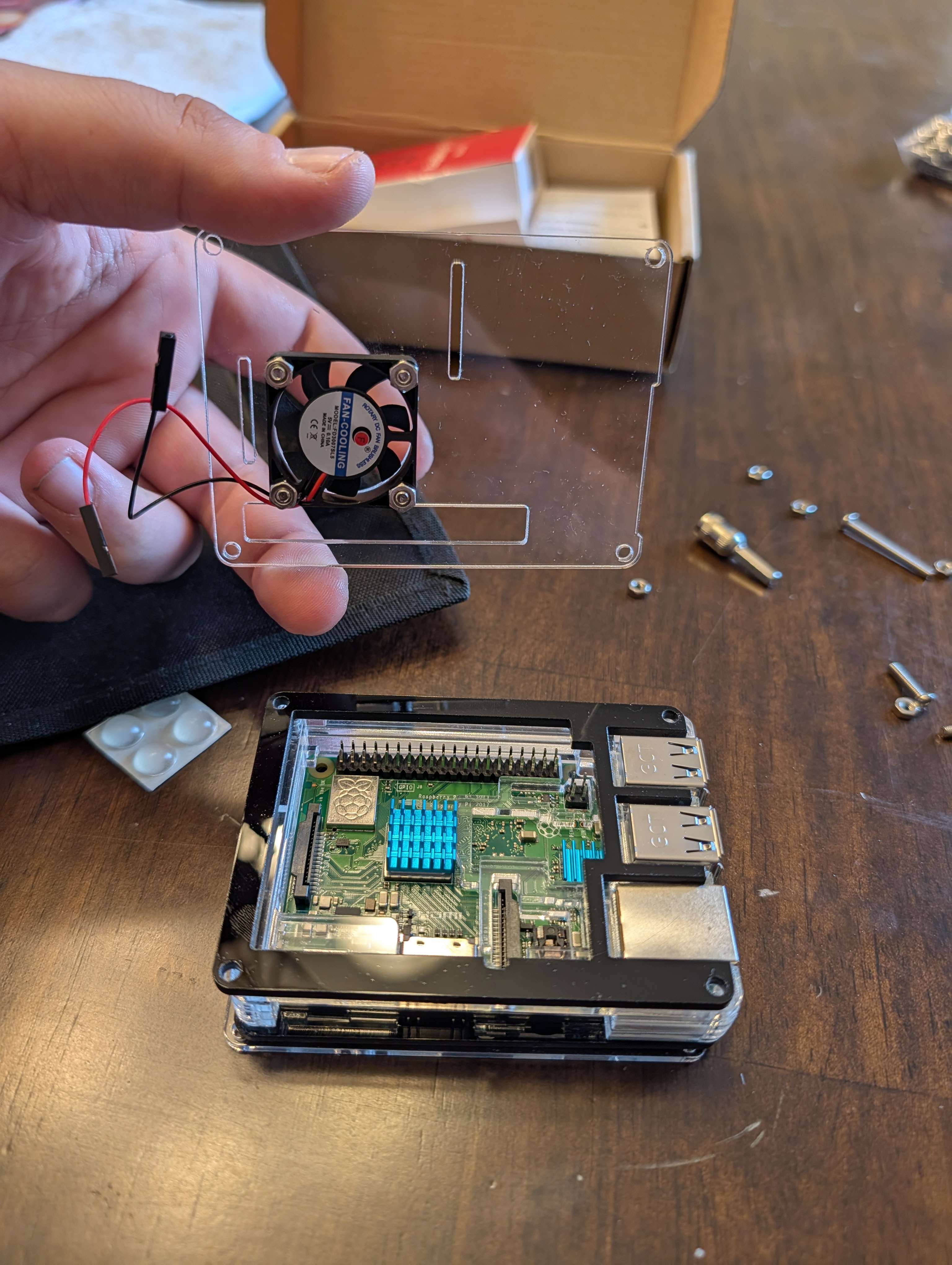
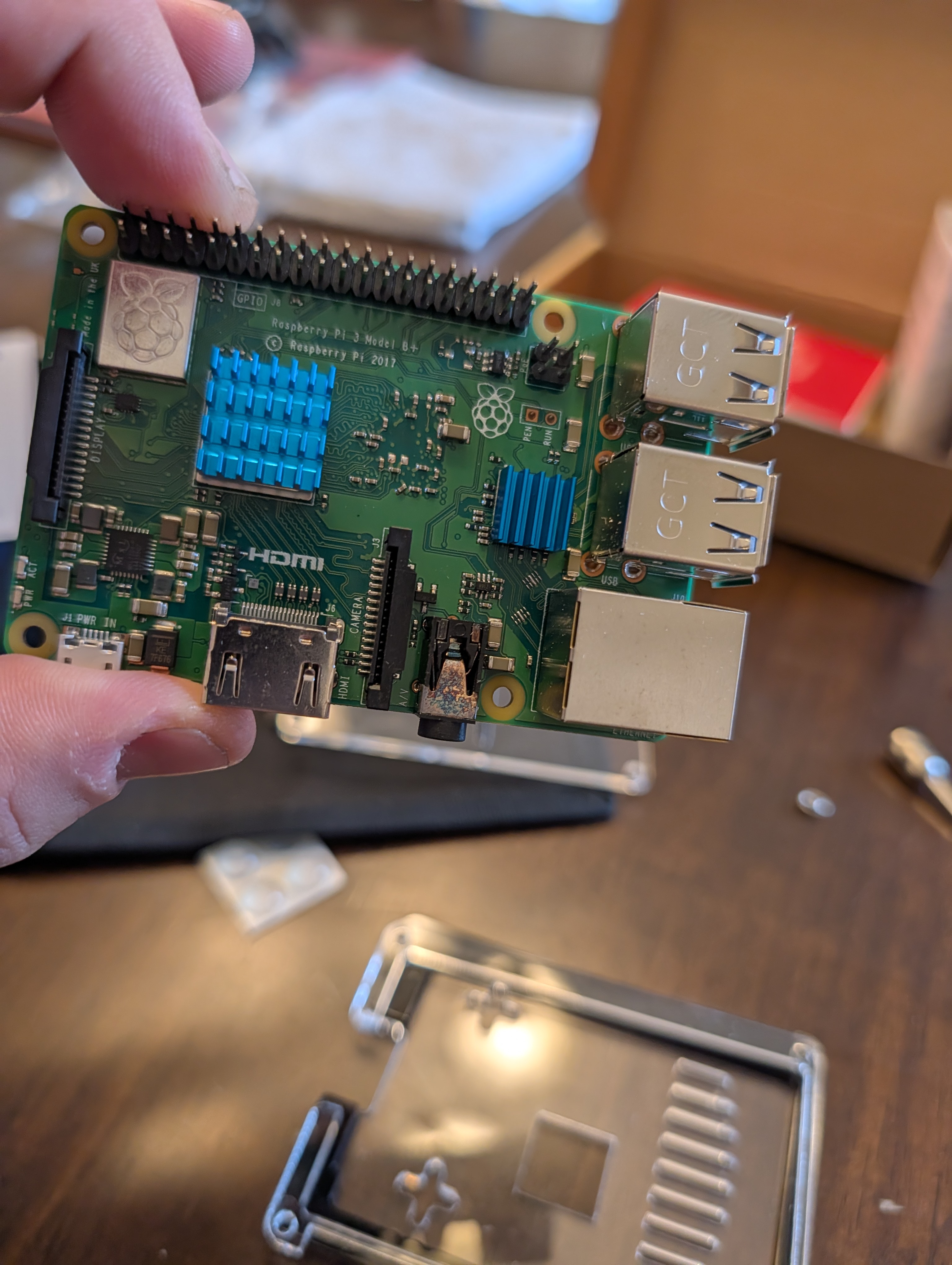
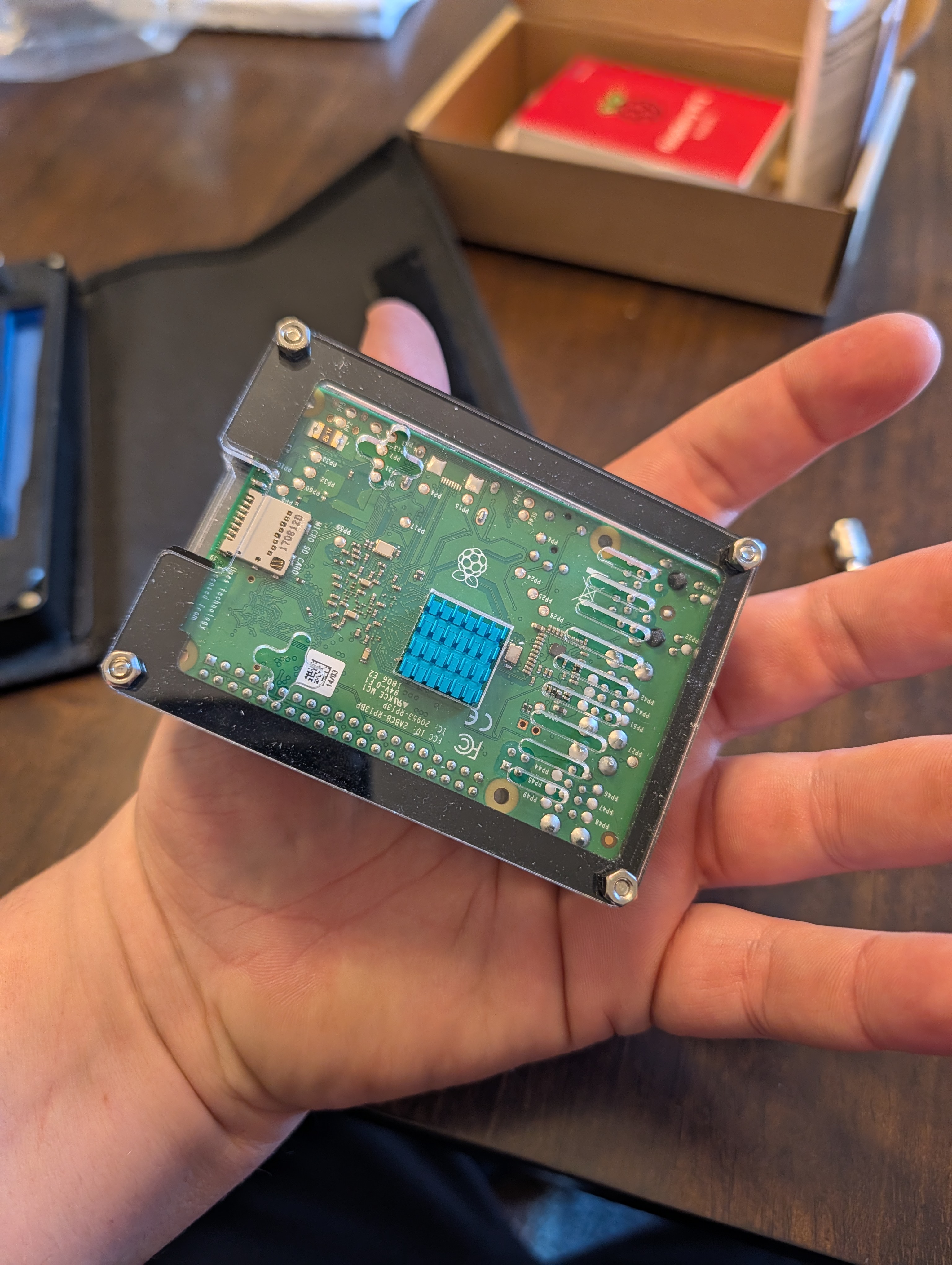
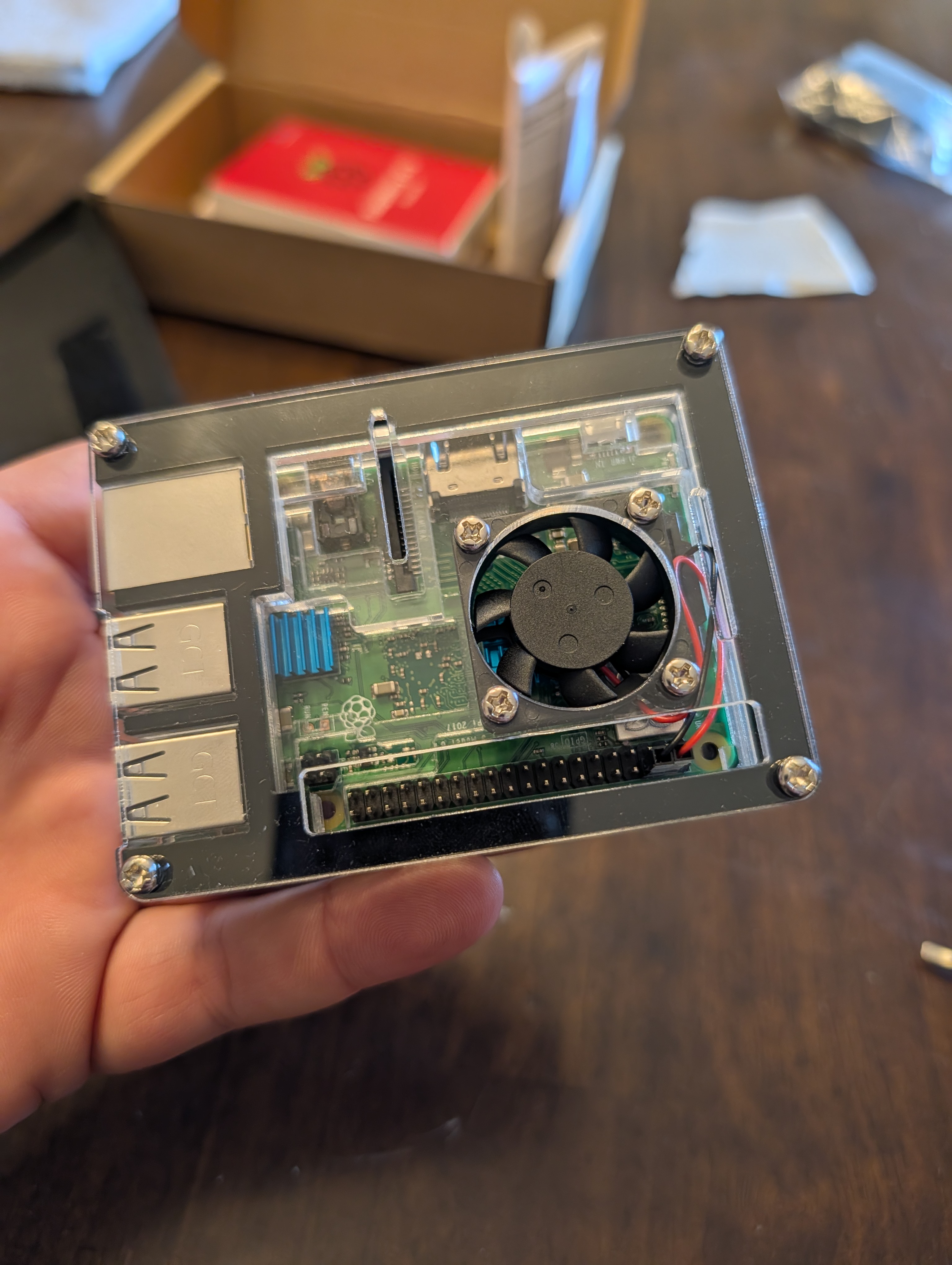
Raspberry Pi 3 B+
-
128 GB microSD card
-
Active cooling fan (wired directly to 5 V)
-
Phone hotspot (temporary network access)
-
Home Wi-Fi (persistent network access)


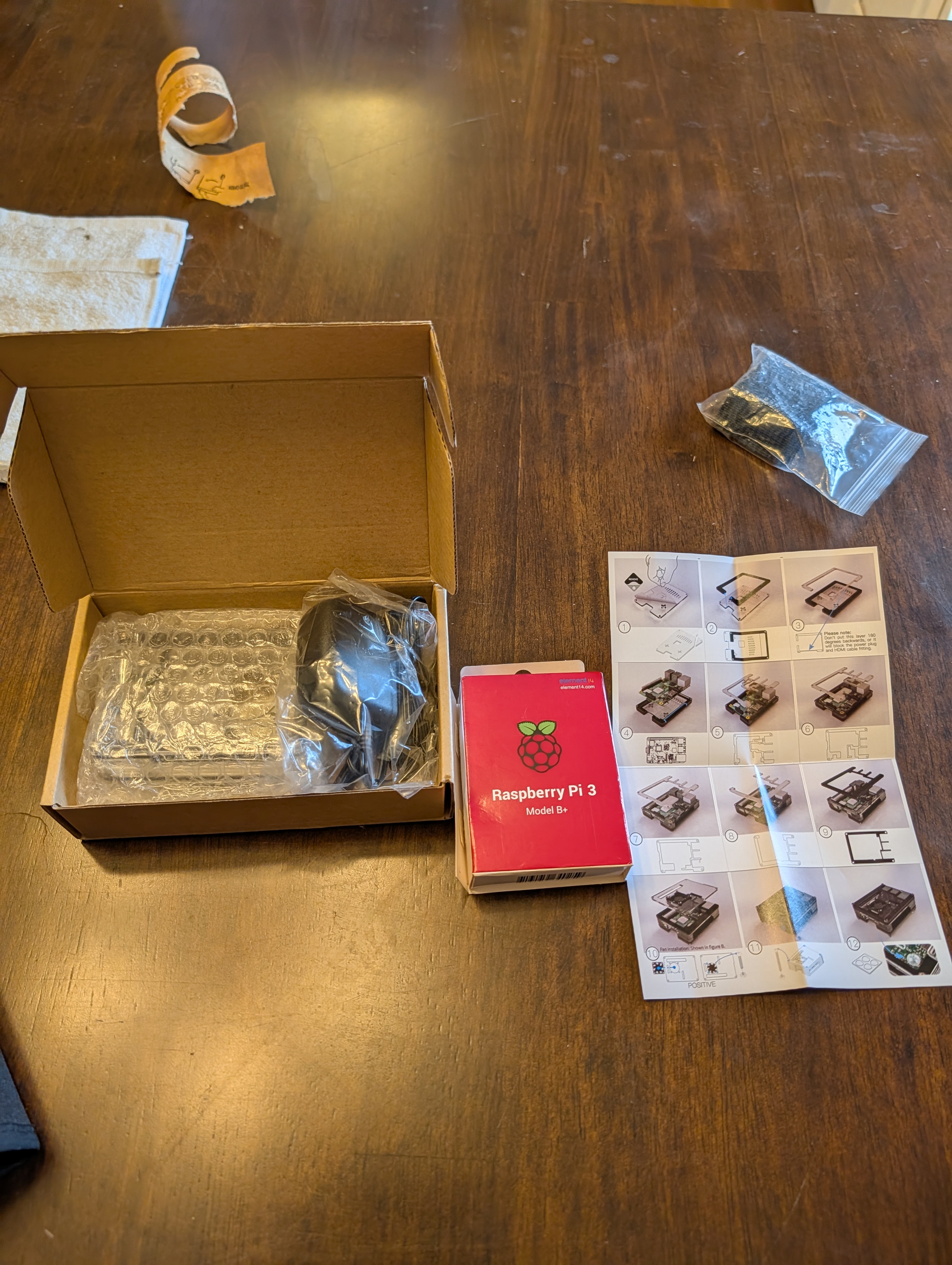
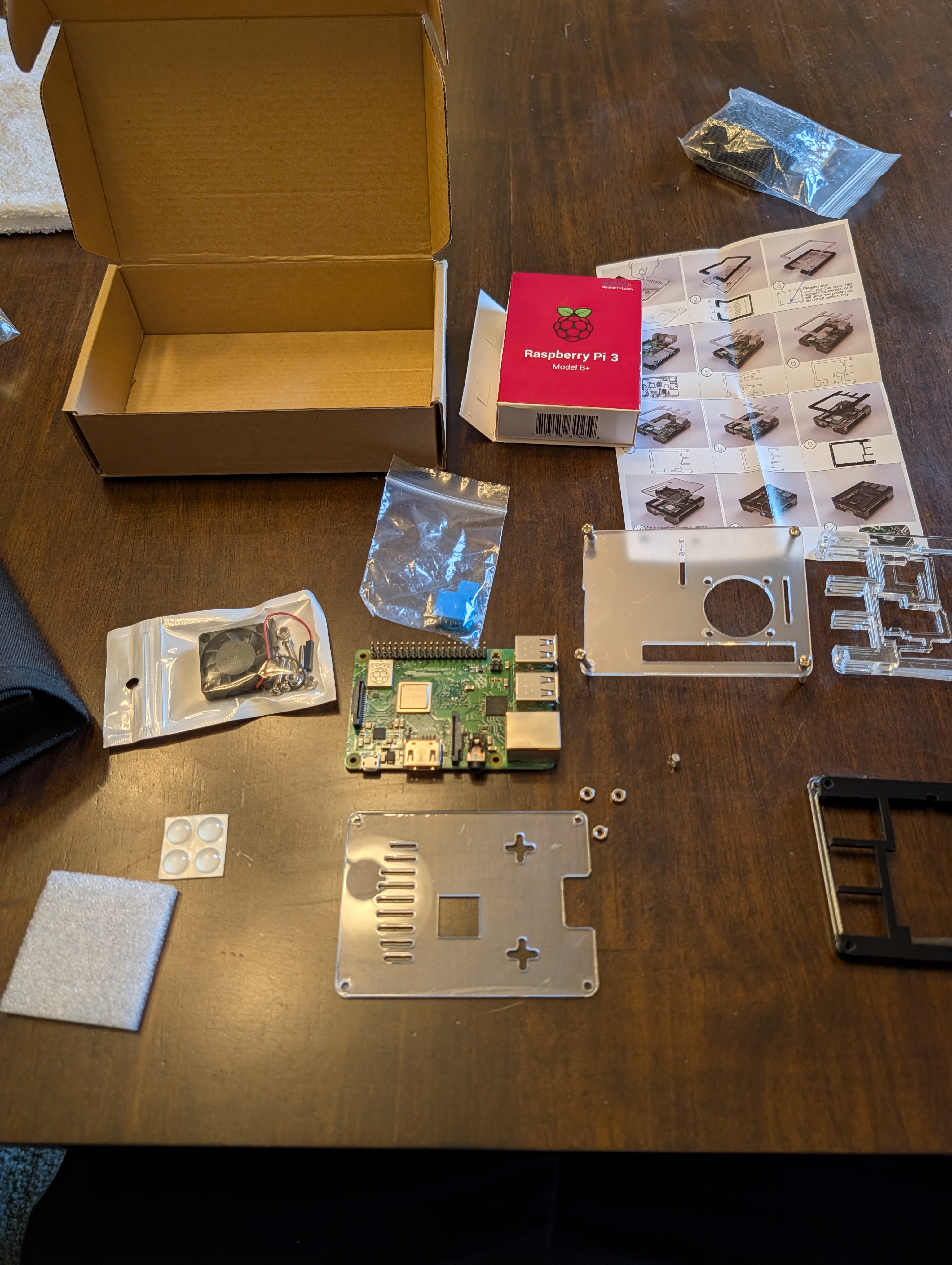
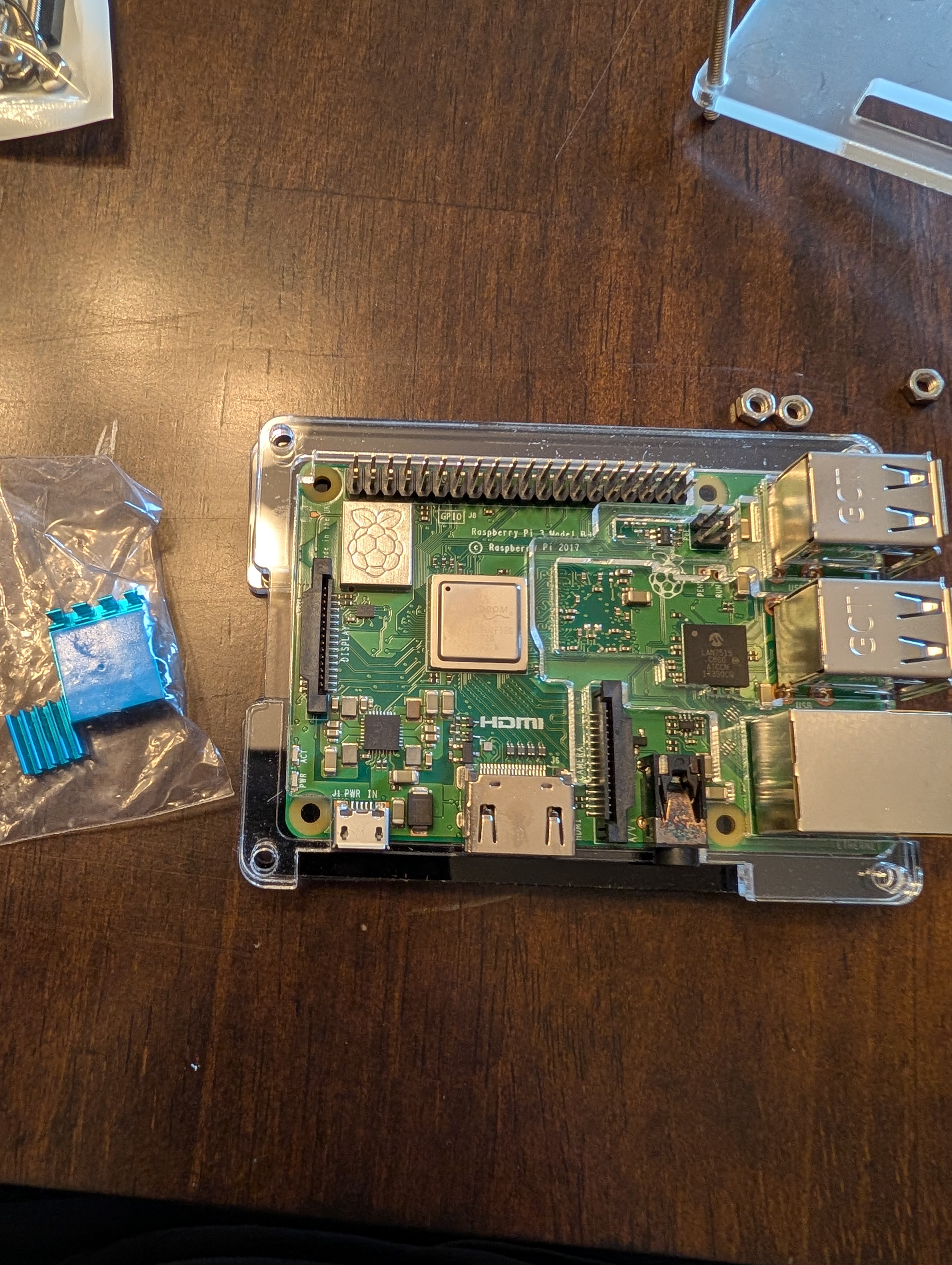
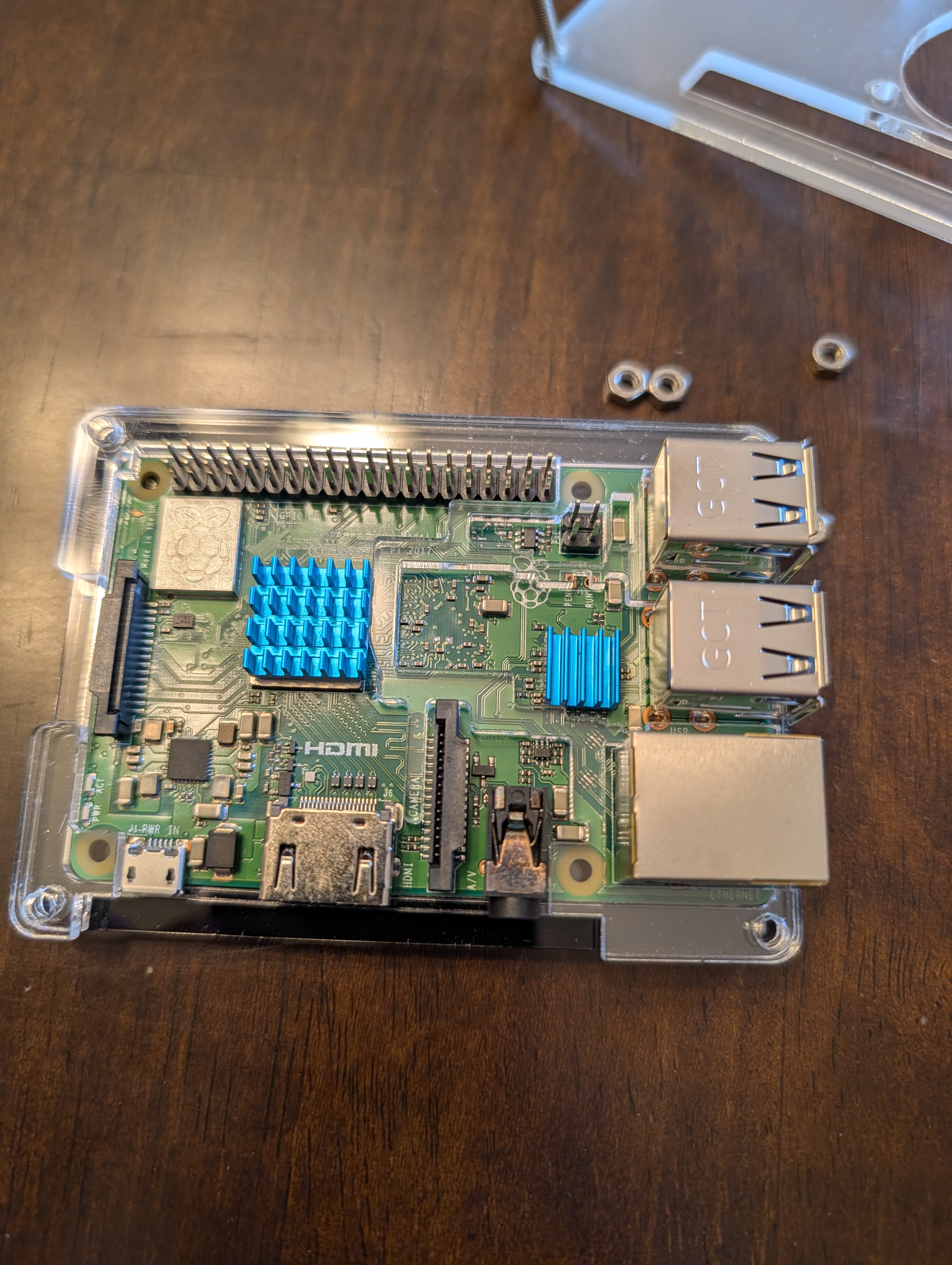
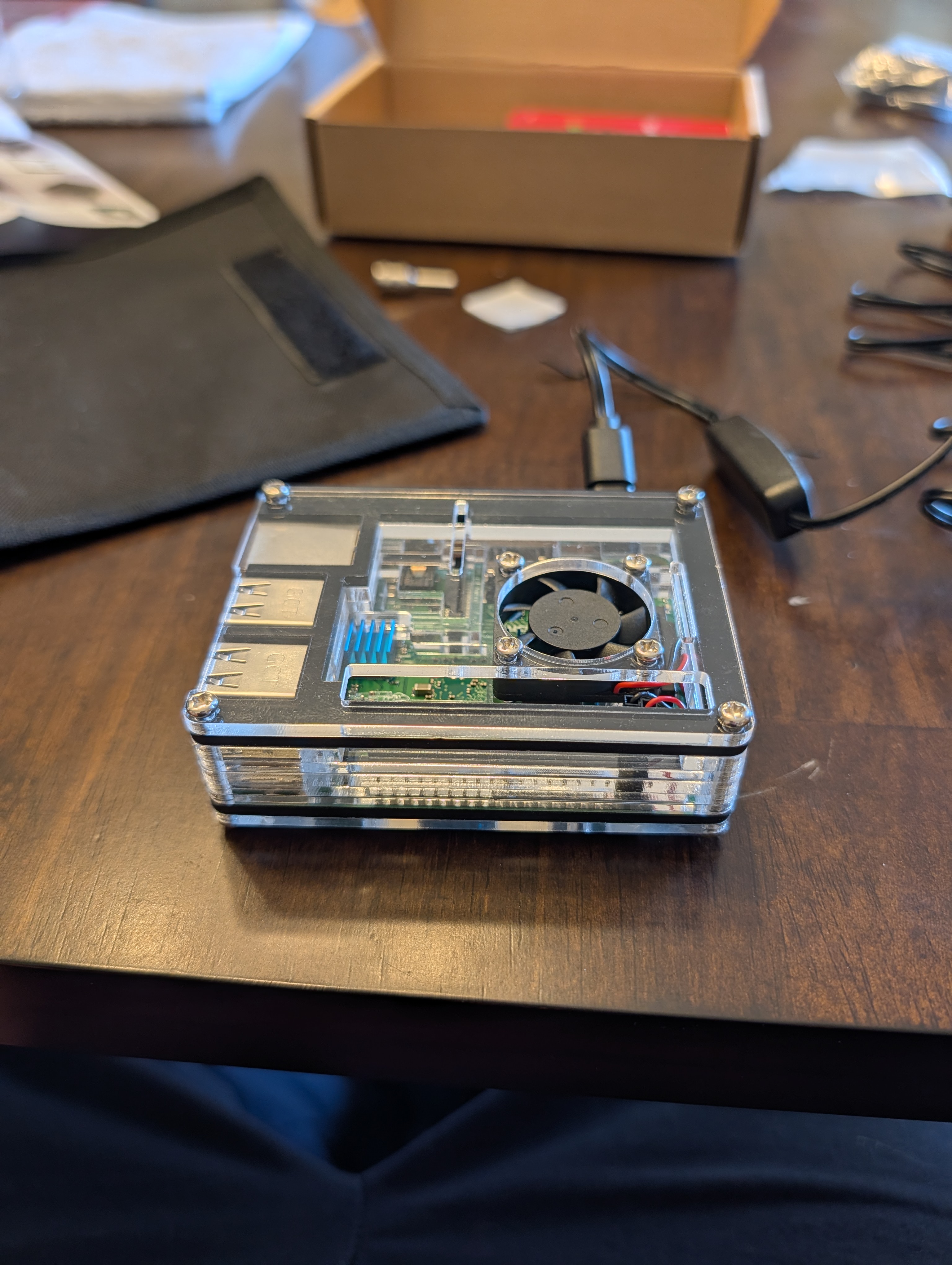
Cooling & Power Verification
The cooling fan was wired directly to the Raspberry Pi’s 5 V rail:
-
Pin 4 → 5 V (red wire)
-
Pin 6 → Ground (black wire)
Results:
-
Fan spins immediately on power-up
-
No GPIO or software control required
-
Consistent airflow suitable for a vehicle environment
An always-on fan was chosen for simplicity and reliability.
Operating System Selection
Installed OS:
-
Raspberry Pi OS Lite (64-bit)
Reasoning:
-
Lower memory overhead (ideal for Pi 3 B+ with 1 GB RAM)
-
Headless by design (no desktop services running)
-
Best compatibility with:
-
gpsd -
Python and Node.js tooling
-
systemd services
-
Networking utilities
-
-
Proven stability for long-running deployments
The OS was written using Raspberry Pi Imager with Advanced Options enabled:
-
SSH enabled
-
Username and password set
-
Wi-Fi configured for initial hotspot access
-
Custom hostname configured (
pi-gps)
Headless SSH Access
After first boot:
-
The Pi appeared on the phone hotspot
-
SSH access was established using JuiceSSH (Android)
-
No monitor or keyboard was required
This confirmed:
-
OS integrity
-
Network stack functionality
-
Full remote administration capability
Wi-Fi Management (Scanning, Adding, Deleting)
This project uses NetworkManager on Raspberry Pi OS, so Wi-Fi is managed using the nmcli command-line tool.
Scan for available Wi-Fi networks
sudo nmcli connection showsudo nmcli dev wifi rescan
sudo nmcli dev wifi list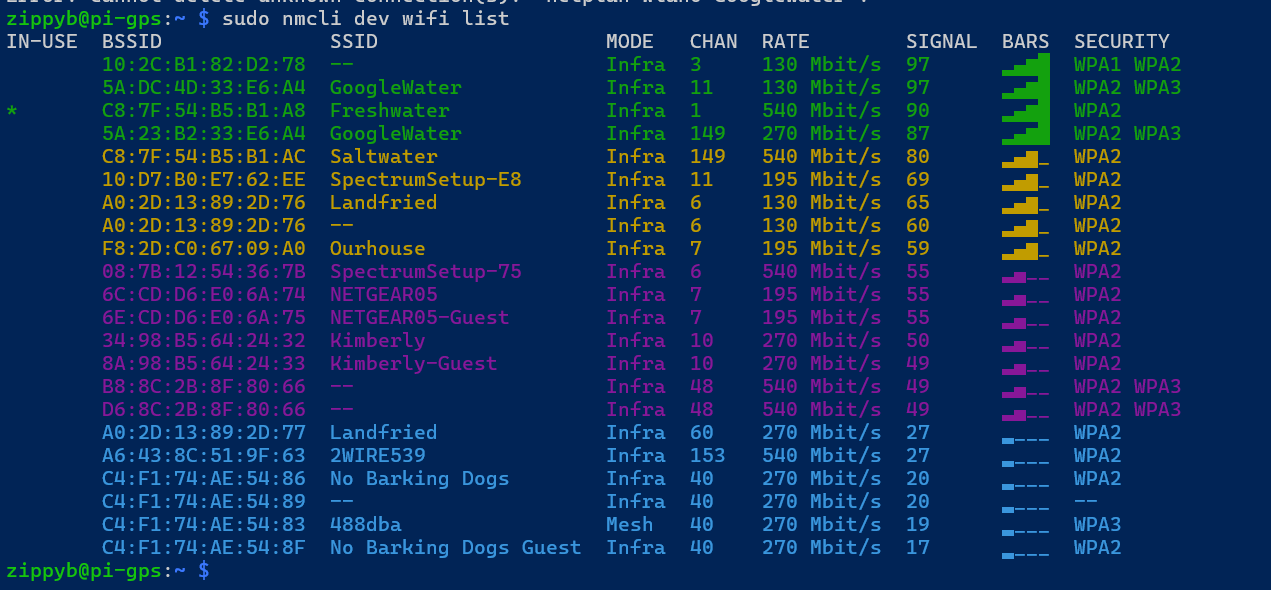
Check current network status
sudo nmcli device status
sudo nmcli -f GENERAL.CONNECTION,GENERAL.STATE dev show wlan0Add / connect to a Wi-Fi network
(This also saves the network for future use.)
sudo nmcli dev wifi connect "SSID" password "PASSWORD"If the SSID is hidden:
sudo nmcli dev wifi connect "SSID" password "PASSWORD" hidden yesList saved Wi-Fi connections
sudo nmcli -f NAME,TYPE,DEVICE connection showSwitch networks manually (useful for testing)
sudo nmcli connection up "HomeWiFi"
# or
sudo nmcli connection up "PhoneHotspot"Rename a saved connection
(Helps keep connection names readable.)
sudo nmcli connection modify "OldName" connection.id "NewName"Delete a saved Wi-Fi connection
Delete by connection NAME (from nmcli connection show), not necessarily the SSID.
sudo nmcli connection delete "ConnectionName"Set auto-connect priorities
(Higher number = preferred when multiple known networks are available.)
sudo nmcli connection modify "HomeWiFi" connection.autoconnect yes
sudo nmcli connection modify "HomeWiFi" connection.autoconnect-priority 10
sudo nmcli connection modify "PhoneHotspot" connection.autoconnect yes
sudo nmcli connection modify "PhoneHotspot" connection.autoconnect-priority 1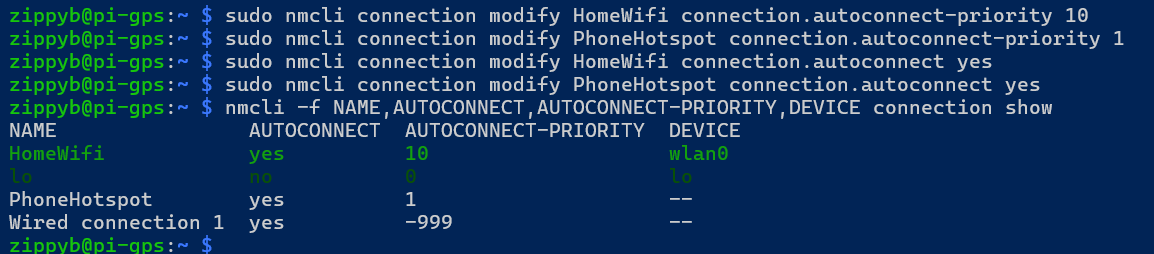
Restart networking (if things get weird)
sudo systemctl restart NetworkManagerMulti-Wi-Fi Configuration
The Pi is intended to operate across multiple networks:
-
Home Wi-Fi when taken home
-
Phone hotspot while mobile
Wi-Fi management is handled by NetworkManager, allowing:
-
Multiple saved Wi-Fi profiles
-
Automatic reconnection
-
Priority-based network selection
Saved connections:
-
HomeWiFi
-
PhoneHotspot
Verified using:
sudo nmcli connection showAutomatic Network Failover
Network priorities were configured to prefer home Wi-Fi:
sudo nmcli connection modify HomeWiFi connection.autoconnect-priority 10
sudo nmcli connection modify PhoneHotspot connection.autoconnect-priority 1Behavior:
-
Home Wi-Fi is preferred when available
-
Phone hotspot is used automatically when mobile
-
Switching occurs without reboot or manual intervention
Failover was verified by disabling the hotspot and confirming the Pi automatically connected to the home network.
Wi-Fi Band Notes (Pi 3 B+)
-
The Pi 3 B+ supports dual-band Wi-Fi (2.4 GHz and 5 GHz)
-
5 GHz networks require:
-
Correct WLAN country configuration
-
Non-DFS channels (36–48)
-
-
2.4 GHz is preferred for mobile hotspot reliability
-
Both bands were successfully tested during setup
Current Status
At this stage, the system has a solid foundation:
-
OS installed and verified
-
SSH access confirmed
-
Cooling operational
-
Multiple Wi-Fi networks configured
-
Automatic failover tested and working
-
Network behavior stable for mobile use
The Raspberry Pi is now ready for GPS hardware integration.
Next Steps
Upcoming phases will document:
-
GPS hardware installation
-
gpsdconfiguration and testing -
Route and stop logging
-
Mileage calculation
-
Local web UI
-
VPS synchronization and map visualization
02 - RouteTrack Pi — Connecting GPS Hardware
Date: December 24th, 2025
Category: Raspberry Pi / GPS / Hardware
Backlink: RouteTrack Pi – Initial Setup & Networking
Project Context
This page documents the physical GPS hardware selection and connection phase of the RouteTrack Pi project.
At this stage, the Raspberry Pi has:
-
A verified Raspberry Pi OS Lite (64-bit) installation
-
Stable headless SSH access
-
Multiple Wi‑Fi networks configured with automatic failover
-
Reliable cooling and power
The goal of this phase is to introduce the GPS hardware only, verify that it is detected correctly by the operating system, and prepare the system for GPS daemon (gpsd) integration in the next phase.
No GPS services are configured on this page.
GPS Hardware Used
Device: GlobalSat BU‑353N USB GPS Receiver
The GlobalSat BU‑353N was selected due to its long-standing Linux compatibility, high sensitivity, and suitability for vehicle-based deployments.
Key characteristics:
-
USB-powered (no external power required)
-
High-sensitivity GPS receiver
-
NMEA 0183 output
-
Built‑in magnetic mount for vehicle use
-
Water‑resistant housing (IPX6)
-
Wide operating temperature range
-
Native compatibility with Linux, macOS, Windows, and Android
This model is commonly used with gpsd and does not require proprietary drivers.
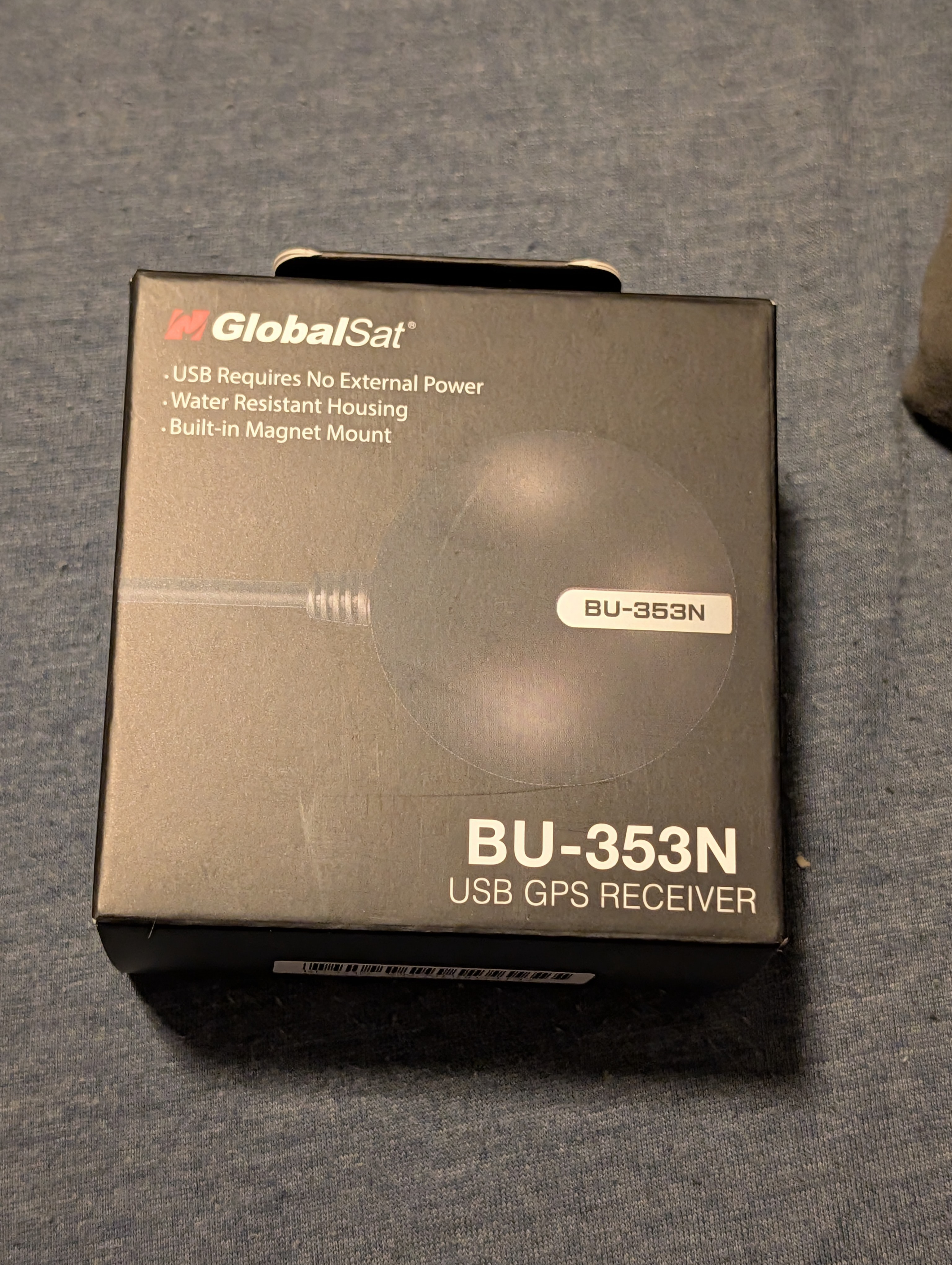
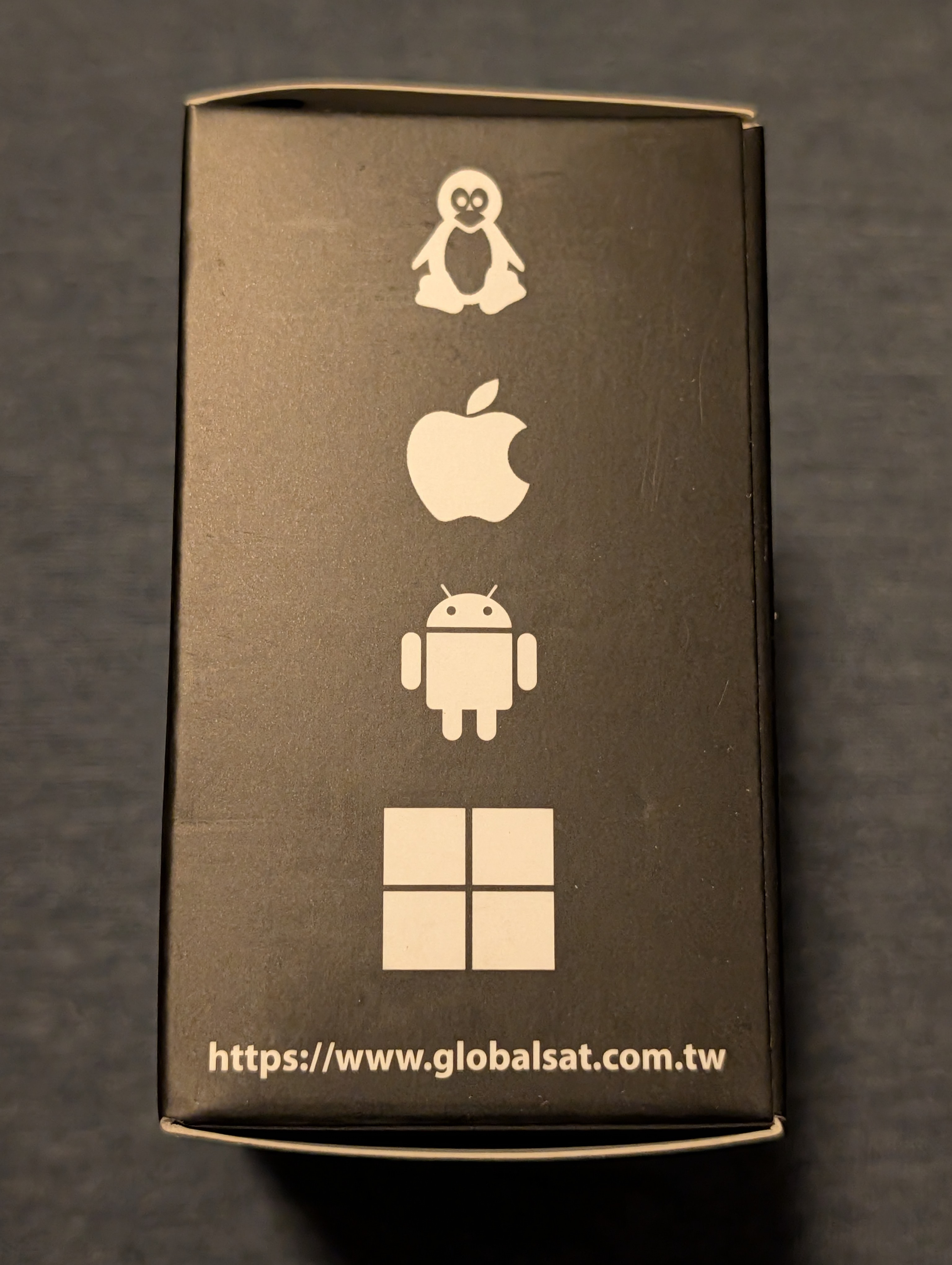
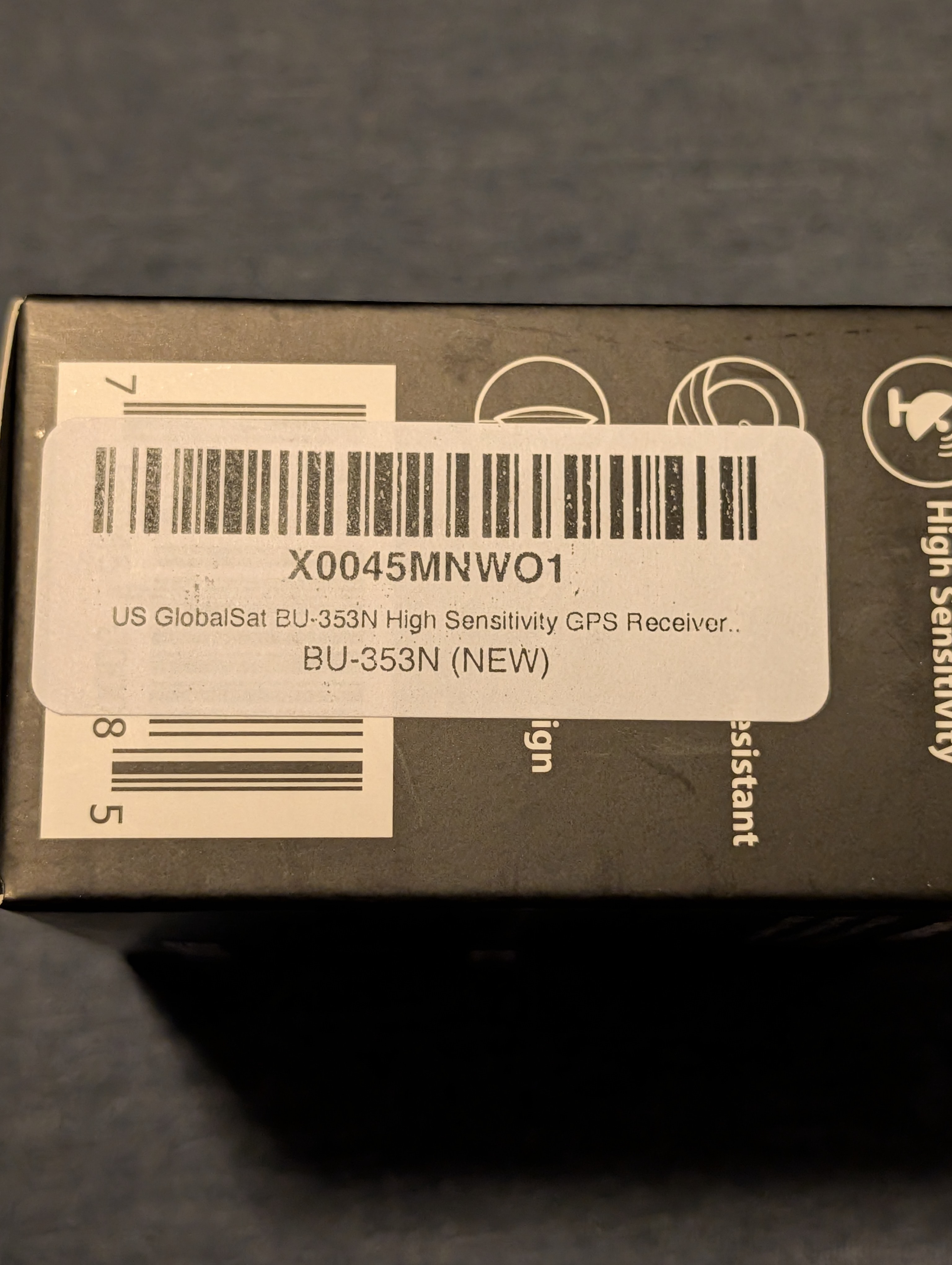
GPS Hardware Photos
The following photos document the exact GPS hardware used for this project.
Photos included:
-
Retail packaging (front)
-
Retail packaging (specifications)
-
OS compatibility indicators
-
Model and part number label
|
|
|
|
|
|

Physical Connection
The GPS receiver was connected directly to the Raspberry Pi using a standard USB port.
Connection notes:
-
No drivers were installed manually
-
The device powered on immediately upon connection
-
No GPIO wiring or configuration was required
-
The receiver will ultimately be mounted in a vehicle using the integrated magnetic base
At this point, the GPS device is physically present but not yet consumed by any software services.
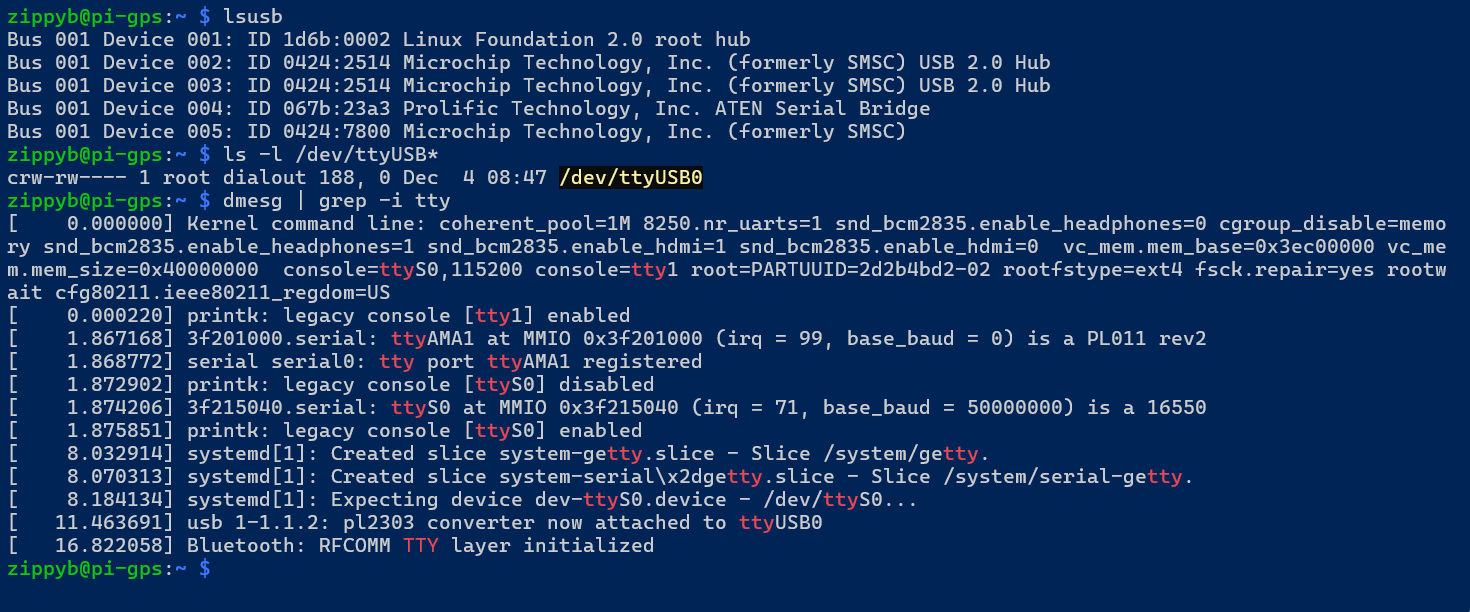
USB Device Detection
After connecting the GPS receiver, the system was checked to ensure that the USB device was detected correctly by the Linux kernel.
The following commands are used to validate USB detection:
lsusbls -l /dev/ttyUSB*dmesg | grep -i ttyExpected results:
-
The GlobalSat device appears in
lsusb -
A serial device (typically
/dev/ttyUSB0) is created -
Kernel messages indicate a USB‑to‑serial adapter attachment
Here is the results of those commands:
GPS Data Flow Overview
Before configuring any services, it is important to understand the intended data flow:
USB GPS Receiver
↓
Linux USB‑Serial Driver
↓
/dev/ttyUSB*
↓
gpsd
↓
Applications / Logging / Web UIThis project uses gpsd as the central interface between raw GPS data and higher‑level applications.
Configuration and validation of gpsd will be covered in the next phase.
Current Status
At the conclusion of this phase:
-
GPS hardware has been physically connected
-
USB device detection has been verified
-
No drivers or custom configuration were required
-
No GPS services have been enabled yet
The system is now ready for GPS daemon installation and validation.
Next Steps
The next phase of the project will cover:
-
Installing
gpsdand GPS client utilities -
Verifying socket activation
-
Confirming live GPS fixes using
gpspipe -
Validating TPV and satellite data
03 - RouteTrack Pi — gpsd Installation & GPS Validation
Date: December 24th, 2025
Category: Raspberry Pi / GPS / Linux Services
Backlink: RouteTrack Pi — Connecting GPS Hardware
Goal
This page covers:
-
Installing
gpsdand GPS tools (Global Positioning Satellite Daemon Tools) -
Confirming the USB GPS receiver is outputting raw NMEA sentences
-
Creating a stable
/dev/gps0device symlink via udev rules -
Running
gpsdreliably as a standalone systemd service -
Validating that GPS data is readable through
gpspipe - I had to use a stand alone service because
gpsdwouldn't work out of the box with my GPS Reciever. - This is a workaround for that on this page.
- Some GPS units will work without bypassing TTP and using a seperate standalone systemd service.
- This page is specific to the GPS I used that needed a workaround.
Device: GlobalSat BU‑353N USB GPS Receiver
Install gpsd + tools
Run:
sudo apt update
sudo apt install -y gpsd gpsd-clientsThis installs:
-
gpsd(daemon) -
gpspipe,cgps(client tools)
Confirm the GPS receiver is detected
Plug in the USB GPS receiver, then verify the device appears:
ls -l /dev/ttyUSB*example:

Linux sees the GPS receiver.
Validate raw NMEA output from the GPS
Before involving gpsd, verify the GPS is actually transmitting:
sudo stty -F /dev/ttyUSB0 4800 cs8 -cstopb -parenb -ixon -ixoff -crtscts -echo
sudo timeout 8 cat /dev/ttyUSB0 | head -n 20Expected output should look like:
$GPGGA,...
$GPGSA,...
$GPRMC,...
If you see NMEA sentences, the receiver is working at 4800 baud.
Create a stable GPS symlink /dev/gps0 (udev rule)
The GPS device may sometimes appear as a different tty device, so we create a stable symlink called /dev/gps0.
Create the udev rule
sudo nano /etc/udev/rules.d/10-gps-pl2303.rulesPaste:
SUBSYSTEM=="tty", ATTRS{idVendor}=="067b", ATTRS{idProduct}=="23a3", SYMLINK+="gps0"These id's come from udev's info:
-
idVendor=067b -
idProduct=23a3
Reload udev and trigger:
sudo udevadm control --reload-rules
sudo udevadm trigger
sudo udevadm settleVerify:
ls -l /dev/gps0Expected:

Disable gpsd.socket and build a standalone gpsd service
Socket activation can cause inconsistent behavior during testing, so this project uses a dedicated standalone systemd service.
Disable/mask the socket unit
sudo systemctl disable --now gpsd.socket
sudo systemctl mask gpsd.socketCreate gpsd-standalone.service
Create the service:
sudo nano /etc/systemd/system/gpsd-standalone.serviceThis is the code for setting up the new service:
[Unit]
Description=GPSD Standalone (RouteTrack)
After=network.target
Wants=network.target
[Service]
Type=simple
User=gpsd
Group=dialout
ExecStart=/usr/sbin/gpsd -N -n -b -s 4800 -S 2947 /dev/gps0
Restart=on-failure
RestartSec=2
[Install]
WantedBy=multi-user.target
Important Notes
-
-s 4800forces correct baud rate -
-S 2947binds gpsd to port 2947 (localhost) -
We intentionally do not use
-F /run/gpsd.sockbecause it caused permission errors for thegpsduser under systemd. -
This service uses
/dev/gps0so the device name stays consistent.
Enable + start:
sudo systemctl daemon-reload
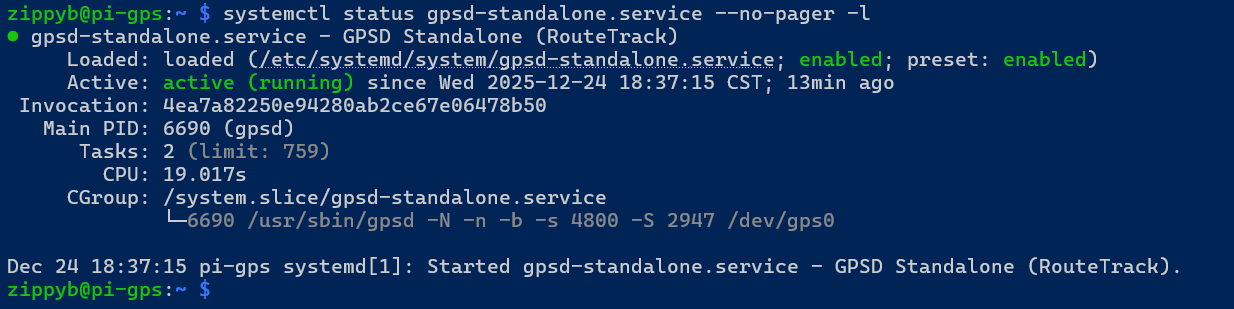
sudo systemctl enable --now gpsd-standalone.serviceCheck status:
systemctl status gpsd-standalone.service --no-pager -lNotice it is enabled, active and running the line from the ExecStart:
Confirm gpsd is listening on port 2947
Run:
ss -ltnp | grep 2947It is listening on ipv4 and ipv6 ports:

Validate GPS data through gpsd (JSON output)
Run:
gpspipe -w -n 25✅ Expected:
-
TPVmessages -
SKYmessages -
mode: 3when a fix is established -
latitude/longitude values updating
Example indicators showing some GPS coordinates:
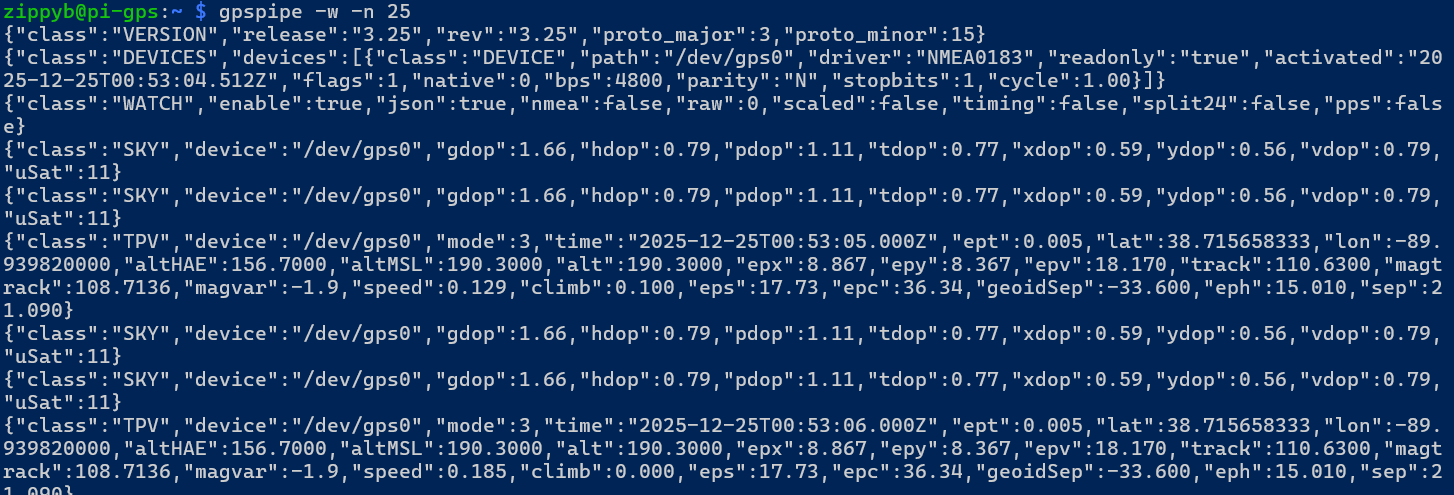
Verifying Satellites and that everything is working:
use:
cgps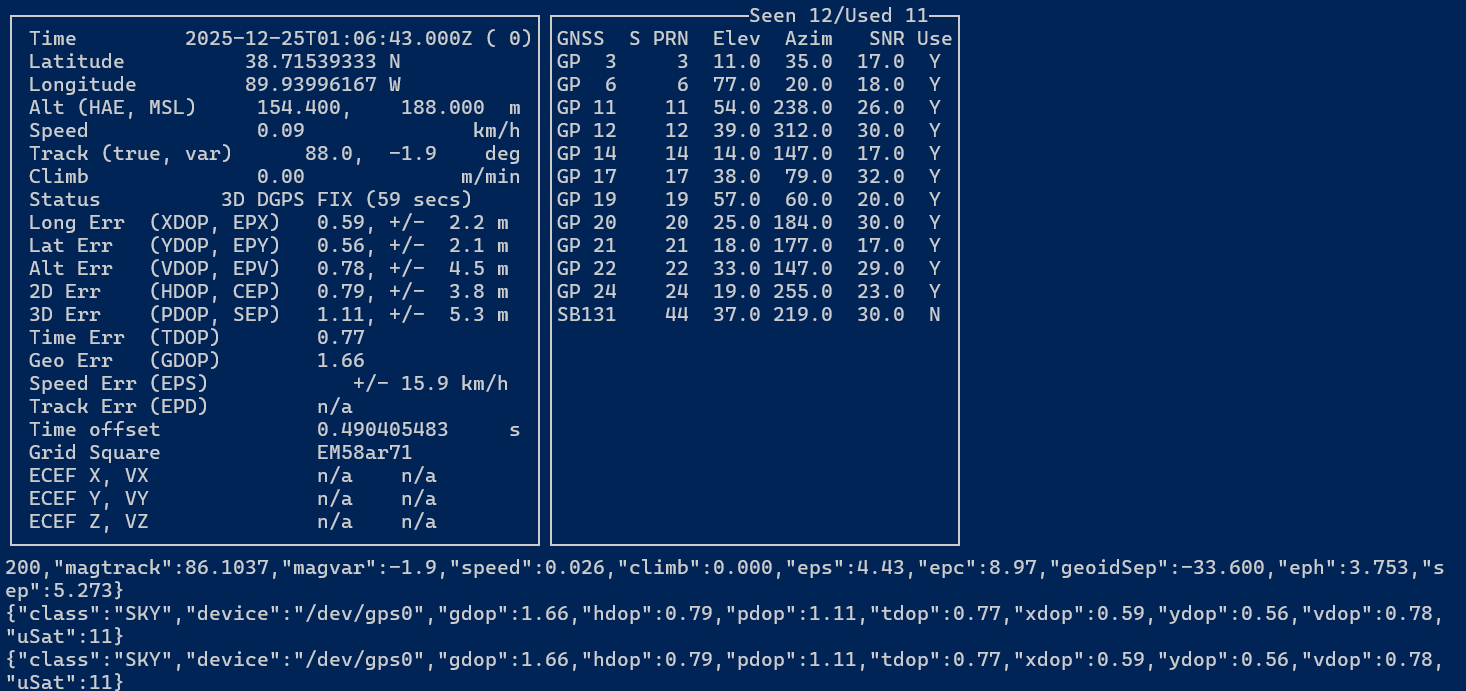
Next Steps
The GPS subsystem is now stable, validated, and running as a dedicated systemd service. Upcoming work will build on this foundation:
-
Integrate gpsd with RouteTrack
-
Consume GPS data via localhost port
2947 -
Parse TPV updates for real-time position tracking
-
-
Add health checks
-
Monitor gpsd service status
-
Alert if GPS fix drops below
mode: 3
-
-
Visualization
-
Map GPS coordinates to a live or logged route view
-
Export NMEA or JSON logs for later analysis
-
04 - RouteTrack Pi — GPS Data Logging Service
Date: December 24th, 2025
Category: Raspberry Pi / GPS / Logging / Linux Services
Backlink: RouteTrack Pi — gpsd Installation & GPS Validation
Project Goal
This page adds the next layer on top of the now-stable GPS subsystem:
-
Continuously collect TPV updates from
gpsd(localhost port 2947) -
Write the data to a local database for later:
-
Route mapping (GeoJSON export)
-
Mileage calculation
-
Stop detection / time-on-site
-
Daily totals (hours, distance, etc.)
-
This is a local-first design so the system still works even when the truck is offline.
Prerequisites
This page assumes:
-
gpsd-standalone.serviceis enabled and running -
gpsdis listening on 127.0.0.1:2947 -
gpspipe -w -n 25shows TPV + SKY messages andmode: 3once a fix is obtained
Data We Will Log (Minimum Viable Dataset)
From TPV messages, we will store:
-
time(UTC timestamp from gpsd) -
lat,lon -
alt(optional) -
speed -
track(heading) -
mode(0/1/2/3 — we only trust 3 for real routes) -
epx,epy,eps(accuracy-ish fields if present)
This is enough to:
-
Render a map route
-
Compute distance
-
Identify movement vs stops
-
Generate daily summaries
Perfect — this is exactly the right moment to clean this up 👍
Below is a fully copy-pasteable replacement for both sections you showed: Folder Layout and Install Dependencies, rewritten to match the venv + dashboard direction and your clean BookStack style.
You can drop this in as-is and delete what’s there now.
Folder Layout
This project uses a structured directory layout under /opt/routetrack to keep scripts, data, logs, configuration, and the Python virtual environment clearly separated.
Create the directory structure:
sudo mkdir -p /opt/routetrack/{bin,data,logs,config}
sudo chown -R $USER:$USER /opt/routetrackDirectory Purpose
-
bin/
Application scripts and executables
(e.g. GPS logger, web dashboard entrypoints) -
data/
Persistent application data
(SQLite database, exports) -
logs/
Application logs
(GPS logging, web service logs) -
config/
Configuration files
(database schema, environment variables) -
venv/
Python virtual environment
(created in a later step)
Reference Paths
These paths are used consistently throughout the RouteTrack project:
-
Logger script:
/opt/routetrack/bin/routetrack-logger.py -
SQLite database:
/opt/routetrack/data/routetrack.sqlite -
Application logs:
/opt/routetrack/logs/routetrack.log -
Database schema / config files:
/opt/routetrack/config/schema.sql
Install Dependencies
RouteTrack runs on Raspberry Pi OS Lite 64 bit and uses a Python virtual environment to avoid modifying the system Python installation.
Update package lists:
sudo apt updateInstall required system packages:
sudo apt install -y python3-venv python3-pip sqlite3Package Purpose
-
python3-venv
Creates an isolated Python environment for RouteTrack -
python3-pip
Installs Python packages inside the virtual environment -
sqlite3
Lightweight local database for GPS data and summaries
Using a virtual environment avoids conflicts with the OS-managed Python environment and allows RouteTrack to safely install web and dashboard dependencies.
Nice — and you’re right to call that out. Your BookStack section should explicitly include the venv package install step since that’s where you’re at now.
Here’s a drop-in BookStack section you can paste immediately after “Install Dependencies” (or as the last part of it). It documents exactly what you did, cleanly.
Create the Python Virtual Environment (venv)
RouteTrack uses a dedicated Python virtual environment stored under /opt/routetrack/venv.
This avoids installing packages into the OS-managed Python environment and keeps the project portable and stable.
Create the virtual environment:
python3 -m venv /opt/routetrack/venvInstall Web Dashboard Dependencies (Flask + Gunicorn)
Upgrade pip inside the virtual environment:
/opt/routetrack/venv/bin/pip install --upgrade pipInstall the local dashboard requirements:
/opt/routetrack/venv/bin/pip install flask gunicornVerify Flask Works
Run a quick import test:
/opt/routetrack/venv/bin/python -c "import flask; print('Flask OK')"Expected output:

Current Status
At this point:
-
Folder layout exists under
/opt/routetrack -
Python virtual environment is created at
/opt/routetrack/venv -
Flask + Gunicorn are installed and verified successfully
The next phase will initialize the SQLite database schema and begin logging gpsd TPV points into the database for mapping and reporting.
Creating the SQLite Database Schema
This project uses a file-based SQL schema to define the RouteTrack database structure.
Storing the schema in a dedicated .sql file makes it easier to review, document, and extend later as new features (stops, daily summaries, exports) are added.
Creating the Schema File
Create a schema file in the RouteTrack configuration directory:
sudo nano /opt/routetrack/config/schema.sqlPaste the following contents:
PRAGMA journal_mode=WAL;
CREATE TABLE IF NOT EXISTS gps_points (
id INTEGER PRIMARY KEY AUTOINCREMENT,
ts TEXT NOT NULL,
lat REAL,
lon REAL,
speed REAL,
track REAL,
alt REAL,
mode INTEGER,
epx REAL,
epy REAL,
eps REAL
);
CREATE INDEX IF NOT EXISTS idx_gps_points_ts
ON gps_points(ts);Save and exit:
-
CTRL + O→ Enter orCTRL + S -
CTRL + X
Applying the Schema to the Database
Run the schema file once to initialize the SQLite database:
sqlite3 /opt/routetrack/data/routetrack.sqlite \
< /opt/routetrack/config/schema.sqlIf the database file does not already exist, SQLite will create it automatically.
Verify Database Creation
Confirm that the table was created successfully:
sqlite3 /opt/routetrack/data/routetrack.sqlite ".tables"Expected output:

To inspect the table structure:
sqlite3 /opt/routetrack/data/routetrack.sqlite ".schema gps_points"Why This Approach
SQLite was chosen because it is:
-
Lightweight and ideal for Raspberry Pi hardware
-
Reliable for long-running, vehicle-mounted deployments
-
Easy to export later to GeoJSON or CSV
-
Well-suited for daily summaries and route analysis
Using a standalone schema file keeps database changes explicit and versionable, which aligns with the long-term goal of expanding RouteTrack into a full route-tracking and reporting system
Create the RouteTrack Logger Script (SQLite + gpsd)
This logger is responsible for continuously collecting GPS position updates from gpsd (localhost port 2947) and storing them in the local SQLite database.
Design Notes (Why this works well on a vehicle Pi)
-
Connects to
gpsdover TCP (127.0.0.1:2947) using newline-delimited JSON -
Stores only
TPVclass updates (time/position/speed/heading) -
Commits inserts in small batches to reduce SD card write amplification
-
Runs under
systemdso it starts on boot and self-heals ifgpsdrestarts
Create the Logger Script File
Create/edit the logger script:
sudo nano /opt/routetrack/bin/routetrack-logger.pyPaste the following script:
#!/usr/bin/env python3
"""
RouteTrack GPS Logger
---------------------
Purpose:
- Connect to gpsd (localhost:2947)
- Subscribe to JSON streaming (WATCH)
- Extract TPV messages (Time/Position/Velocity)
- Insert points into SQLite (gps_points table)
- Commit periodically for SD-card friendly writes
- Print logs to stdout so systemd journald captures them
Key assumptions:
- gpsd is already running as gpsd-standalone.service and listening on port 2947
- SQLite DB exists at /opt/routetrack/data/routetrack.sqlite
- Table gps_points exists (created by schema.sql)
"""
import json
import socket
import sqlite3
import time
from datetime import datetime, timezone
# gpsd host/port (your standalone service binds gpsd to localhost:2947)
GPSD_HOST = "127.0.0.1"
GPSD_PORT = 2947
# SQLite database path created earlier
DB_PATH = "/opt/routetrack/data/routetrack.sqlite"
# Commit every N points:
# - Reduces disk writes vs committing each insert
# - Helps SD card longevity in vehicle deployments
COMMIT_EVERY = 10
def utc_now() -> str:
"""Return a UTC timestamp string for logging."""
return datetime.now(timezone.utc).isoformat()
def db_connect() -> sqlite3.Connection:
"""
Open SQLite connection and apply performance/safety pragmas.
- WAL (Write-Ahead Logging) mode is already enabled via schema.sql,
but repeating it here is harmless.
- synchronous=NORMAL is a common setting for WAL mode:
better performance with good durability.
"""
conn = sqlite3.connect(DB_PATH, timeout=30)
conn.execute("PRAGMA journal_mode=WAL;")
conn.execute("PRAGMA synchronous=NORMAL;")
return conn
def insert_point(cur: sqlite3.Cursor, tpv: dict) -> None:
"""
Insert a TPV message into gps_points.
We use tpv.get(...) so missing keys do not crash the logger.
This keeps the service robust when gpsd emits partial data during fix acquisition.
"""
cur.execute(
"""
INSERT INTO gps_points (ts, lat, lon, speed, track, alt, mode, epx, epy, eps)
VALUES (?, ?, ?, ?, ?, ?, ?, ?, ?, ?)
""",
(
tpv.get("time"), # gpsd's UTC timestamp (string)
tpv.get("lat"), # latitude (float)
tpv.get("lon"), # longitude (float)
tpv.get("speed"), # speed (typically meters/second)
tpv.get("track"), # heading/course (degrees)
tpv.get("alt"), # altitude (meters)
tpv.get("mode"), # 0/1/2/3 (3 = best fix quality)
tpv.get("epx"), # estimated longitude error (meters)
tpv.get("epy"), # estimated latitude error (meters)
tpv.get("eps"), # estimated speed error
),
)
def main() -> None:
"""
Main loop:
- Connect to SQLite
- Forever:
- Connect to gpsd
- Send WATCH request to enable JSON streaming
- Read gpsd lines (newline-delimited JSON)
- Store TPV messages to SQLite
- On disconnect/errors:
- commit anything pending
- sleep briefly
- reconnect
"""
print(f"{utc_now()} RouteTrack logger starting…", flush=True)
# Create DB connection and cursor once.
# SQLite is local, fast, and lightweight for Pi deployments.
conn = db_connect()
cur = conn.cursor()
# Count uncommitted inserts so we can batch commits.
pending = 0
while True:
try:
# Establish TCP connection to gpsd service.
with socket.create_connection((GPSD_HOST, GPSD_PORT), timeout=10) as s:
# Enable JSON output streaming from gpsd.
# gpsd will emit multiple classes (TPV, SKY, etc.); we filter for TPV.
s.sendall(b'?WATCH={"enable":true,"json":true}\n')
# gpsd responses arrive in chunks; accumulate until newline.
buf = b""
while True:
chunk = s.recv(4096)
if not chunk:
# Socket closed; force reconnect
raise RuntimeError("gpsd socket closed")
buf += chunk
# Process all complete lines currently buffered.
while b"\n" in buf:
line, buf = buf.split(b"\n", 1)
if not line.strip():
continue
# Convert bytes -> string -> JSON dict
try:
msg = json.loads(line.decode("utf-8", errors="replace"))
except json.JSONDecodeError:
# Skip malformed lines without crashing
continue
# Only store TPV messages (position/time/speed)
if msg.get("class") != "TPV":
continue
# Skip TPV messages without time.
# This can occur before a real fix is established.
if "time" not in msg:
continue
# Insert into SQLite
insert_point(cur, msg)
pending += 1
# Commit every N points to reduce write load
if pending >= COMMIT_EVERY:
conn.commit()
pending = 0
except Exception as e:
# If gpsd restarts, USB hiccups, or anything breaks, we reconnect.
# Commit any pending inserts first (best effort).
try:
conn.commit()
except Exception:
pass
print(f"{utc_now()} ERROR: {e} (reconnecting in 3s)", flush=True)
time.sleep(3)
if __name__ == "__main__":
main()
Make the script executable:
sudo chmod +x /opt/routetrack/bin/routetrack-logger.pyCreate the systemd Service (RouteTrack Logger)
This service ensures the logger starts at boot, stays running, and is tied to the GPS subsystem.
Create the unit file:
sudo nano /etc/systemd/system/routetrack-logger.servicePaste:
[Unit]
Description=RouteTrack GPS Logger
# Start after gpsd is online and networking is available
After=gpsd-standalone.service network.target
# Pull gpsd up if needed, and fail if gpsd is missing
Wants=gpsd-standalone.service
Requires=gpsd-standalone.service
[Service]
Type=simple
# Run from /opt/routetrack so relative paths (if added later) behave predictably
WorkingDirectory=/opt/routetrack
# IMPORTANT:
# Use the virtual environment Python so packages (Flask, etc.) remain isolated
ExecStart=/opt/routetrack/venv/bin/python /opt/routetrack/bin/routetrack-logger.py
# Always restart if the logger exits (gpsd restarts, USB dropouts, etc.)
Restart=always
RestartSec=3
# Send script output to journald
StandardOutput=journal
StandardError=journal
[Install]
WantedBy=multi-user.targetReload systemd + enable and start the service:
sudo systemctl daemon-reload
sudo systemctl enable --now routetrack-logger.serviceCheck service status:
sudo systemctl status routetrack-logger.service --no-pager -lView logs live:
sudo journalctl -u routetrack-logger -fVerify GPS Data is Being Written to SQLite
Confirm row count is increasing:
sqlite3 /opt/routetrack/data/routetrack.sqlite "SELECT COUNT(*) FROM gps_points;"View the latest 10 points:
sqlite3 /opt/routetrack/data/routetrack.sqlite \
"SELECT ts, lat, lon, speed, mode FROM gps_points ORDER BY id DESC LIMIT 10;"Optional: verify you are receiving mode: 3 fixes consistently:
sqlite3 /opt/routetrack/data/routetrack.sqlite \
"SELECT mode, COUNT(*) FROM gps_points GROUP BY mode ORDER BY mode;"Notes for Later Phases (Mileage + Stops)
-
gpsd
speedvalues are typically meters/second-
mph conversion:
mph = mps * 2.23694
-
-
Some “movement” may appear when parked due to GPS drift.
-
Mileage calculations should apply filtering later:
-
count movement only when
mode = 3 -
ignore points under a speed threshold (example:
>= 0.5 m/s)
-
-
Log Rotation (Prevent SD Card Bloat)
RouteTrack services write their runtime output to systemd journald (viewable via journalctl). journald handles rotation automatically and is capped by the retention settings configured in /etc/systemd/journald.conf.
In addition, a logrotate policy is created for any file-based logs that may be added later under /opt/routetrack/logs/ (for example: helper scripts, exporters, or future components that write .log files).
Create the logrotate Policy (File Logs)
Create a logrotate config for RouteTrack:
sudo nano /etc/logrotate.d/routetrack
Paste:
/opt/routetrack/logs/*.log {
daily
rotate 14
compress
delaycompress
missingok
notifempty
copytruncate
}
Fix: logrotate “Insecure Permissions” Error
logrotate may refuse to rotate logs if the parent directory is writable by non-root users (reported as “insecure permissions”). To resolve this securely, the RouteTrack logs directory is locked down to root ownership:
sudo chown root:root /opt/routetrack/logs
sudo chmod 755 /opt/routetrack/logs
Verify permissions:
ls -ld /opt/routetrack /opt/routetrack/logs
Test logrotate
Force a rotation to validate the config:
sudo logrotate -f /etc/logrotate.d/routetrack
RouteTrack Logging Note (Primary Logging)
The RouteTrack logger service outputs to journald, so you can view logs with:
sudo journalctl -u routetrack-logger -f
This is the primary logging method. File-based log rotation is included for future scripts or components that write to /opt/routetrack/logs/*.log.
Current Status
-
File-based RouteTrack logs are rotated daily
-
Old logs are compressed and retained safely
-
Disk usage remains controlled for long-running deployments
Next Steps
Next phase will build the actual “route intelligence”:
-
Mileage calculation
-
Haversine distance between points
-
Only count
mode: 3fixes -
Ignore drift when speed is near zero
-
-
Stop detection
-
Define stop events (speed threshold + dwell time)
-
Write stop events to a second table
-
-
Daily summaries
-
Total mileage
-
Total moving time
-
Total stopped time (time-on-site)
-
Start time / end time per shift
-
05 - RouteTrack Pi — Route Intelligence & Metrics Engine
Date: December 24th, 2025
Category: Raspberry Pi / GPS / Data Processing
Backlink: RouteTrack Pi — GPS Data Logging Service
Project Goal
This phase introduces the route intelligence layer for RouteTrack.
Raw GPS points alone are not useful for reporting or visualization. This page defines how RouteTrack transforms logged GPS data into meaningful metrics such as:
-
Mileage
-
Moving vs stopped time
-
Stop events (time-on-site)
-
Daily route summaries
These metrics will later power:
-
The local web dashboard (Leaflet)
-
Historical route review
-
Daily summaries and exports
Data Inputs
This phase consumes GPS data already being logged into SQLite:
Table: gps_points
Key fields used:
-
ts— GPS timestamp (UTC) -
lat,lon— geographic position -
speed— meters per second -
mode— GPS fix quality (0–3)
Only mode = 3 records are considered trustworthy for route calculations.
Route Mileage Calculation
Method: Haversine Distance
Mileage is calculated using the Haversine formula, which computes the great-circle distance between two latitude/longitude points on Earth.
This approach is:
-
Accurate for vehicle-scale distances
-
Lightweight (no external geo libraries required)
-
Suitable for Raspberry Pi hardware
Rules Applied
To avoid false mileage caused by GPS drift:
-
Only include points where:
-
mode = 3 -
speed >= movement_threshold
-
-
Distance is accumulated only between consecutive valid points
Movement Threshold
A minimum speed threshold is applied:
-
Default:
0.5 m/s(~1.1 mph)
This filters out:
-
Stationary GPS jitter
-
Minor antenna noise when parked
Stop Detection (Time-on-Site)
Stops are inferred from GPS behavior rather than ignition signals.
Stop Definition
A stop event occurs when:
-
Speed remains below
movement_threshold -
For longer than
stop_dwell_time
Recommended defaults:
-
movement_threshold:0.5 m/s -
stop_dwell_time:120 seconds
This prevents brief slowdowns (traffic, turns) from being classified as stops.
Stop Events Table (Planned)
Detected stops will be stored in a dedicated table.
Table: stop_events (planned)
Fields:
-
id -
start_ts -
end_ts -
duration_seconds -
lat -
lon
Each stop represents a single continuous stationary period.
Daily Route Summaries
RouteTrack will generate daily summaries based on processed GPS data.
Metrics Tracked Per Day
-
Total mileage
-
Total moving time
-
Total stopped time
-
Shift start time
-
Shift end time
-
Number of stops
Daily Summary Table (Planned)
Table: daily_summary
Fields:
-
date -
start_ts -
end_ts -
total_distance_miles -
moving_time_seconds -
stopped_time_seconds -
stop_count
Daily summaries allow:
-
Fast dashboard loading
-
Simple reporting
-
Long-term trend analysis
Processing Strategy
Route intelligence will be computed using post-processing scripts, not in the logger itself.
Reasons:
-
Keeps the logger lightweight and reliable
-
Allows recalculation if thresholds change
-
Makes testing and validation easier
Processing can be triggered:
-
On demand
-
On a schedule (cron)
-
Before dashboard rendering
Relationship to Local Dashboard
The local dashboard will not calculate metrics in real time.
Instead, it will:
-
Read pre-computed route data
-
Display routes, stops, and summaries using Leaflet
-
Query SQLite via a lightweight API
This keeps the UI responsive and the system scalable.
Current Status
At this stage:
-
GPS data is logged continuously
-
SQLite schema is stable
-
Logger service is running reliably
-
No route intelligence calculations are active yet
Next Steps
The next phase will implement:
-
Route processing script
-
Compute mileage
-
Detect stops
-
Populate summary tables
-
-
Database schema extensions
-
stop_events -
daily_summary
-
-
Local Web Dashboard
-
Flask backend
-
Leaflet-based map
-
Live and historical views
-
Why This Page Matters
This page clearly separates:
-
Data collection
-
Data interpretation
-
Visualization
It is just a thoughtful write up on my next page which will be integrating the data before bringing up the Flask + Leaflet dashboard so it will launch with meaningful data!
06 - RouteTrack Pi — Route Processing & Summary Generation
Date: December 25, 2025
Category: Raspberry Pi / GPS / Data Processing
Backlink: RouteTrack Pi — GPS Logging & Data Ingestion
Project Goal
This phase transforms RouteTrack from a raw GPS logger into a route intelligence system.
Instead of calculating metrics at ingestion time, RouteTrack uses a post-processing model:
-
Raw GPS points are logged continuously
-
Route intelligence is calculated later
-
Derived data can be safely regenerated if logic changes
This mirrors how professional telemetry and fleet-tracking systems are built.
High-Level Architecture
| Layer | Responsibility |
|---|---|
| GPS Logger | Writes raw telemetry (gps_points) |
| Route Processor | Computes stops, mileage, summaries |
| SQLite | Stores raw + derived data |
| Dashboard (next phase) | Reads only processed tables |
Only one component writes raw data.
All intelligence is derived afterward.
Unified Database Schema
All RouteTrack data structures are defined in a single schema file:
/opt/routetrack/config/schema.sqlThis file defines:
-
Raw GPS telemetry
-
Derived stop events
-
Aggregated daily summaries
SQLite Schema (with WAL enabled)
-- ============================================================
-- RouteTrack SQLite Schema
-- ============================================================
PRAGMA journal_mode=WAL;
-- ============================================================
-- TABLE: gps_points (RAW TELEMETRY)
-- ============================================================
CREATE TABLE IF NOT EXISTS gps_points (
id INTEGER PRIMARY KEY AUTOINCREMENT,
ts TEXT NOT NULL,
lat REAL,
lon REAL,
speed REAL,
track REAL,
alt REAL,
mode INTEGER,
epx REAL,
epy REAL,
eps REAL
);
CREATE INDEX IF NOT EXISTS idx_gps_points_ts
ON gps_points(ts);
-- ============================================================
-- TABLE: stop_events (DERIVED)
-- ============================================================
CREATE TABLE IF NOT EXISTS stop_events (
id INTEGER PRIMARY KEY AUTOINCREMENT,
start_ts TEXT NOT NULL,
end_ts TEXT NOT NULL,
duration_seconds INTEGER NOT NULL,
lat REAL,
lon REAL
);
CREATE INDEX IF NOT EXISTS idx_stop_events_start_ts
ON stop_events(start_ts);
-- ============================================================
-- TABLE: daily_summary (AGGREGATED)
-- ============================================================
CREATE TABLE IF NOT EXISTS daily_summary (
date TEXT PRIMARY KEY,
start_ts TEXT,
end_ts TEXT,
total_distance_miles REAL,
moving_time_seconds INTEGER,
stopped_time_seconds INTEGER,
stop_count INTEGER
);
Schema Design Breakdown
gps_points — Source of Truth
-
Stores raw TPV messages from
gpsd -
Append-only
-
Never modified or recalculated
-
All other tables derive from this data
stop_events — Route Intelligence
-
Represents continuous stationary periods
-
Derived using:
-
Speed threshold
-
Minimum dwell time
-
-
Used for:
-
Time-on-site tracking
-
Map stop markers
-
Shift analysis
-
daily_summary — Fast Reporting
-
One row per calendar day
-
Stores:
-
Start / end timestamps
-
Total mileage
-
Moving vs stopped time
-
Stop count
-
-
Prevents rescanning raw GPS points for dashboards
Applying the Schema (Important!)
SQLite requires an exclusive lock for schema changes.
Safe Workflow
sudo systemctl stop routetrack-logger.service
sqlite3 /opt/routetrack/data/routetrack.sqlite < /opt/routetrack/config/schema.sql
sqlite3 /opt/routetrack/data/routetrack.sqlite ".tables"
sudo systemctl start routetrack-logger.serviceExpected tables:
gps_points
stop_events
daily_summaryRoute Processing Script
The route processor converts raw GPS points into usable metrics.
Responsibilities
-
Filter invalid fixes (
mode != 3) -
Ignore GPS drift
-
Calculate distance (Haversine)
-
Track moving vs stopped time
-
Detect stop events
-
Populate
stop_eventsanddaily_summary
Route Processor Script (Final Version Used)
File:
/opt/routetrack/bin/routetrack-process.py#!/usr/bin/env python3
"""
RouteTrack Route Processor (Daily)
"""
import math
import sqlite3
import sys
from datetime import datetime, date, timezone
DB_PATH = "/opt/routetrack/data/routetrack.sqlite"
# 5 mph ≈ 2.235 m/s
MOVEMENT_THRESHOLD_MPS = 2.235
STOP_DWELL_SECONDS = 120
EARTH_RADIUS_KM = 6371.0
def haversine_meters(lat1, lon1, lat2, lon2):
phi1, phi2 = math.radians(lat1), math.radians(lat2)
dphi = math.radians(lat2 - lat1)
dlambda = math.radians(lon2 - lon1)
a = (
math.sin(dphi / 2) ** 2 +
math.cos(phi1) * math.cos(phi2) *
math.sin(dlambda / 2) ** 2
)
return 2 * EARTH_RADIUS_KM * 1000 * math.atan2(
math.sqrt(a), math.sqrt(1 - a)
)
def parse_ts(ts):
return datetime.fromisoformat(ts.replace("Z", "+00:00"))
def main():
day = sys.argv[1] if len(sys.argv) == 2 else date.today().isoformat()
start = f"{day}T00:00:00Z"
end = f"{day}T23:59:59Z"
conn = sqlite3.connect(DB_PATH)
cur = conn.cursor()
cur.execute("""
SELECT ts, lat, lon, speed, mode
FROM gps_points
WHERE ts >= ? AND ts <= ?
ORDER BY ts
""", (start, end))
rows = cur.fetchall()
if not rows:
print("No GPS data for this date.")
return
cur.execute("DELETE FROM stop_events WHERE start_ts >= ? AND start_ts <= ?", (start, end))
cur.execute("DELETE FROM daily_summary WHERE date = ?", (day,))
total_dist = 0
moving = 0
stopped = 0
stops = []
last = None
stop_start = None
for ts, lat, lon, speed, mode in rows:
if mode != 3 or lat is None or lon is None:
continue
now = parse_ts(ts)
if last:
prev_t, prev_lat, prev_lon = last
dt = (now - prev_t).total_seconds()
if speed and speed >= MOVEMENT_THRESHOLD_MPS:
total_dist += haversine_meters(prev_lat, prev_lon, lat, lon)
moving += int(dt)
if stop_start:
dur = int((now - stop_start[0]).total_seconds())
if dur >= STOP_DWELL_SECONDS:
stops.append((stop_start[0], now, dur, stop_start[1], stop_start[2]))
stopped += dur
stop_start = None
else:
if not stop_start:
stop_start = (now, lat, lon)
last = (now, lat, lon)
for s in stops:
cur.execute("""
INSERT INTO stop_events
(start_ts, end_ts, duration_seconds, lat, lon)
VALUES (?, ?, ?, ?, ?)
""", (s[0].isoformat(), s[1].isoformat(), s[2], s[3], s[4]))
miles = total_dist * 0.000621371
cur.execute("""
INSERT INTO daily_summary
(date, start_ts, end_ts, total_distance_miles,
moving_time_seconds, stopped_time_seconds, stop_count)
VALUES (?, ?, ?, ?, ?, ?, ?)
""", (day, rows[0][0], rows[-1][0], round(miles, 2), moving, stopped, len(stops)))
conn.commit()
conn.close()
print(f"Processed {day}: miles={round(miles,2)} stops={len(stops)}")
if __name__ == "__main__":
main()
Make executable:
sudo chmod +x /opt/routetrack/bin/routetrack-process.pyRunning the Processor (Safe Method)
Because SQLite needs exclusive access for deletes/inserts:
sudo systemctl stop routetrack-logger.service
/opt/routetrack/venv/bin/python /opt/routetrack/bin/routetrack-process.py
sudo systemctl start routetrack-logger.serviceVerification Queries
Daily Summary
sqlite3 /opt/routetrack/data/routetrack.sqlite \
"SELECT * FROM daily_summary ORDER BY date DESC LIMIT 1;"Stop Events
sqlite3 /opt/routetrack/data/routetrack.sqlite \
"SELECT start_ts,end_ts,duration_seconds FROM stop_events ORDER BY id DESC LIMIT 5;"Real-World Validation (Stationary Test)
With the GPS unit not moving at all:
| Metric | Result |
|---|---|
| Distance | 0.0 miles |
| Moving time | 0 seconds |
| Stops | 1 |
| Stopped time | Entire duration |
This confirmed:
-
GPS drift was eliminated
-
Movement detection is stable
-
Stop logic behaves correctly
Why This Matters
This phase turns RouteTrack into a true telemetry system:
-
Accurate mileage
-
Reliable stop detection
-
Regenerable summaries
-
Dashboard-ready data model
The UI is now just a viewer, not a calculator.
Next Steps
The next phase will focus on:
-
Automating route processing (systemd timer)
-
Local Flask API for data access
-
Leaflet map dashboard for:
-
Routes
-
Stops
-
Daily summaries
-
07 - RouteTrack Pi — Automated Route Processing (systemd Service + Timer)
Date: December 25, 2025
Category: Raspberry Pi / GPS / Automation / systemd
Backlink: 06 – RouteTrack Pi — Route Processing & Summary Generation
Project Goal
This phase automates RouteTrack’s daily processing workflow so I don’t have to manually run the processor.
Because the GPS logger continuously writes to SQLite, the route processor must run with exclusive database access. The automation is designed to safely:
-
Stop
routetrack-logger.service(release DB lock) -
Run
routetrack-process.pyusing the venv Python -
Restart
routetrack-logger.service -
Log all output to systemd journal for review
This creates a repeatable, production-style “ingest → process → report” pipeline.
Why systemd Timer (instead of cron)
I used a systemd timer because it provides:
-
Reliable scheduling with clear “next run” info
-
Centralized logs via
journalctl -
Easy enable/disable and status checks
-
Clean separation of concerns (service runs once; timer schedules it)
Create Processor Wrapper Script
This wrapper script is the “safe runner” that prevents SQLite lock errors.
Create the file
sudo nano /opt/routetrack/bin/routetrack-run-processor.sh
Script used
#!/usr/bin/env bash
set -euo pipefail
# ------------------------------------------------------------
# RouteTrack - Safe Processor Runner
# ------------------------------------------------------------
# Stops the GPS logger (releases SQLite locks),
# runs the daily processor, then starts the logger again.
# ------------------------------------------------------------
LOGGER_SERVICE="routetrack-logger.service"
PROCESSOR="/opt/routetrack/bin/routetrack-process.py"
PYTHON="/opt/routetrack/venv/bin/python"
echo "$(date -Is) RouteTrack processor wrapper starting..."
echo "$(date -Is) Stopping ${LOGGER_SERVICE}..."
systemctl stop "${LOGGER_SERVICE}"
# small pause so file handles release cleanly
sleep 2
echo "$(date -Is) Running route processor..."
"${PYTHON}" "${PROCESSOR}"
echo "$(date -Is) Starting ${LOGGER_SERVICE}..."
systemctl start "${LOGGER_SERVICE}"
echo "$(date -Is) RouteTrack processor wrapper completed."
Make executable:
sudo chmod +x /opt/routetrack/bin/routetrack-run-processor.sh
Create the systemd Service (oneshot)
The systemd service runs the wrapper script one time.
Create the unit file
sudo nano /etc/systemd/system/routetrack-processor.service
Unit file used
[Unit]
Description=RouteTrack Daily Route Processor
Wants=network-online.target
After=network-online.target
[Service]
Type=oneshot
User=root
Group=root
ExecStart=/opt/routetrack/bin/routetrack-run-processor.sh
StandardOutput=journal
StandardError=journal
Reload units:
sudo systemctl daemon-reload
Test the Service Manually
Run it once to confirm it works:
sudo systemctl start routetrack-processor.service
View the logs:
journalctl -u routetrack-processor.service --no-pager -l
Confirm Logger Restarted Properly
systemctl status routetrack-logger.service --no-pager -l
The logger returned to an active (running) state immediately after processing.
Create the systemd Timer
The timer schedules the processor to run automatically every day.
Create the timer file
sudo nano /etc/systemd/system/routetrack-processor.timer
Timer used (daily at 2:10 AM local time)
[Unit]
Description=Run RouteTrack Processor Daily
[Timer]
OnCalendar=*-*-* 02:10:00
Persistent=true
RandomizedDelaySec=30
Unit=routetrack-processor.service
[Install]
WantedBy=timers.target
Reload and enable:
sudo systemctl daemon-reload
sudo systemctl enable --now routetrack-processor.timer
Verify the Timer is Active
Show timers:
systemctl list-timers --all | grep routetrack
Check timer status:
systemctl status routetrack-processor.timer --no-pager -l
This confirms:
-
Timer is active (waiting)
-
Next trigger time is scheduled
-
It triggers
routetrack-processor.service
Confirm Data Was Written
After a successful run, verify the summary table:
sqlite3 /opt/routetrack/data/routetrack.sqlite \
"SELECT * FROM daily_summary ORDER BY date DESC LIMIT 3;"
This confirms the processor populated:
-
daily_summary -
stop_events
and is producing real computed metrics.
Run On Demand (Manual Trigger Block)
This is the clean “run it right now” workflow (and verify it worked) without touching the timer schedule.
Run the processor service now
sudo systemctl start routetrack-processor.service
View the last 50 log lines from the run
journalctl -u routetrack-processor.service -n 50 --no-pager -l
Confirm the next scheduled timer run is still set
systemctl list-timers --all | grep routetrack
Operational Notes
Why the logger must stop
SQLite needs exclusive access for derived-table regeneration (DELETE + INSERT).
Running the processor while the logger is inserting can produce:
-
sqlite3.OperationalError: database is locked
This wrapper workflow prevents that completely.
Where logs live
Everything is stored in systemd journal:
journalctl -u routetrack-processor.service --since "today" --no-pager -l
Next Steps
Now that processing is automated daily, the next phase is the dashboard:
-
Flask web service (local)
-
Leaflet map page
-
Route drawing from
gps_points -
Stop markers from
stop_events -
Daily totals from
daily_summary
08 - RouteTrack Pi — Local Web Dashboard (Flask API + Leaflet Map)
Date: December 25, 2025
Category: Raspberry Pi / GPS / Flask / Leaflet / Dashboard
Backlink: 07 – RouteTrack Pi — Automated Route Processing (systemd Service + Timer)
Project Goal
This phase creates a local web dashboard hosted on the Pi that:
-
Shows the recorded route on a map (Leaflet)
-
Displays stop markers
-
Shows daily summary stats
-
Reads from SQLite only (safe, no DB lock risk)
RouteTrack now becomes usable in real time via a browser on the local network.
Dashboard Architecture
| Component | Purpose |
|---|---|
| Flask app | Serves API + webpage |
| SQLite | Data source (gps_points, stop_events, daily_summary) |
| Leaflet | Map rendering (browser) |
| OpenStreetMap tiles | Basemap tiles |
Install Dashboard Dependencies (venv)
You already confirmed Flask is installed in the venv. For Leaflet, we don’t need a Python package — it’s loaded in the browser.
If you want date parsing helpers later, we can add them, but for now keep it minimal.
(You already did these earlier, included here for completeness.)
/opt/routetrack/venv/bin/pip install --upgrade pip
/opt/routetrack/venv/bin/pip install flask gunicorn
Sanity check:
/opt/routetrack/venv/bin/python -c "import flask; print('Flask OK')"
Create Flask App Folder
sudo mkdir -p /opt/routetrack/web/templates /opt/routetrack/web/static
sudo chown -R $USER:$USER /opt/routetrack/web
Create the Flask API App
Create:
sudo nano /opt/routetrack/web/app.py
Paste:
#!/usr/bin/env python3
"""
RouteTrack Local Dashboard (Flask)
----------------------------------
Provides:
- Web UI page (Leaflet map)
- JSON API endpoints:
- /api/summary/<date>
- /api/points/<date>
- /api/stops/<date>
Notes:
- This dashboard is READ-ONLY.
- It never writes to SQLite (avoids lock contention).
"""
import sqlite3
from flask import Flask, jsonify, render_template
DB_PATH = "/opt/routetrack/data/routetrack.sqlite"
app = Flask(__name__)
def db():
conn = sqlite3.connect(DB_PATH)
conn.row_factory = sqlite3.Row
return conn
@app.route("/")
def index():
return render_template("index.html")
@app.route("/api/summary/<day>")
def api_summary(day):
conn = db()
cur = conn.cursor()
cur.execute("SELECT * FROM daily_summary WHERE date = ?", (day,))
row = cur.fetchone()
conn.close()
if not row:
return jsonify({"error": "No summary for this date"}), 404
return jsonify(dict(row))
@app.route("/api/points/<day>")
def api_points(day):
conn = db()
cur = conn.cursor()
start = f"{day}T00:00:00Z"
end = f"{day}T23:59:59Z"
cur.execute("""
SELECT ts, lat, lon
FROM gps_points
WHERE ts >= ? AND ts <= ?
AND mode = 3
AND lat IS NOT NULL
AND lon IS NOT NULL
ORDER BY ts
""", (start, end))
rows = cur.fetchall()
conn.close()
# Return as list of [lat, lon]
points = [[r["lat"], r["lon"]] for r in rows]
return jsonify(points)
@app.route("/api/stops/<day>")
def api_stops(day):
conn = db()
cur = conn.cursor()
start = f"{day}T00:00:00Z"
end = f"{day}T23:59:59Z"
cur.execute("""
SELECT start_ts, end_ts, duration_seconds, lat, lon
FROM stop_events
WHERE start_ts >= ? AND start_ts <= ?
ORDER BY start_ts
""", (start, end))
rows = cur.fetchall()
conn.close()
stops = [dict(r) for r in rows]
return jsonify(stops)
if __name__ == "__main__":
# Local dev run
app.run(host="0.0.0.0", port=5000, debug=False)
Make executable:
sudo chmod +x /opt/routetrack/web/app.py
Create the Leaflet Web Page
Create:
sudo nano /opt/routetrack/web/templates/index.html
Paste:
<!doctype html>
<html>
<head>
<meta charset="utf-8" />
<title>RouteTrack Dashboard</title>
<meta name="viewport" content="width=device-width, initial-scale=1" />
<!-- Leaflet (CDN) -->
<link
rel="stylesheet"
href="https://unpkg.com/leaflet@1.9.4/dist/leaflet.css"
/>
<script src="https://unpkg.com/leaflet@1.9.4/dist/leaflet.js"></script>
<style>
body { margin: 0; font-family: Arial, sans-serif; }
#topbar { padding: 10px; background: #111; color: #fff; }
#map { height: 70vh; }
#stats { padding: 10px; }
.row { margin: 6px 0; }
code { background: #eee; padding: 2px 4px; border-radius: 4px; }
</style>
</head>
<body>
<div id="topbar">
<strong>RouteTrack</strong> — Local Dashboard
|
Date: <input id="day" type="date" />
<button onclick="loadAll()">Load</button>
</div>
<div id="map"></div>
<div id="stats">
<h3>Daily Summary</h3>
<div id="summary"></div>
<h3>Stops</h3>
<div id="stops"></div>
</div>
<script>
// Default date = today (browser local time)
const dayInput = document.getElementById("day");
dayInput.valueAsDate = new Date();
const map = L.map("map").setView([38.7153, -89.94], 13);
L.tileLayer("https://{s}.tile.openstreetmap.org/{z}/{x}/{y}.png", {
maxZoom: 19,
attribution: "© OpenStreetMap contributors"
}).addTo(map);
let routeLine = null;
let stopMarkers = [];
async function loadAll() {
const day = dayInput.value;
await loadRoute(day);
await loadStops(day);
await loadSummary(day);
}
async function loadRoute(day) {
const res = await fetch(`/api/points/${day}`);
const pts = await res.json();
if (routeLine) map.removeLayer(routeLine);
if (!pts.length) return;
routeLine = L.polyline(pts, { weight: 4 }).addTo(map);
map.fitBounds(routeLine.getBounds());
}
async function loadStops(day) {
// clear old markers
stopMarkers.forEach(m => map.removeLayer(m));
stopMarkers = [];
const res = await fetch(`/api/stops/${day}`);
const stops = await res.json();
const stopsDiv = document.getElementById("stops");
stopsDiv.innerHTML = "";
if (!Array.isArray(stops) || !stops.length) {
stopsDiv.innerHTML = "<div class='row'>No stops found.</div>";
return;
}
stops.forEach(s => {
const durMin = Math.round(s.duration_seconds / 60);
stopsDiv.innerHTML += `<div class="row">
Stop: <code>${s.start_ts}</code> → <code>${s.end_ts}</code>
(${durMin} min)
</div>`;
if (s.lat && s.lon) {
const m = L.marker([s.lat, s.lon]).addTo(map)
.bindPopup(`Stop (${durMin} min)<br>${s.start_ts}`);
stopMarkers.push(m);
}
});
}
async function loadSummary(day) {
const summaryDiv = document.getElementById("summary");
summaryDiv.innerHTML = "";
const res = await fetch(`/api/summary/${day}`);
const data = await res.json();
if (data.error) {
summaryDiv.innerHTML = `<div class="row">No summary for ${day}. Run processor first.</div>`;
return;
}
summaryDiv.innerHTML = `
<div class="row">Start: <code>${data.start_ts}</code></div>
<div class="row">End: <code>${data.end_ts}</code></div>
<div class="row">Distance: <strong>${data.total_distance_miles}</strong> miles</div>
<div class="row">Moving: <strong>${Math.round(data.moving_time_seconds/60)}</strong> minutes</div>
<div class="row">Stopped: <strong>${Math.round(data.stopped_time_seconds/60)}</strong> minutes</div>
<div class="row">Stops: <strong>${data.stop_count}</strong></div>
`;
}
// Auto-load on page open
loadAll();
</script>
</body>
</html>
Run the Dashboard (Manual Test)
/opt/routetrack/venv/bin/python /opt/routetrack/web/app.py
Then browse from your LAN:
-
http://<PI-IP>:5000
Find your Pi IP:
hostname -I
Stop the server with Ctrl+C.
Next Step (After Manual Test)
Next phase is productionizing the dashboard:
-
systemd service for Flask (Gunicorn)
-
optional Nginx reverse proxy
-
optional local authentication
-
optional “live view” tracking
09 - RouteTrack Pi — Dashboard Autostart (Gunicorn + systemd)
Date: December 25, 2025
Category: Raspberry Pi / GPS / Flask / systemd
Backlink: 08 – RouteTrack Pi — Local Web Dashboard (Flask API + Leaflet Map)
Project Goal
At this stage RouteTrack already has a working local web dashboard (Flask + Leaflet).
This page productionizes that dashboard so it behaves like a real appliance:
-
Starts automatically on boot
-
Stays running in the background
-
Restarts if it crashes
-
Runs the Flask app using Gunicorn (production WSGI server)
This is especially important because this Pi will be powered off frequently and used on-the-go.
Why Gunicorn + systemd?
Gunicorn
Gunicorn is a production-grade Python WSGI server that runs Flask reliably with multiple workers.
systemd
systemd provides:
-
Autostart on boot
-
Automatic restart on failure
-
Central logging via
journalctl -
Clean service management (
start/stop/status)
Install Gunicorn (venv)
Install into the existing RouteTrack virtual environment:
/opt/routetrack/venv/bin/pip install gunicorn
My output confirmed it was already installed:
Requirement already satisfied: gunicorn in /opt/routetrack/venv/lib/python3.13/site-packages (23.0.0)
Create the Dashboard systemd Service
Create the service file:
sudo nano /etc/systemd/system/routetrack-dashboard.service
Paste the unit file:
[Unit]
Description=RouteTrack Local Dashboard (Gunicorn)
After=network-online.target
Wants=network-online.target
[Service]
# Run the service under my normal user (not root)
User=zippyb
Group=zippyb
# Ensure relative paths work (app:app loads from this folder)
WorkingDirectory=/opt/routetrack/web
# Start Gunicorn on port 5000, listening on all interfaces
# -w 2 = 2 worker processes (lightweight + responsive on Pi)
ExecStart=/opt/routetrack/venv/bin/gunicorn -w 2 -b 0.0.0.0:5000 app:app
# Keep it alive if it crashes
Restart=always
RestartSec=3
# Basic hardening
NoNewPrivileges=true
PrivateTmp=true
[Install]
WantedBy=multi-user.target
Reload systemd and Enable the Service
Reload units:
sudo systemctl daemon-reload
Enable + start the service:
sudo systemctl enable --now routetrack-dashboard.service
Verify the Service Is Running
Check status:
systemctl status routetrack-dashboard.service --no-pager -l
My output confirmed it is running and listening properly:
-
Service is active (running)
-
Gunicorn started successfully
-
Listening on
http://0.0.0.0:5000 -
Two workers booted
Example output:
Active: active (running)
Main PID: 9358 (gunicorn)
Listening at: http://0.0.0.0:5000 (9358)
Booting worker with pid: 9359
Booting worker with pid: 9360
Operational Notes
Where logs are stored
Because this is managed by systemd, logs are available via:
journalctl -u routetrack-dashboard.service --no-pager -l
Last 50 lines:
journalctl -u routetrack-dashboard.service -n 50 --no-pager -l
Accessing the dashboard
From any device on the same network:
-
http://<PI-IP>:5000
Find the Pi’s IP:
hostname -I
Run On Demand (Manual Service Controls)
Start:
sudo systemctl start routetrack-dashboard.service
Stop:
sudo systemctl stop routetrack-dashboard.service
Restart:
sudo systemctl restart routetrack-dashboard.service
Status:
systemctl status routetrack-dashboard.service --no-pager -l
Next Steps
Now that the dashboard is always online, the next improvements will focus on making RouteTrack truly “truck ready”:
-
Shift mode (Start Shift / End Shift buttons)
-
Offline mapping options (for no cell coverage)
-
Exports (GeoJSON/CSV) and backup strategy for on-the-go use
10 - RouteTrack Pi — Shift Mode (SQLite + Flask API + Dashboard Controls)
Date: December 25, 2025
Category: Raspberry Pi / GPS / SQLite / Flask / Leaflet
Backlink: 09 – RouteTrack Pi — Dashboard Autostart (Gunicorn + systemd)
Project Goal
This phase introduces Shift Mode to RouteTrack.
Shift Mode allows RouteTrack to track work sessions independently of calendar days, which is essential for a portable, vehicle-mounted system that:
-
Is powered down frequently
-
Moves between locations
-
Does not follow strict midnight-to-midnight boundaries
-
Needs accurate per-shift metrics (hours, stops, time-on-site)
The dashboard now supports a simple workflow: Start Shift → Drive → End Shift
Why Shift Mode Matters
Daily summaries work well for reporting, but they don’t match real-world truck usage:
-
Overnight work can cross calendar boundaries
-
Reboots/power loss interrupt sessions
-
Short test runs clutter daily totals
Shift Mode solves this by creating a clean “session boundary” that the user controls.
Database Changes
New shifts Table
A new SQLite table stores shift metadata independently of GPS data.
Table: shifts
CREATE TABLE IF NOT EXISTS shifts (
id INTEGER PRIMARY KEY AUTOINCREMENT,
start_ts TEXT NOT NULL,
end_ts TEXT,
note TEXT
);
CREATE INDEX IF NOT EXISTS idx_shifts_start_ts
ON shifts(start_ts);
Design Notes:
-
start_tsandend_tsstored as UTC ISO-8601 strings -
end_tsstaysNULLwhile a shift is active -
Only one active shift allowed at a time
-
Lightweight, isolated table to minimize lock contention
Applying the Schema Safely
Because GPS logging writes constantly to SQLite, stop the logger before applying schema changes.
sudo systemctl stop routetrack-logger.service
sqlite3 /opt/routetrack/data/routetrack.sqlite < /opt/routetrack/config/schema.sql
sqlite3 /opt/routetrack/data/routetrack.sqlite ".tables"
sudo systemctl start routetrack-logger.service
Expected tables:
daily_summary gps_points shifts stop_events
Flask API Enhancements (Full app.py)
Shift Mode is implemented via additional Flask API endpoints.
New Endpoints
| Method | Endpoint | Purpose |
|---|---|---|
| GET | /api/shift/active |
Returns the active shift (if any) |
| POST | /api/shift/start |
Starts a new shift |
| POST | /api/shift/end |
Ends the active shift |
| GET | /api/shift/summary |
Returns live stats for the active shift |
Replace /opt/routetrack/web/app.py
Edit:
sudo nano /opt/routetrack/web/app.py
Paste the full file:
#!/usr/bin/env python3
"""
RouteTrack Local Dashboard (Flask)
----------------------------------
Provides:
- Web UI page (Leaflet map)
- JSON API endpoints:
- /api/summary/<date>
- /api/points/<date>
- /api/stops/<date>
Shift Mode endpoints:
- GET /api/shift/active
- POST /api/shift/start
- POST /api/shift/end
- GET /api/shift/summary
Notes:
- This dashboard is READ-ONLY for GPS-derived tables:
gps_points, stop_events, daily_summary
- Shift Mode DOES write to SQLite, but only into the "shifts" table.
This avoids lock contention with the logger and keeps writes minimal.
"""
import sqlite3
from datetime import datetime, timezone
from flask import Flask, jsonify, render_template, request
DB_PATH = "/opt/routetrack/data/routetrack.sqlite"
app = Flask(__name__)
def db():
"""
Open SQLite connection with Row output so we can jsonify results
via dict(row).
"""
conn = sqlite3.connect(DB_PATH)
conn.row_factory = sqlite3.Row
return conn
def utc_now_iso():
"""
Return current UTC timestamp in ISO-8601 format (no microseconds).
Example: 2025-12-25T16:05:00+00:00
"""
return datetime.now(timezone.utc).replace(microsecond=0).isoformat()
@app.route("/")
def index():
"""Serve the dashboard HTML page (Leaflet UI)."""
return render_template("index.html")
# ============================================================
# Existing Daily Views (READ-ONLY)
# ============================================================
@app.route("/api/summary/<day>")
def api_summary(day):
"""Return the daily_summary row for YYYY-MM-DD."""
conn = db()
cur = conn.cursor()
cur.execute("SELECT * FROM daily_summary WHERE date = ?", (day,))
row = cur.fetchone()
conn.close()
if not row:
return jsonify({"error": "No summary for this date"}), 404
return jsonify(dict(row))
@app.route("/api/points/<day>")
def api_points(day):
"""
Return route points for a given day as a list of [lat, lon]
suitable for drawing a Leaflet polyline.
"""
conn = db()
cur = conn.cursor()
start = f"{day}T00:00:00Z"
end = f"{day}T23:59:59Z"
cur.execute("""
SELECT ts, lat, lon
FROM gps_points
WHERE ts >= ? AND ts <= ?
AND mode = 3
AND lat IS NOT NULL
AND lon IS NOT NULL
ORDER BY ts
""", (start, end))
rows = cur.fetchall()
conn.close()
return jsonify([[r["lat"], r["lon"]] for r in rows])
@app.route("/api/stops/<day>")
def api_stops(day):
"""
Return stop events that START on a given day.
"""
conn = db()
cur = conn.cursor()
start = f"{day}T00:00:00Z"
end = f"{day}T23:59:59Z"
cur.execute("""
SELECT start_ts, end_ts, duration_seconds, lat, lon
FROM stop_events
WHERE start_ts >= ? AND start_ts <= ?
ORDER BY start_ts
""", (start, end))
rows = cur.fetchall()
conn.close()
return jsonify([dict(r) for r in rows])
# ============================================================
# Shift Mode (writes only to shifts table)
# ============================================================
@app.route("/api/shift/active")
def api_shift_active():
"""
Returns the currently active shift (where end_ts is NULL),
or {"active": false} if none exists.
"""
conn = db()
cur = conn.cursor()
cur.execute("""
SELECT *
FROM shifts
WHERE end_ts IS NULL
ORDER BY id DESC
LIMIT 1
""")
row = cur.fetchone()
conn.close()
if not row:
return jsonify({"active": False})
return jsonify(dict(row))
@app.route("/api/shift/start", methods=["POST"])
def api_shift_start():
"""
Start a new shift.
Prevents multiple active shifts at once.
Optional JSON body:
{"note": "optional note here"}
"""
note = ""
try:
payload = request.get_json(silent=True) or {}
note = payload.get("note", "") or ""
except Exception:
note = ""
conn = db()
cur = conn.cursor()
# Block starting a shift if one is already active
cur.execute("SELECT id FROM shifts WHERE end_ts IS NULL LIMIT 1")
if cur.fetchone():
conn.close()
return jsonify({"error": "A shift is already active."}), 409
start_ts = utc_now_iso()
cur.execute(
"INSERT INTO shifts (start_ts, note) VALUES (?, ?)",
(start_ts, note)
)
conn.commit()
cur.execute("SELECT * FROM shifts WHERE id = last_insert_rowid()")
row = cur.fetchone()
conn.close()
return jsonify(dict(row))
@app.route("/api/shift/end", methods=["POST"])
def api_shift_end():
"""
End the currently active shift by setting end_ts.
"""
conn = db()
cur = conn.cursor()
cur.execute("""
SELECT *
FROM shifts
WHERE end_ts IS NULL
ORDER BY id DESC
LIMIT 1
""")
row = cur.fetchone()
if not row:
conn.close()
return jsonify({"error": "No active shift."}), 404
end_ts = utc_now_iso()
cur.execute("UPDATE shifts SET end_ts = ? WHERE id = ?", (end_ts, row["id"]))
conn.commit()
cur.execute("SELECT * FROM shifts WHERE id = ?", (row["id"],))
updated = cur.fetchone()
conn.close()
return jsonify(dict(updated))
@app.route("/api/shift/summary")
def api_shift_summary():
"""
Returns a lightweight summary for the ACTIVE shift window.
Current output:
- shift window (start -> now)
- number of gps points in that window (mode=3)
- stop count + stopped seconds for stop_events inside window
NOTE:
This does not compute miles yet. That comes next.
"""
conn = db()
cur = conn.cursor()
# Find active shift
cur.execute("""
SELECT *
FROM shifts
WHERE end_ts IS NULL
ORDER BY id DESC
LIMIT 1
""")
shift = cur.fetchone()
if not shift:
conn.close()
return jsonify({"error": "No active shift."}), 404
start_ts = shift["start_ts"]
end_ts = utc_now_iso() # "now" for active shift
# gps_points stores timestamps with trailing "Z"
# shifts stores timestamps with "+00:00"
# Convert bounds for gps_points query
start_bound = start_ts.replace("+00:00", "Z")
end_bound = end_ts.replace("+00:00", "Z")
cur.execute("""
SELECT COUNT(*) as point_count
FROM gps_points
WHERE ts >= ? AND ts <= ?
AND mode = 3
AND lat IS NOT NULL
AND lon IS NOT NULL
""", (start_bound, end_bound))
point_row = cur.fetchone()
cur.execute("""
SELECT COUNT(*) as stop_count,
COALESCE(SUM(duration_seconds), 0) as stopped_s
FROM stop_events
WHERE start_ts >= ? AND end_ts <= ?
""", (start_ts, end_ts))
stop_row = cur.fetchone()
conn.close()
return jsonify({
"shift_id": shift["id"],
"start_ts": start_ts,
"end_ts": end_ts,
"points": int(point_row["point_count"] or 0),
"stop_count": int(stop_row["stop_count"] or 0),
"stopped_time_seconds": int(stop_row["stopped_s"] or 0),
"note": shift["note"] or ""
})
if __name__ == "__main__":
# Local dev run (manual)
app.run(host="0.0.0.0", port=5000, debug=False)
Make executable:
sudo chmod +x /opt/routetrack/web/app.py
Restart dashboard service:
sudo systemctl restart routetrack-dashboard.service
Dashboard UI Enhancements (Full index.html)
The dashboard top bar now includes Shift controls:
-
Start Shift
-
End Shift
-
Refresh Shift
-
Shift status pill
A new Active Shift section shows live stats and refreshes every 30 seconds.
Replace /opt/routetrack/web/templates/index.html
Edit:
sudo nano /opt/routetrack/web/templates/index.html
Paste the full file:
<!doctype html>
<html>
<head>
<meta charset="utf-8" />
<title>RouteTrack Dashboard</title>
<meta name="viewport" content="width=device-width, initial-scale=1" />
<!-- Leaflet (CDN) -->
<link
rel="stylesheet"
href="https://unpkg.com/leaflet@1.9.4/dist/leaflet.css"
/>
<script src="https://unpkg.com/leaflet@1.9.4/dist/leaflet.js"></script>
<style>
body { margin: 0; font-family: Arial, sans-serif; }
#topbar { padding: 10px; background: #111; color: #fff; display: flex; gap: 10px; align-items: center; flex-wrap: wrap; }
#topbar button { cursor: pointer; }
#map { height: 70vh; }
#stats { padding: 10px; }
.row { margin: 6px 0; }
code { background: #eee; padding: 2px 4px; border-radius: 4px; }
.pill { display: inline-block; padding: 2px 8px; border-radius: 999px; font-size: 12px; background: #333; color: #fff; }
</style>
</head>
<body>
<div id="topbar">
<strong>RouteTrack</strong> — Local Dashboard
<span>|</span>
<span>Date:</span>
<input id="day" type="date" />
<button onclick="loadAll()">Load Day</button>
<span>|</span>
<button onclick="startShift()">Start Shift</button>
<button onclick="endShift()">End Shift</button>
<button onclick="loadShift()">Refresh Shift</button>
<span id="shiftStatus" class="pill">Shift: Unknown</span>
</div>
<div id="map"></div>
<div id="stats">
<h3>Active Shift</h3>
<div id="shift"></div>
<h3>Daily Summary</h3>
<div id="summary"></div>
<h3>Stops</h3>
<div id="stops"></div>
</div>
<script>
// Default date = today (browser local time)
const dayInput = document.getElementById("day");
dayInput.valueAsDate = new Date();
const shiftDiv = document.getElementById("shift");
const shiftStatus = document.getElementById("shiftStatus");
const map = L.map("map").setView([38.7153, -89.94], 13);
L.tileLayer("https://{s}.tile.openstreetmap.org/{z}/{x}/{y}.png", {
maxZoom: 19,
attribution: "© OpenStreetMap contributors"
}).addTo(map);
let routeLine = null;
let stopMarkers = [];
// -----------------------------
// Day-Based Views
// -----------------------------
async function loadAll() {
const day = dayInput.value;
await loadRoute(day);
await loadStops(day);
await loadSummary(day);
}
async function loadRoute(day) {
const res = await fetch(`/api/points/${day}`);
const pts = await res.json();
if (routeLine) map.removeLayer(routeLine);
if (!pts.length) return;
routeLine = L.polyline(pts, { weight: 4 }).addTo(map);
map.fitBounds(routeLine.getBounds());
}
async function loadStops(day) {
stopMarkers.forEach(m => map.removeLayer(m));
stopMarkers = [];
const res = await fetch(`/api/stops/${day}`);
const stops = await res.json();
const stopsDiv = document.getElementById("stops");
stopsDiv.innerHTML = "";
if (!Array.isArray(stops) || !stops.length) {
stopsDiv.innerHTML = "<div class='row'>No stops found.</div>";
return;
}
stops.forEach(s => {
const durMin = Math.round(s.duration_seconds / 60);
stopsDiv.innerHTML += `<div class="row">
Stop: <code>${s.start_ts}</code> → <code>${s.end_ts}</code>
(${durMin} min)
</div>`;
if (s.lat && s.lon) {
const m = L.marker([s.lat, s.lon]).addTo(map)
.bindPopup(`Stop (${durMin} min)<br>${s.start_ts}`);
stopMarkers.push(m);
}
});
}
async function loadSummary(day) {
const summaryDiv = document.getElementById("summary");
summaryDiv.innerHTML = "";
const res = await fetch(`/api/summary/${day}`);
const data = await res.json();
if (data.error) {
summaryDiv.innerHTML = `<div class="row">No summary for ${day}. Run processor first.</div>`;
return;
}
summaryDiv.innerHTML = `
<div class="row">Start: <code>${data.start_ts}</code></div>
<div class="row">End: <code>${data.end_ts}</code></div>
<div class="row">Distance: <strong>${data.total_distance_miles}</strong> miles</div>
<div class="row">Moving: <strong>${Math.round(data.moving_time_seconds/60)}</strong> minutes</div>
<div class="row">Stopped: <strong>${Math.round(data.stopped_time_seconds/60)}</strong> minutes</div>
<div class="row">Stops: <strong>${data.stop_count}</strong></div>
`;
}
// -----------------------------
// Shift Mode
// -----------------------------
async function startShift() {
const res = await fetch("/api/shift/start", {
method: "POST",
headers: {"Content-Type": "application/json"},
body: JSON.stringify({ note: "" })
});
const data = await res.json();
if (!res.ok) {
alert(data.error || "Failed to start shift");
return;
}
await loadShift();
}
async function endShift() {
const res = await fetch("/api/shift/end", { method: "POST" });
const data = await res.json();
if (!res.ok) {
alert(data.error || "Failed to end shift");
return;
}
await loadShift();
}
async function loadShift() {
shiftDiv.innerHTML = "";
const activeRes = await fetch("/api/shift/active");
const active = await activeRes.json();
if (!active || active.active === false || !active.id) {
shiftStatus.textContent = "Shift: Inactive";
shiftDiv.innerHTML = "<div class='row'>No active shift. Click <strong>Start Shift</strong> to begin.</div>";
return;
}
shiftStatus.textContent = `Shift: ACTIVE (#${active.id})`;
const sumRes = await fetch("/api/shift/summary");
const s = await sumRes.json();
if (s.error) {
shiftDiv.innerHTML = `<div class='row'>${s.error}</div>`;
return;
}
shiftDiv.innerHTML = `
<div class="row"><strong>Shift ID:</strong> ${s.shift_id}</div>
<div class="row"><strong>Start (UTC):</strong> <code>${s.start_ts}</code></div>
<div class="row"><strong>Now (UTC):</strong> <code>${s.end_ts}</code></div>
<div class="row"><strong>Stops (inside window):</strong> ${s.stop_count}</div>
<div class="row"><strong>Stopped Minutes:</strong> ${Math.round(s.stopped_time_seconds / 60)}</div>
<div class="row"><strong>GPS Points (mode=3):</strong> ${s.points}</div>
`;
}
// Auto-load on page open
loadAll();
loadShift();
// Auto-refresh active shift every 30s (handy for truck use)
setInterval(loadShift, 30000);
</script>
</body>
</html>
Restart dashboard:
sudo systemctl restart routetrack-dashboard.service
Validation & Testing
Before starting a shift:
curl http://localhost:5000/api/shift/active
Expected:
{"active":false}
curl http://localhost:5000/api/shift/summary
Expected:
{"error":"No active shift."}
Dashboard validation:
-
Start Shift creates an active session
-
Refresh Shift updates live metrics
-
End Shift closes session cleanly
-
Status pill returns to “Shift: Inactive”
Result
RouteTrack now supports:
-
Continuous GPS logging
-
Stop detection + daily summaries
-
Local dashboard (Flask + Leaflet)
-
Shift Mode with user-controlled Start/End
-
Live shift summary panel in the UI
This moves RouteTrack closer to a true truck-ready route tracking + session logging system.
Next Steps
Now that Shift Mode works end-to-end, next upgrades will add:
-
Shift mileage + moving time
-
Apply Haversine logic inside shift window
-
-
Persist final shift totals
-
Save a shift summary row when ending a shift
-
-
Shift history
-
List past shifts and export (CSV/GeoJSON)
-
-
Optional: offline map tiles
11 - RouteTrack Pi — Logger Service Cleanup & Boot Reliability
Date: December 25, 2025
Category: Raspberry Pi / systemd / GPS / Reliability
Backlink: 10 – RouteTrack Pi — Shift Mode (SQLite + Flask API + Dashboard Controls)
Project Goal
Before taking RouteTrack mobile (car/truck use), I wanted to ensure the system behaves like an appliance:
-
Power on → services come up automatically
-
No manual “status checks” required every boot
-
Logging survives reboots and unexpected shutdowns
-
Logging is independent of network availability (portable use)
This entry documents the final cleanup to the routetrack-logger.service unit so it is:
-
Dependency-safe (waits for GPSD)
-
Restart-safe (always recovers)
-
Logging-clean (journald only, no conflicting directives)
Problem Identified
The logger service originally contained conflicting output directives, which can create confusion about where logs are actually going.
Example conflict pattern:
-
StandardOutput=append:/path/to/file.log -
followed later by
StandardOutput=journal
In systemd, the last directive wins, meaning file append logging may silently stop even though it appears configured.
To keep RouteTrack stable and simple, the logger service was standardized to journald-only logging.
Final Logger Service Configuration (Clean + Portable)
View the service
sudo systemctl cat routetrack-logger.service
Final contents used
# /etc/systemd/system/routetrack-logger.service
[Unit]
Description=RouteTrack GPS Logger
# Do not start logger until gpsd is up
After=gpsd-standalone.service network.target
Wants=gpsd-standalone.service
Requires=gpsd-standalone.service
[Service]
Type=simple
# Run from project root
WorkingDirectory=/opt/routetrack
# Use the Python venv so RouteTrack is isolated from system packages
ExecStart=/opt/routetrack/venv/bin/python /opt/routetrack/bin/routetrack-logger.py
# Restart forever on crash/disconnect
Restart=always
RestartSec=3
# Send stdout/stderr into journald
StandardOutput=journal
StandardError=journal
[Install]
WantedBy=multi-user.target
Why This Unit File Is “Truck Safe”
✅ GPS Dependency Enforcement
Because of:
Requires=gpsd-standalone.service
After=gpsd-standalone.service
systemd will not attempt to start RouteTrack logging until GPSD is up.
✅ Crash Recovery
Because of:
Restart=always
RestartSec=3
if the logger crashes or the GPS temporarily drops, RouteTrack automatically restarts.
✅ Logging That Doesn’t Break
Because of:
StandardOutput=journal
StandardError=journal
all logs are always available via systemd journald, which is reliable even with power cycling.
Reload & Restart Procedure
After any systemd file changes:
sudo systemctl daemon-reload
sudo systemctl restart routetrack-logger.service
Confirm Boot Enablement
The portable goal is to skip status checks entirely, so the services must auto-start on boot.
Verify enablement:
systemctl is-enabled gpsd-standalone.service routetrack-logger.service routetrack-dashboard.service
If any return disabled, enable them:
sudo systemctl enable gpsd-standalone.service routetrack-logger.service routetrack-dashboard.service
“No Status Checks” Workflow
Once enabled:
-
If the dashboard loads from my phone → dashboard service is running
-
If I can press Start Shift → API is live
-
If route points update while driving → GPSD + logger are working
This allows RouteTrack to behave like a real vehicle appliance system.
Quick Troubleshooting (Single Command)
If anything seems off after boot, the first and best check is:
journalctl -u routetrack-logger -n 50 --no-pager
Result
RouteTrack is now ready for mobile testing:
GPS logger waits for GPSD
Logger restarts automatically if anything fails
Journald logging is clean and consistent
Boot enablement supports “power on and go” use
Next Steps
The next phase is real-world validation:
-
Start a shift before leaving
-
Drive a short route (gas station test)
-
End shift on return
-
Run processor and confirm stop events + summaries update
12 - RouteTrack Pi — Mobile UX Upgrade (Shift Controls + Status)
Date: December 25th, 2025
Category: Raspberry Pi / GPS / Web UI / UX
Backlink: 08 — RouteTrack Pi — Local Dashboard (Leaflet + Flask)
Project Goal
This update makes the RouteTrack dashboard easy and safe to use from a phone, especially since this Pi will be:
-
powered down frequently
-
used on the go
-
accessed quickly before/after driving
The dashboard becomes a real operator UI:
-
you can glance and instantly know whether a shift is active
-
you can start/stop with big buttons (no scrolling)
-
the UI recovers cleanly after reboot
What We Added (UX Features)
1) Shift Status Badge (Top Bar)
Shows:
-
🟢 ACTIVE (with start time)
-
🔴 STOPPED
2) Sticky Shift Controls (Bottom Bar)
-
Start Shift (green)
-
Stop Shift (red)
3) Button Safety Rules
-
If shift is ACTIVE → Start disabled
-
If shift is STOPPED → Stop disabled
4) Inline Toast Messages
Non-blocking confirmations like:
-
“Shift started”
-
“Shift ended”
-
“API not reachable yet” (during boot)
5) Auto Refresh After Start/Stop
After changing shift state, the UI automatically refreshes:
-
route line
-
stops
-
daily summary
-
shift card
File Updates
Update app.py (Shift endpoints + existing APIs)
Replace the current /opt/routetrack/web/app.py with this full version.
sudo nano /opt/routetrack/web/app.py
Paste:
#!/usr/bin/env python3
"""
RouteTrack Local Dashboard (Flask)
----------------------------------
Provides:
- Web UI page (Leaflet map)
- JSON API endpoints (read-only route data):
- /api/summary/<date>
- /api/points/<date>
- /api/stops/<date>
Shift Control Endpoints (write minimal shift state only):
- GET /api/shift/active
- POST /api/shift/start
- POST /api/shift/stop
- GET /api/shift/summary
Notes:
- Route endpoints are READ-ONLY from gps_points/stop_events/daily_summary.
- Shift endpoints write only to the shifts table.
"""
import sqlite3
from datetime import datetime, timezone
from flask import Flask, jsonify, render_template, request
DB_PATH = "/opt/routetrack/data/routetrack.sqlite"
app = Flask(__name__)
def db():
conn = sqlite3.connect(DB_PATH, timeout=10)
conn.row_factory = sqlite3.Row
return conn
def utc_now_iso():
# ISO-8601 with Z suffix (matches gps_points ts style)
return datetime.now(timezone.utc).replace(microsecond=0).isoformat().replace("+00:00", "Z")
# -------------------------
# UI
# -------------------------
@app.route("/")
def index():
return render_template("index.html")
# -------------------------
# Health (optional)
# -------------------------
@app.route("/api/health")
def api_health():
try:
conn = db()
conn.execute("SELECT 1;")
conn.close()
return jsonify({"ok": True})
except Exception as e:
return jsonify({"ok": False, "error": str(e)}), 500
# -------------------------
# Route data endpoints
# -------------------------
@app.route("/api/summary/<day>")
def api_summary(day):
conn = db()
cur = conn.cursor()
cur.execute("SELECT * FROM daily_summary WHERE date = ?", (day,))
row = cur.fetchone()
conn.close()
if not row:
return jsonify({"error": "No summary for this date"}), 404
return jsonify(dict(row))
@app.route("/api/points/<day>")
def api_points(day):
conn = db()
cur = conn.cursor()
start = f"{day}T00:00:00Z"
end = f"{day}T23:59:59Z"
cur.execute("""
SELECT ts, lat, lon
FROM gps_points
WHERE ts >= ? AND ts <= ?
AND mode = 3
AND lat IS NOT NULL
AND lon IS NOT NULL
ORDER BY ts
""", (start, end))
rows = cur.fetchall()
conn.close()
points = [[r["lat"], r["lon"]] for r in rows]
return jsonify(points)
@app.route("/api/stops/<day>")
def api_stops(day):
conn = db()
cur = conn.cursor()
start = f"{day}T00:00:00Z"
end = f"{day}T23:59:59Z"
cur.execute("""
SELECT start_ts, end_ts, duration_seconds, lat, lon
FROM stop_events
WHERE start_ts >= ? AND start_ts <= ?
ORDER BY start_ts
""", (start, end))
rows = cur.fetchall()
conn.close()
return jsonify([dict(r) for r in rows])
# -------------------------
# Shift endpoints
# -------------------------
@app.route("/api/shift/active")
def api_shift_active():
conn = db()
cur = conn.cursor()
cur.execute("""
SELECT id, start_ts, end_ts
FROM shifts
WHERE end_ts IS NULL
ORDER BY id DESC
LIMIT 1
""")
row = cur.fetchone()
conn.close()
if not row:
return jsonify({"active": False})
return jsonify({
"active": True,
"id": row["id"],
"start_ts": row["start_ts"],
"end_ts": row["end_ts"],
})
@app.route("/api/shift/start", methods=["POST"])
def api_shift_start():
# If already active, do nothing (idempotent-ish)
conn = db()
cur = conn.cursor()
cur.execute("SELECT id, start_ts FROM shifts WHERE end_ts IS NULL ORDER BY id DESC LIMIT 1;")
existing = cur.fetchone()
if existing:
conn.close()
return jsonify({"ok": True, "message": "Shift already active", "id": existing["id"], "start_ts": existing["start_ts"]})
start_ts = utc_now_iso()
cur.execute("INSERT INTO shifts (start_ts) VALUES (?);", (start_ts,))
conn.commit()
cur.execute("SELECT id, start_ts FROM shifts WHERE end_ts IS NULL ORDER BY id DESC LIMIT 1;")
row = cur.fetchone()
conn.close()
return jsonify({"ok": True, "message": "Shift started", "id": row["id"], "start_ts": row["start_ts"]})
@app.route("/api/shift/stop", methods=["POST"])
def api_shift_stop():
conn = db()
cur = conn.cursor()
cur.execute("SELECT id, start_ts FROM shifts WHERE end_ts IS NULL ORDER BY id DESC LIMIT 1;")
row = cur.fetchone()
if not row:
conn.close()
return jsonify({"ok": False, "error": "No active shift."}), 400
end_ts = utc_now_iso()
cur.execute("UPDATE shifts SET end_ts = ? WHERE id = ?;", (end_ts, row["id"]))
conn.commit()
conn.close()
return jsonify({"ok": True, "message": "Shift ended", "id": row["id"], "start_ts": row["start_ts"], "end_ts": end_ts})
@app.route("/api/shift/summary")
def api_shift_summary():
conn = db()
cur = conn.cursor()
cur.execute("""
SELECT id, start_ts, end_ts
FROM shifts
WHERE end_ts IS NULL
ORDER BY id DESC
LIMIT 1
""")
shift = cur.fetchone()
conn.close()
if not shift:
return jsonify({"error": "No active shift."}), 404
# Simple summary for the UI (elapsed seconds)
start_dt = datetime.fromisoformat(shift["start_ts"].replace("Z", "+00:00"))
now_dt = datetime.now(timezone.utc)
elapsed_s = int((now_dt - start_dt).total_seconds())
return jsonify({
"active": True,
"id": shift["id"],
"start_ts": shift["start_ts"],
"elapsed_seconds": elapsed_s
})
if __name__ == "__main__":
app.run(host="0.0.0.0", port=5000, debug=False)
Make executable (optional, harmless):
sudo chmod +x /opt/routetrack/web/app.py
Restart dashboard:
sudo systemctl restart routetrack-dashboard.service
Quick verify:
curl http://localhost:5000/api/shift/active
✅ Update index.html (Mobile UI + sticky controls + status)
Edit:
sudo nano /opt/routetrack/web/templates/index.html
Paste the full file:
<!doctype html>
<html>
<head>
<meta charset="utf-8" />
<title>RouteTrack Dashboard</title>
<meta name="viewport" content="width=device-width, initial-scale=1" />
<!-- Leaflet (CDN) -->
<link rel="stylesheet" href="https://unpkg.com/leaflet@1.9.4/dist/leaflet.css"/>
<script src="https://unpkg.com/leaflet@1.9.4/dist/leaflet.js"></script>
<style>
:root {
--bg: #0f0f0f;
--panel: #151515;
--text: #f2f2f2;
--muted: #bdbdbd;
--ok: #16a34a;
--stop: #dc2626;
--warn: #f59e0b;
--card: #1c1c1c;
--border: #2b2b2b;
}
body { margin: 0; font-family: Arial, sans-serif; background: var(--bg); color: var(--text); }
#topbar {
padding: 10px 12px;
background: var(--panel);
color: var(--text);
display: flex;
gap: 10px;
align-items: center;
flex-wrap: wrap;
border-bottom: 1px solid var(--border);
}
#brand { font-weight: 700; }
#statusBadge {
padding: 4px 10px;
border-radius: 999px;
font-size: 12px;
border: 1px solid var(--border);
background: var(--card);
}
.badge-active { border-color: rgba(22,163,74,.6); }
.badge-stopped { border-color: rgba(220,38,38,.6); }
#topControls {
margin-left: auto;
display: flex;
gap: 8px;
align-items: center;
}
input[type="date"]{
background: var(--card);
color: var(--text);
border: 1px solid var(--border);
border-radius: 8px;
padding: 6px 8px;
}
button {
border: 0;
padding: 9px 12px;
border-radius: 10px;
font-weight: 700;
cursor: pointer;
}
button:disabled { opacity: 0.45; cursor: not-allowed; }
.btn { background: #2a2a2a; color: var(--text); border: 1px solid var(--border); }
.btnStart { background: var(--ok); color: #fff; }
.btnStop { background: var(--stop); color: #fff; }
#map { height: 62vh; }
#content {
padding: 12px;
display: grid;
gap: 12px;
}
.card {
background: var(--card);
border: 1px solid var(--border);
border-radius: 14px;
padding: 12px;
}
h3 { margin: 0 0 8px 0; }
.row { margin: 6px 0; color: var(--muted); }
code { background: #232323; padding: 2px 6px; border-radius: 6px; color: #fff; }
/* Sticky bottom control bar for mobile */
#shiftBar {
position: sticky;
bottom: 0;
background: rgba(15,15,15,.92);
backdrop-filter: blur(8px);
border-top: 1px solid var(--border);
padding: 10px 12px;
display: flex;
gap: 10px;
z-index: 999;
}
#shiftBar button {
flex: 1;
padding: 14px 12px;
border-radius: 14px;
font-size: 16px;
}
/* Toast */
#toast {
position: fixed;
left: 50%;
transform: translateX(-50%);
bottom: 86px;
background: #111;
border: 1px solid var(--border);
color: var(--text);
padding: 10px 12px;
border-radius: 12px;
display: none;
z-index: 1000;
max-width: 92vw;
}
#toast.ok { border-color: rgba(22,163,74,.7); }
#toast.err { border-color: rgba(220,38,38,.7); }
#toast.warn { border-color: rgba(245,158,11,.7); }
@media (min-width: 900px) {
#map { height: 70vh; }
#shiftBar { width: 520px; margin: 0 auto 12px auto; border-radius: 14px; }
}
</style>
</head>
<body>
<div id="topbar">
<span id="brand">RouteTrack</span>
<span id="statusBadge" class="badge-stopped">🔴 SHIFT STOPPED</span>
<div id="topControls">
<span style="color: var(--muted); font-size: 12px;">Date</span>
<input id="day" type="date" />
<button class="btn" onclick="loadAll()">Reload</button>
</div>
</div>
<div id="map"></div>
<div id="content">
<div class="card">
<h3>Active Shift</h3>
<div id="shiftCard" class="row">Checking shift status…</div>
</div>
<div class="card">
<h3>Daily Summary</h3>
<div id="summary" class="row">Loading…</div>
</div>
<div class="card">
<h3>Stops</h3>
<div id="stops" class="row">Loading…</div>
</div>
</div>
<!-- Sticky mobile shift controls -->
<div id="shiftBar">
<button id="btnStart" class="btnStart" onclick="startShift()">Start Shift</button>
<button id="btnStop" class="btnStop" onclick="stopShift()">Stop Shift</button>
</div>
<div id="toast"></div>
<script>
// Default date = today (browser local time)
const dayInput = document.getElementById("day");
dayInput.valueAsDate = new Date();
const statusBadge = document.getElementById("statusBadge");
const btnStart = document.getElementById("btnStart");
const btnStop = document.getElementById("btnStop");
const toastEl = document.getElementById("toast");
const map = L.map("map").setView([38.7153, -89.94], 13);
L.tileLayer("https://{s}.tile.openstreetmap.org/{z}/{x}/{y}.png", {
maxZoom: 19,
attribution: "© OpenStreetMap contributors"
}).addTo(map);
let routeLine = null;
let stopMarkers = [];
function toast(msg, type="ok") {
toastEl.className = "";
toastEl.classList.add(type);
toastEl.textContent = msg;
toastEl.style.display = "block";
setTimeout(() => toastEl.style.display = "none", 3200);
}
function setShiftUI(active, start_ts=null) {
if (active) {
statusBadge.textContent = `🟢 SHIFT ACTIVE${start_ts ? " — " + start_ts : ""}`;
statusBadge.classList.remove("badge-stopped");
statusBadge.classList.add("badge-active");
btnStart.disabled = true;
btnStop.disabled = false;
} else {
statusBadge.textContent = "🔴 SHIFT STOPPED";
statusBadge.classList.remove("badge-active");
statusBadge.classList.add("badge-stopped");
btnStart.disabled = false;
btnStop.disabled = true;
}
}
async function apiJSON(url, opts={}) {
const res = await fetch(url, opts);
let data = {};
try { data = await res.json(); } catch(e) {}
return { res, data };
}
async function refreshShiftState() {
const { res, data } = await apiJSON("/api/shift/active");
if (!res.ok) {
setShiftUI(false);
document.getElementById("shiftCard").textContent = "Shift API not reachable yet.";
return;
}
setShiftUI(!!data.active, data.start_ts || null);
if (data.active) {
// Show elapsed time quickly
const { data: sum } = await apiJSON("/api/shift/summary");
if (!sum || sum.error) {
document.getElementById("shiftCard").innerHTML =
`<div class="row">Active shift detected. Start: <code>${data.start_ts}</code></div>`;
return;
}
const mins = Math.floor((sum.elapsed_seconds || 0) / 60);
document.getElementById("shiftCard").innerHTML =
`<div class="row">Started: <code>${sum.start_ts}</code></div>
<div class="row">Elapsed: <strong>${mins}</strong> min</div>`;
} else {
document.getElementById("shiftCard").textContent = "No active shift.";
}
}
async function startShift() {
btnStart.disabled = true;
const { res, data } = await apiJSON("/api/shift/start", { method: "POST" });
if (!res.ok || data.ok === false) {
toast(data.error || "Failed to start shift.", "err");
await refreshShiftState();
return;
}
toast(data.message || "Shift started.", "ok");
await refreshShiftState();
await loadAll(); // refresh route/stops/summary
}
async function stopShift() {
// One simple safety check (no popup spam):
if (!confirm("End shift now?")) return;
btnStop.disabled = true;
const { res, data } = await apiJSON("/api/shift/stop", { method: "POST" });
if (!res.ok || data.ok === false) {
toast(data.error || "Failed to stop shift.", "err");
await refreshShiftState();
return;
}
toast(data.message || "Shift ended.", "ok");
await refreshShiftState();
await loadAll();
}
async function loadAll() {
const day = dayInput.value;
await loadRoute(day);
await loadStops(day);
await loadSummary(day);
}
async function loadRoute(day) {
const { res, data } = await apiJSON(`/api/points/${day}`);
const pts = Array.isArray(data) ? data : [];
if (routeLine) map.removeLayer(routeLine);
if (!pts.length) return;
routeLine = L.polyline(pts, { weight: 4 }).addTo(map);
map.fitBounds(routeLine.getBounds());
}
async function loadStops(day) {
stopMarkers.forEach(m => map.removeLayer(m));
stopMarkers = [];
const { data } = await apiJSON(`/api/stops/${day}`);
const stops = Array.isArray(data) ? data : [];
const stopsDiv = document.getElementById("stops");
stopsDiv.innerHTML = "";
if (!stops.length) {
stopsDiv.innerHTML = "<div class='row'>No stops found.</div>";
return;
}
stops.forEach(s => {
const durMin = Math.round((s.duration_seconds || 0) / 60);
stopsDiv.innerHTML += `<div class="row">
Stop: <code>${s.start_ts}</code> → <code>${s.end_ts}</code>
(${durMin} min)
</div>`;
if (s.lat && s.lon) {
const m = L.marker([s.lat, s.lon]).addTo(map)
.bindPopup(`Stop (${durMin} min)<br>${s.start_ts}`);
stopMarkers.push(m);
}
});
}
async function loadSummary(day) {
const summaryDiv = document.getElementById("summary");
summaryDiv.innerHTML = "";
const { data } = await apiJSON(`/api/summary/${day}`);
if (!data || data.error) {
summaryDiv.innerHTML = `<div class="row">No summary for ${day}. Run processor first.</div>`;
return;
}
summaryDiv.innerHTML = `
<div class="row">Start: <code>${data.start_ts}</code></div>
<div class="row">End: <code>${data.end_ts}</code></div>
<div class="row">Distance: <strong>${data.total_distance_miles}</strong> miles</div>
<div class="row">Moving: <strong>${Math.round(data.moving_time_seconds/60)}</strong> minutes</div>
<div class="row">Stopped: <strong>${Math.round(data.stopped_time_seconds/60)}</strong> minutes</div>
<div class="row">Stops: <strong>${data.stop_count}</strong></div>
`;
}
// Boot behavior: shift state first, then route data
(async () => {
try {
await refreshShiftState();
await loadAll();
} catch (e) {
toast("Dashboard loading… waiting on services.", "warn");
}
// Light auto-refresh of shift status every 15s
setInterval(refreshShiftState, 15000);
})();
</script>
</body>
</html>
Restart dashboard:
sudo systemctl restart routetrack-dashboard.service
Verification
Confirm shift API works
curl http://localhost:5000/api/shift/active
Start shift:
curl -X POST http://localhost:5000/api/shift/start
Stop shift:
curl -X POST http://localhost:5000/api/shift/stop
Then load the dashboard from your phone and confirm:
-
status badge flips correctly
-
buttons enable/disable properly
-
map + stats refresh after shift actions
Why This UX Matters (for a portable device)
This dashboard is now resilient for:
-
frequent power-off/on cycles
-
quick “start shift / drive / stop shift” workflows
-
using the UI one-handed on a phone
It reduces mistakes and removes uncertainty — which is exactly what you want when this becomes a daily tool.
Next Steps
-
Add “Shift view” mode (show only points within the active shift window)
-
Add start/stop shift button inside the map (floating control)
-
Improve stop detection with:
-
ignition off detection (optional)
-
drift suppression using epx/epy thresholds
-
13 - RouteTrack Pi — Mobile Dashboard Overhaul + BIG LIVE MODE (Stop Point)
Date: December 25, 2025
Category: UI/UX / Mobile Optimization / Dashboard
Backlink: Update #12 – RouteTrack Pi — Mobile UX Upgrade (Shift Controls + Status)
Goal of This Update
This update was focused on making the RouteTrack dashboard actually usable on mobile (Firefox on Pixel 10 Pro XL), without sacrificing any of the power/features that were added during earlier iterations.
The main objective was:
-
Mobile-first layout
-
Shift controls always easy to tap
-
A single, one-press BIG LIVE MODE for “driving glance” usage
-
Keep the map contained inside its UI box
-
Preserve all existing RouteTrack dashboard functionality (shift summary, daily summary, stops, filtering, speed-colored route, live polling, etc.)
This is a good stopping point for the project until real-world usage exposes what should be improved next.
What Was Added / Improved
Mobile UX + Layout Improvements
-
Rebuilt the layout to be mobile-first (not desktop-first).
-
The top UI was redesigned into a compact stacked header with:
-
Date picker + Load
-
Shift controls block
-
Collapsible controls drawer
-
BIG LIVE MODE (One-Press “Driving View”)
-
Added a dedicated BIG LIVE MODE button that:
-
Hides all nonessential UI
-
Expands the map to full screen
-
Keeps LIVE MPH visible at all times
-
Ensures Live Mode is ON (auto-enables if needed)
-
Provides an always-available Exit button
-
Live MPH + Live Status HUD
-
A floating HUD on the map displays:
-
LIVE MPH
-
Live status (ON / OFF / NO FIX / ERR)
-
-
The HUD is set to
pointer-events: noneso it won’t block map gestures on mobile.
Controls Drawer (Mobile Only)
-
A Controls ▾ drawer was added to reduce clutter on mobile.
-
This keeps the map usable without constantly fighting UI height.
Preserved Features (No Regressions)
This update explicitly kept all previously implemented functionality:
-
Speed-colored route rendering (blue/amber/red)
-
Daily Summary (with filtered stop totals + raw DB totals)
-
Stops list and map markers
-
Hide individual stops (saved in browser localStorage)
-
Filter stops above X minutes + Clear Hidden Stops
-
Live mode polling from
/api/live/latest -
Shift start/end controls
-
Shift status + shift summary refresh loop
Files Modified
Dashboard HTML Template
-
File:
/opt/routetrack/web/templates/index.html -
Purpose: Main mobile-first UI + map + controls + live mode + summaries
Service Restart (Apply Changes)
After updating the template:
sudo systemctl restart routetrack-dashboard.serviceOptional: If the browser still shows the old UI on mobile, fully close the tab and reopen (mobile Firefox can be aggressive with caching).
Current Project Status
This update marks a clean pause point for the RouteTrack Pi project.
The dashboard is now:
-
Useable on mobile
-
Stable enough to run day-to-day
-
Ready for real-world testing (actual driving + shift usage)
Future improvements will be based on real usage (accuracy, stop detection, distance consistency, etc.).
Full Script: index.html (Final Version for Update #13)
Location: /opt/routetrack/web/templates/index.html
<!doctype html>
<html lang="en">
<head>
<meta charset="utf-8" />
<title>RouteTrack Dashboard</title>
<meta name="viewport" content="width=device-width, initial-scale=1" />
<!-- Leaflet -->
<link rel="stylesheet" href="https://unpkg.com/leaflet@1.9.4/dist/leaflet.css" />
<script src="https://unpkg.com/leaflet@1.9.4/dist/leaflet.js"></script>
<style>
:root{
--bg:#0b0b0b;
--panel:#121212;
--panel2:#0f0f0f;
--border:#222;
--muted: rgba(255,255,255,0.78);
--text:#eaeaea;
--btn:#1a1a1a;
--btnHover:#222;
--ok:#86efac;
--warn:#fca5a5;
--blue:#3b82f6;
--amber:#f59e0b;
--red:#ef4444;
--chip:#171717;
}
* { box-sizing: border-box; }
body { margin:0; font-family: system-ui, -apple-system, Segoe UI, Roboto, Arial, sans-serif; background:var(--bg); color:var(--text); }
.muted { color: var(--muted); }
.ok { color: var(--ok); }
.warn { color: var(--warn); }
.tiny { font-size: 0.9em; }
.brand { font-weight: 900; letter-spacing: 0.4px; user-select:none; }
.hr { height:1px; background: var(--border); margin: 10px 0; }
button {
cursor:pointer;
border:1px solid var(--border);
background: var(--btn);
color:#fff;
padding: 10px 12px;
border-radius: 12px;
font-weight: 900;
line-height: 1;
white-space: nowrap;
}
button:hover { background: var(--btnHover); }
button:disabled { opacity:0.5; cursor:not-allowed; }
input[type="date"],
input[type="number"]{
background: var(--btn);
color:#fff;
border:1px solid var(--border);
border-radius: 12px;
padding: 9px 10px;
font-weight: 900;
max-width: 100%;
}
.toggle {
display:inline-flex; gap:8px; align-items:center;
padding: 9px 10px;
border: 1px solid var(--border);
border-radius: 999px;
background: var(--btn);
font-weight: 900;
}
.toggle input { transform: scale(1.15); }
.chip{
display:inline-flex;
align-items:center;
gap: 10px;
padding: 10px 10px;
border-radius: 14px;
background: var(--chip);
border: 1px solid var(--border);
flex-wrap: wrap;
max-width: 100%;
}
.legendRow{
display:flex;
gap: 12px;
flex-wrap: wrap;
align-items:center;
font-size: 0.95em;
}
.swatch { font-weight: 900; width: 14px; display:inline-block; text-align:center; }
/* ====== APP SHELL ====== */
#shell{
display:flex;
flex-direction: column;
min-height: 100vh;
background: var(--bg);
}
/* ====== TOPBAR (Mobile-first, compact) ====== */
#topbar{
background: var(--panel);
border-bottom: 1px solid var(--border);
padding: 10px 12px;
display:flex;
flex-direction: column;
gap: 10px;
position: static; /* mobile: NOT sticky */
z-index: 1000;
}
.topRow{
display:flex;
align-items:center;
gap: 10px;
flex-wrap: wrap;
}
.grow { flex: 1 1 auto; }
/* Shift badge (mobile template vibe) */
.shiftBadge{
padding: 10px 12px;
border-radius: 14px;
border: 1px solid var(--border);
background: #101010;
font-weight: 900;
display:flex;
gap: 10px;
align-items:center;
flex-wrap: wrap;
justify-content: space-between;
width: 100%;
}
.shiftBadge .left{
display:flex;
gap: 10px;
align-items:center;
flex-wrap: wrap;
}
.bigBtn{
padding: 14px 14px;
border-radius: 16px;
font-weight: 950;
font-size: 1rem;
}
.btnDanger { border-color: #3b1b1b; background: #1a1010; }
.btnDanger:hover { background: #241010; }
.btnAccent { border-color:#12305f; background:#0f1a2a; }
.btnAccent:hover{ background:#13213a; }
/* Controls drawer (collapsed on mobile, open by choice) */
#controlsDrawer{
display:none;
flex-direction: column;
gap: 10px;
padding: 10px;
border: 1px solid var(--border);
border-radius: 14px;
background: #101010;
}
#controlsDrawer.open{ display:flex; }
/* ====== MAP ====== */
#mapWrap{
position: relative;
background: var(--bg);
border-bottom: 1px solid var(--border);
overflow: hidden; /* keep map + controls contained */
}
/* dvh fixes mobile toolbar height weirdness */
#map{ width:100%; height: 62dvh; }
/* Floating MPH + Live status */
#hud{
position: absolute;
right: 12px;
top: 12px;
z-index: 650;
display:flex;
flex-direction: column;
gap: 8px;
align-items: flex-end;
pointer-events: none; /* do not block map gestures */
}
.hudBox{
padding: 10px 12px;
border-radius: 14px;
border: 1px solid var(--border);
background: rgba(16,16,16,0.92);
backdrop-filter: blur(4px);
font-weight: 950;
display:flex;
gap: 10px;
align-items: baseline;
min-width: 165px;
justify-content: center;
}
.hudBox small{ font-weight: 800; font-size: 0.8rem; color: var(--muted); }
/* ====== CONTENT BELOW MAP ====== */
#content{
padding: 12px;
display:grid;
grid-template-columns: 1fr;
gap: 12px;
}
.card{
background: var(--panel2);
border: 1px solid var(--border);
border-radius: 14px;
padding: 12px;
box-shadow: 0 10px 24px rgba(0,0,0,0.25);
}
h3{ margin:0 0 10px; font-size: 1.05rem; }
.grid2 { display:grid; grid-template-columns: 1fr 1fr; gap: 10px; }
@media (max-width: 420px) { .grid2 { grid-template-columns: 1fr; } }
code {
background: #1f1f1f;
padding: 2px 6px;
border-radius: 6px;
color: #d7d7d7;
word-break: break-word;
}
.stopItem {
padding: 10px;
border-radius: 12px;
border: 1px solid var(--border);
background: #101010;
display:flex;
flex-direction: column;
gap: 8px;
}
.stopActions { display:flex; gap: 8px; flex-wrap: wrap; }
.btnSmall { padding: 10px 10px; border-radius: 12px; font-weight: 950; }
/* ====== BIG LIVE MODE ====== */
body.bigLive #topbar,
body.bigLive #content{
display:none;
}
body.bigLive #map{
height: 100dvh;
}
body.bigLive #mapWrap{
border-bottom: none;
}
#exitBigLive{
position:absolute;
left: 12px;
top: 12px;
z-index: 700;
pointer-events: auto;
display:none;
}
body.bigLive #exitBigLive{ display:inline-flex; }
/* ====== DESKTOP ENHANCEMENTS ====== */
@media (min-width: 900px){
#topbar{
position: sticky;
top: 0;
}
#map{ height: 68vh; }
#content{
grid-template-columns: 1fr 1fr;
align-items:start;
}
#controlsDrawer{
display:flex;
flex-direction: row;
align-items:center;
flex-wrap: wrap;
gap: 10px;
padding: 0;
border: none;
background: transparent;
}
#btnControlsToggle{ display:none; }
.shiftBadge{ width:auto; }
}
</style>
</head>
<body>
<div id="shell">
<div id="topbar">
<div class="topRow">
<span class="brand">RouteTrack</span>
<span class="muted tiny">Local Dashboard</span>
<span class="chip">
<span class="muted">Date</span>
<input id="day" type="date" />
<button onclick="loadAll()">Load</button>
</span>
<button id="btnControlsToggle" class="btnAccent" onclick="toggleControls()">Controls ▾</button>
</div>
<div class="shiftBadge">
<div class="left">
<span id="shiftStatus" class="muted">Shift: …</span>
<span id="shiftSince" class="muted tiny"></span>
</div>
<div class="topRow">
<button id="btnStartShift" class="bigBtn" onclick="startShift()">Start Shift</button>
<button id="btnEndShift" class="bigBtn btnDanger" onclick="endShift()">End Shift</button>
<button id="btnBigLive" class="bigBtn btnAccent" onclick="toggleBigLiveMode()">BIG LIVE MODE</button>
</div>
</div>
<div id="controlsDrawer">
<div class="chip legendRow">
<span><span class="swatch" style="color:var(--blue);">■</span> < 5 mph</span>
<span><span class="swatch" style="color:var(--amber);">■</span> 5–25 mph</span>
<span><span class="swatch" style="color:var(--red);">■</span> > 25 mph</span>
</div>
<div class="chip">
<span class="toggle">
<input id="liveToggle" type="checkbox" onchange="toggleLive()" />
<label for="liveToggle">Live</label>
</span>
<span class="toggle muted">
<input id="liveCenter" type="checkbox" />
<label for="liveCenter">Center</label>
</span>
<span id="liveStatus" class="muted">Live: off</span>
</div>
<div class="chip grow">
<span class="muted">Stop Filter</span>
<span class="toggle muted">
<input id="ignoreLongStopsToggle" type="checkbox" checked onchange="renderStopsAndFilteredSummary()" />
<label for="ignoreLongStopsToggle">Ignore ></label>
</span>
<input id="ignoreLongStopsMinutes" type="number" min="0" step="10" value="240"
title="Stops longer than this many minutes will be ignored for display + summary."
onchange="renderStopsAndFilteredSummary()" />
<span class="muted tiny">min</span>
<button class="btnSmall btnDanger" onclick="clearHiddenStops()">Clear Hidden Stops</button>
</div>
</div>
</div>
<div id="mapWrap">
<div id="map"></div>
<button id="exitBigLive" class="btnDanger" onclick="toggleBigLiveMode()">Exit</button>
<div id="hud">
<div class="hudBox">
<small>LIVE MPH</small>
<span id="mphValue">—</span>
</div>
<div class="hudBox">
<small>LIVE</small>
<span id="hudLive">OFF</span>
</div>
</div>
</div>
<div id="content">
<div class="card">
<h3>Shift Summary</h3>
<div id="shiftSummary" class="muted">Loading shift summary…</div>
<div class="hr"></div>
<div class="muted tiny">
Shift Summary is computed from GPS points between <strong>Start Shift</strong> and <strong>End Shift</strong>.
If a shift is active, this updates live.
</div>
</div>
<div class="card">
<h3>Daily Summary</h3>
<div id="summary"></div>
<div class="hr"></div>
<div class="muted tiny">
Tip: Daily Summary is based on your daily processor run. Shift Summary is the “real-world” view for work sessions.
</div>
</div>
<div class="card">
<h3>Stops</h3>
<div class="muted tiny">
You can hide individual stops (saved in your browser on this device). Hidden/filtered stops won’t count in the UI totals.
</div>
<div class="hr"></div>
<div id="stops"></div>
</div>
<div class="card">
<h3>Quick Checks</h3>
<div class="tiny muted">
• If distance looks wrong for the date, re-run the processor for that date.<br>
• For “real” totals (crossing midnight), rely on Shift Summary.<br>
• Live MPH is from latest logged point in <code>gps_points</code>.
</div>
</div>
</div>
</div>
<script>
function toggleControls(){
const d = document.getElementById("controlsDrawer");
d.classList.toggle("open");
const btn = document.getElementById("btnControlsToggle");
btn.textContent = d.classList.contains("open") ? "Controls ▴" : "Controls ▾";
setTimeout(() => { map.invalidateSize(true); }, 150);
}
function closeControlsOnMobile(){
if (window.matchMedia("(max-width: 899px)").matches){
const d = document.getElementById("controlsDrawer");
const btn = document.getElementById("btnControlsToggle");
d.classList.remove("open");
btn.textContent = "Controls ▾";
}
}
function toggleBigLiveMode(){
document.body.classList.toggle("bigLive");
if (document.body.classList.contains("bigLive")){
if (!liveToggle.checked){
liveToggle.checked = true;
toggleLive();
}
}
setTimeout(() => map.invalidateSize(true), 200);
}
const dayInput = document.getElementById("day");
dayInput.valueAsDate = new Date();
const ignoreLongStopsToggle = document.getElementById("ignoreLongStopsToggle");
const ignoreLongStopsMinutes = document.getElementById("ignoreLongStopsMinutes");
const btnStartShift = document.getElementById("btnStartShift");
const btnEndShift = document.getElementById("btnEndShift");
const shiftStatus = document.getElementById("shiftStatus");
const shiftSince = document.getElementById("shiftSince");
const shiftSummaryDiv = document.getElementById("shiftSummary");
const liveToggle = document.getElementById("liveToggle");
const liveCenter = document.getElementById("liveCenter");
const liveStatus = document.getElementById("liveStatus");
const mphValue = document.getElementById("mphValue");
const hudLive = document.getElementById("hudLive");
const map = L.map("map", { zoomControl: false }).setView([38.7153, -89.94], 13);
L.control.zoom({ position: "bottomright" }).addTo(map);
L.tileLayer("https://{s}.tile.openstreetmap.org/{z}/{x}/{y}.png", {
maxZoom: 19,
attribution: "© OpenStreetMap contributors"
}).addTo(map);
const MPS_TO_MPH = 2.23694;
let routeBoundsHelper = null;
let routeSegments = [];
let stopMarkers = [];
let liveMarker = null;
let liveTimer = null;
let shiftTimer = null;
let stopsCache = [];
let summaryCache = null;
const LS_HIDDEN_STOPS_KEY = "routetrack_hidden_stops_v1";
function getHiddenStopsSet() {
try {
const raw = localStorage.getItem(LS_HIDDEN_STOPS_KEY);
if (!raw) return new Set();
return new Set(JSON.parse(raw));
} catch { return new Set(); }
}
function saveHiddenStopsSet(setObj) {
localStorage.setItem(LS_HIDDEN_STOPS_KEY, JSON.stringify(Array.from(setObj)));
}
function stopKey(s) {
return `${s.start_ts}|${s.end_ts}|${s.lat}|${s.lon}|${s.duration_seconds}`;
}
function clearHiddenStops() {
localStorage.removeItem(LS_HIDDEN_STOPS_KEY);
renderStopsAndFilteredSummary();
}
function fmtMph(speedMps) {
if (speedMps === null || speedMps === undefined) return "—";
const mph = speedMps * MPS_TO_MPH;
return mph.toFixed(1);
}
function fmtLocal(ts) {
try {
const d = new Date(ts);
if (isNaN(d.getTime())) return ts;
return d.toLocaleString(undefined, {
year: "numeric", month: "2-digit", day: "2-digit",
hour: "2-digit", minute: "2-digit"
});
} catch { return ts; }
}
function speedStyle(speedMps) {
if (speedMps === null || speedMps === undefined) return { color: "#777", weight: 5, opacity: 0.7 };
const mph = speedMps * MPS_TO_MPH;
if (mph < 5) return { color: "var(--blue)", weight: 5, opacity: 0.85 };
if (mph < 25) return { color: "var(--amber)", weight: 5, opacity: 0.9 };
return { color: "var(--red)", weight: 5, opacity: 0.9 };
}
function getPanPadding() {
const isDesktop = window.matchMedia("(min-width: 900px)").matches;
const topbar = document.getElementById("topbar");
const top = (isDesktop && topbar) ? topbar.offsetHeight : 0;
return {
paddingTopLeft: [20, top + 20],
paddingBottomRight: [20, 40]
};
}
async function loadAll() {
const day = dayInput.value;
await Promise.all([
loadRoute(day),
loadSummary(day),
loadStops(day),
refreshShiftStatus(),
refreshShiftSummary(),
]);
closeControlsOnMobile();
}
async function loadRoute(day) {
routeSegments.forEach(seg => map.removeLayer(seg));
routeSegments = [];
if (routeBoundsHelper) { map.removeLayer(routeBoundsHelper); routeBoundsHelper = null; }
const res = await fetch(`/api/points_detailed/${day}`);
const pts = await res.json();
if (!Array.isArray(pts) || pts.length < 2) return;
for (let i = 1; i < pts.length; i++) {
const a = pts[i - 1];
const b = pts[i];
const seg = L.polyline([[a.lat, a.lon], [b.lat, b.lon]], speedStyle(b.speed)).addTo(map);
routeSegments.push(seg);
}
const latlngs = pts.map(p => [p.lat, p.lon]);
routeBoundsHelper = L.polyline(latlngs, { opacity: 0 }).addTo(map);
map.fitBounds(routeBoundsHelper.getBounds(), { padding: [18, 18] });
}
async function loadSummary(day) {
const summaryDiv = document.getElementById("summary");
summaryDiv.innerHTML = "";
const res = await fetch(`/api/summary/${day}`);
const data = await res.json();
if (data.error) {
summaryCache = null;
summaryDiv.innerHTML = `<div class="muted">No summary for ${day}. Re-run processor for that date.</div>`;
return;
}
summaryCache = data;
renderStopsAndFilteredSummary();
}
async function loadStops(day) {
stopMarkers.forEach(m => map.removeLayer(m));
stopMarkers = [];
const res = await fetch(`/api/stops/${day}`);
const stops = await res.json();
stopsCache = Array.isArray(stops) ? stops : [];
renderStopsAndFilteredSummary();
}
function getFilteredStops() {
const hidden = getHiddenStopsSet();
const ignoreLong = ignoreLongStopsToggle.checked;
const cutoffMin = Number(ignoreLongStopsMinutes.value || 0);
return stopsCache.filter(s => {
const k = stopKey(s);
if (hidden.has(k)) return false;
if (ignoreLong && cutoffMin > 0) {
const durMin = Number(s.duration_seconds) / 60;
if (durMin > cutoffMin) return false;
}
return true;
});
}
function renderStopsAndFilteredSummary() {
const stopsDiv = document.getElementById("stops");
stopsDiv.innerHTML = "";
stopMarkers.forEach(m => map.removeLayer(m));
stopMarkers = [];
const filtered = getFilteredStops();
if (!stopsCache.length) {
stopsDiv.innerHTML = "<div class='muted'>No stops found.</div>";
} else if (!filtered.length) {
stopsDiv.innerHTML = "<div class='muted'>All stops are hidden/filtered.</div>";
} else {
filtered.forEach(s => {
const durMin = Math.round(Number(s.duration_seconds) / 60);
const item = document.createElement("div");
item.className = "stopItem";
item.innerHTML = `
<div>
<div><strong>Stop</strong> • ${durMin} min</div>
<div class="tiny muted">Start: <code>${fmtLocal(s.start_ts)}</code></div>
<div class="tiny muted">End: <code>${fmtLocal(s.end_ts)}</code></div>
<div class="tiny muted">Coords: <code>${Number(s.lat).toFixed(6)}, ${Number(s.lon).toFixed(6)}</code></div>
</div>
<div class="stopActions">
<button class="btnSmall" data-action="zoom">Zoom</button>
<button class="btnSmall btnDanger" data-action="hide">Hide</button>
</div>
`;
item.querySelector('button[data-action="zoom"]').onclick = () => {
map.setView([s.lat, s.lon], Math.max(map.getZoom(), 16), { animate: true });
};
item.querySelector('button[data-action="hide"]').onclick = () => {
const setObj = getHiddenStopsSet();
setObj.add(stopKey(s));
saveHiddenStopsSet(setObj);
renderStopsAndFilteredSummary();
};
stopsDiv.appendChild(item);
const popup = `
<div style="min-width:230px">
<div><strong>Stop</strong> (${durMin} min)</div>
<div style="margin-top:6px"><strong>Start:</strong><br><code>${fmtLocal(s.start_ts)}</code></div>
<div style="margin-top:6px"><strong>End:</strong><br><code>${fmtLocal(s.end_ts)}</code></div>
<div style="margin-top:6px"><strong>Coords:</strong> ${Number(s.lat).toFixed(6)}, ${Number(s.lon).toFixed(6)}</div>
</div>
`;
const m = L.marker([s.lat, s.lon]).addTo(map).bindPopup(popup);
stopMarkers.push(m);
});
}
renderDailySummaryWithFilteredStops(filtered);
}
function renderDailySummaryWithFilteredStops(filteredStops) {
const summaryDiv = document.getElementById("summary");
summaryDiv.innerHTML = "";
if (!summaryCache) {
summaryDiv.innerHTML = `<div class="muted">No daily summary loaded.</div>`;
return;
}
const filteredStopCount = filteredStops.length;
const filteredStoppedSeconds = filteredStops.reduce((acc, s) => acc + Number(s.duration_seconds || 0), 0);
const movingMin = Math.round(Number(summaryCache.moving_time_seconds || 0) / 60);
const stoppedMin = Math.round(filteredStoppedSeconds / 60);
summaryDiv.innerHTML = `
<div class="grid2">
<div><span class="muted">Start</span><br><code>${fmtLocal(summaryCache.start_ts)}</code></div>
<div><span class="muted">End</span><br><code>${fmtLocal(summaryCache.end_ts)}</code></div>
</div>
<div class="hr"></div>
<div class="grid2">
<div><span class="muted">Distance</span><br><strong>${summaryCache.total_distance_miles}</strong> miles</div>
<div><span class="muted">Moving</span><br><strong>${movingMin}</strong> minutes</div>
</div>
<div class="grid2">
<div><span class="muted">Stopped (filtered)</span><br><strong>${stoppedMin}</strong> minutes</div>
<div><span class="muted">Stops (filtered)</span><br><strong>${filteredStopCount}</strong></div>
</div>
<div class="tiny muted">
Raw DB: stopped <code>${Math.round(Number(summaryCache.stopped_time_seconds||0)/60)}</code> min •
stops <code>${summaryCache.stop_count}</code>
</div>
`;
}
async function refreshShiftStatus() {
try {
const res = await fetch("/api/shift/status");
const data = await res.json();
if (data.active) {
btnStartShift.disabled = true;
btnEndShift.disabled = false;
shiftStatus.innerHTML = `Shift: <span class="ok">ACTIVE</span>`;
shiftSince.innerHTML = `since <code>${fmtLocal(data.shift.start_ts)}</code>`;
} else {
btnStartShift.disabled = false;
btnEndShift.disabled = true;
shiftStatus.innerHTML = `Shift: <span class="warn">INACTIVE</span>`;
shiftSince.textContent = "";
}
} catch {
shiftStatus.textContent = "Shift: error";
shiftSince.textContent = "";
}
}
async function startShift() {
btnStartShift.disabled = true;
try {
const res = await fetch("/api/shift/start", {
method: "POST",
headers: { "Content-Type": "application/json" },
body: JSON.stringify({})
});
const text = await res.text();
let data = {};
try { data = JSON.parse(text); } catch {}
if (!res.ok) alert((data && data.error) ? data.error : `Failed (HTTP ${res.status})`);
} catch {
alert("Failed to start shift (request failed)");
}
await refreshShiftStatus();
await refreshShiftSummary();
}
async function endShift() {
btnEndShift.disabled = true;
try {
const res = await fetch("/api/shift/end", {
method: "POST",
headers: { "Content-Type": "application/json" },
body: JSON.stringify({})
});
const text = await res.text();
let data = {};
try { data = JSON.parse(text); } catch {}
if (!res.ok) alert((data && data.error) ? data.error : `Failed (HTTP ${res.status})`);
} catch {
alert("Failed to end shift (request failed)");
}
await refreshShiftStatus();
await refreshShiftSummary();
}
async function refreshShiftSummary() {
try {
const res = await fetch("/api/shift/summary");
const data = await res.json();
if (!res.ok || data.error) {
shiftSummaryDiv.innerHTML = `<div class="muted">No shift summary available yet.</div>`;
return;
}
const sum = data.summary;
const activeLabel = data.active ? `<span class="ok">ACTIVE</span>` : `<span class="warn">COMPLETED</span>`;
shiftSummaryDiv.innerHTML = `
<div>Shift: ${activeLabel}</div>
<div class="grid2" style="margin-top:8px;">
<div><span class="muted">Start</span><br><code>${fmtLocal(sum.start_ts)}</code></div>
<div><span class="muted">End</span><br><code>${fmtLocal(sum.end_ts)}</code></div>
</div>
<div class="hr"></div>
<div class="grid2">
<div><span class="muted">Distance</span><br><strong>${sum.distance_miles}</strong> miles</div>
<div><span class="muted">Max Speed</span><br><strong>${sum.max_mph}</strong> mph</div>
</div>
<div class="grid2">
<div><span class="muted">Moving</span><br><strong>${sum.moving_minutes}</strong> minutes</div>
<div><span class="muted">Stopped (dwell)</span><br><strong>${sum.stopped_minutes}</strong> minutes</div>
</div>
<div><span class="muted">Stops (dwell)</span><br><strong>${sum.stop_count}</strong></div>
<div class="tiny muted" style="margin-top:6px;">
Points processed: <code>${sum.points}</code>
</div>
`;
} catch {
shiftSummaryDiv.innerHTML = `<div class="muted">Shift summary error.</div>`;
}
}
async function pollLiveOnce() {
try {
const res = await fetch("/api/live/latest");
const data = await res.json();
if (!res.ok || data.error) {
liveStatus.innerHTML = `Live: <span class="warn">no fix</span>`;
mphValue.textContent = "—";
hudLive.textContent = "NO FIX";
return;
}
const latlng = [data.lat, data.lon];
const mph = fmtMph(data.speed);
mphValue.textContent = mph;
hudLive.textContent = "ON";
const label = `${fmtLocal(data.ts)} • ${mph} mph`;
if (!liveMarker) {
liveMarker = L.marker(latlng).addTo(map).bindPopup(label);
} else {
liveMarker.setLatLng(latlng);
liveMarker.setPopupContent(label);
}
liveStatus.innerHTML = `Live: <span class="ok">ON</span> • <span class="muted">${mph} mph</span>`;
if (liveCenter.checked) {
map.panInside(latlng, getPanPadding());
}
} catch {
liveStatus.innerHTML = `Live: <span class="warn">error</span>`;
mphValue.textContent = "—";
hudLive.textContent = "ERR";
}
}
function toggleLive() {
if (liveToggle.checked) {
liveStatus.innerHTML = `Live: <span class="ok">starting…</span>`;
hudLive.textContent = "ON";
pollLiveOnce();
liveTimer = setInterval(pollLiveOnce, 2000);
if (!shiftTimer) shiftTimer = setInterval(refreshShiftSummary, 5000);
} else {
if (liveTimer) clearInterval(liveTimer);
liveTimer = null;
liveStatus.textContent = "Live: off";
mphValue.textContent = "—";
hudLive.textContent = "OFF";
if (shiftTimer) { clearInterval(shiftTimer); shiftTimer = null; }
}
}
window.addEventListener("resize", () => setTimeout(() => map.invalidateSize(true), 150));
loadAll();
setInterval(refreshShiftStatus, 10000);
setInterval(refreshShiftSummary, 15000);
</script>
</body>
</html>
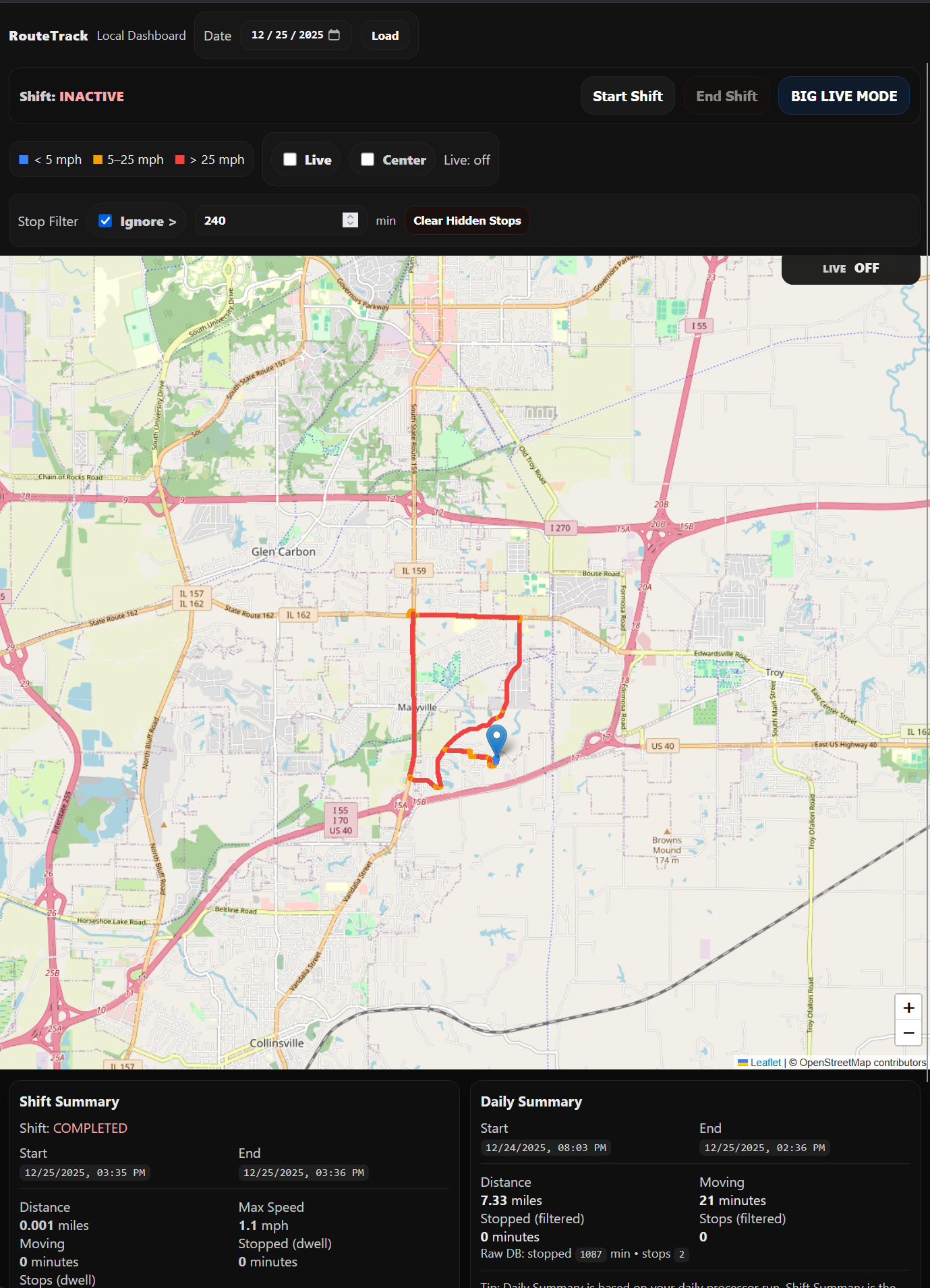
Pi Toolkit Menu with ARP and Network Scanning
Date: June 7, 2025
Category: Raspberry Pi Toolkit / Network Scanning
Backlink: Pi 5 System Summary Script with AWK
🛠️ Overview
This entry documents the setup of a modular Raspberry Pi 5 toolkit with a main menu and submenu for essential system tasks and network scanning. It enables quick access to system updates, resource summaries, and LAN device discovery using both ping-based and ARP-based tools.
📁 Script Overview
~/tskmenu.sh # Main toolkit launcher
~/network-tools-menu.sh # Submenu for network-related tools
~/network-scan.sh # Ping-based sweep with hostnames
~/pi5-system-summary.sh # Custom AWK system overview
~/update.sh # Apt updater/cleaner
🧭 Main Menu (tskmenu.sh)
figlet "Nates Pi Toolkit"
❌ 0. Exit
⚒️ 1. Update, Upgrade, and Auto-Remove
📊 2. System Summary
📡 3. Enter Network Tools Menu
Selecting option 3 brings up the network tools submenu.
🌐 Network Tools Menu (network-tools-menu.sh)
figlet "Network Tools Menu"
1. 🌐 Network IP Scan (Ping + Hostnames)
2. 🧭 ARP-Scan (MAC Vendors)
0. 🔙 Back to Main Menu
-
Option
1runs~/network-scan.sh -
Option
2runssudo arp-scan --localnet --interface=wlan0
🔧 Fixing arp-scan Vendor Lookup
Problem:
Default arp-scan install via apt gave:
-
Permission denied errors on
ieee-oui.txt -
“Unknown” MAC vendors
Solution:
-
Removed default install:
sudo apt remove arp-scan -y -
Installed from source:
git clone https://github.com/royhills/arp-scan.git cd arp-scan ./configure make sudo make install -
Fetched updated vendor list:
sudo get-ouiThis downloads a clean vendor database to:
/usr/local/share/arp-scan/ieee-oui.txt
✅ Example Output
network-scan.sh (ping + hostname):
✅ 192.168.1.1 (router.local)
✅ 192.168.1.101 (pi.hole)
✅ 192.168.1.185 (octopi)arp-scan:
192.168.1.1 c8:7f:54:b5:b1:a8 Cisco Systems
192.168.1.99 b8:27:eb:79:c1:de Raspberry Pi FoundationNext Steps
-
Auto-detect between
wlan0andeth0interfaces -
Log outputs to
~/Logs/ -
Create a simple curses-style dashboard for top tools
-
Add dynamic vendor filtering (e.g. filter by manufacturer name)
Running ntopng from Source on Raspberry Pi 5 (ARM64)
Date: June 4th, 2025
Category: Network/Security
Backlink: LibreNMS Docker Deployment on Raspberry Pi 5
Overview
This guide details how I installed and configured the open-source network traffic monitor ntopng on my Raspberry Pi 5 (ARM64). The goal was to gain full LAN visibility using packet inspection via the Pi’s wireless interface. LibreNMS is already in place for SNMP-based metrics, and ntopng complements it by showing real-time traffic flows and bandwidth usage.
Why Build from Source?
The official Docker images for ntop/ntopng were built for amd64, which is incompatible with the Pi 5's arm64 architecture. Since no prebuilt stable ARM image was available, I opted to build ntopng from source.
Install Prerequisites
sudo apt update && sudo apt upgrade -y
sudo apt install -y \
build-essential cmake libtool autoconf automake pkg-config \
libzmq3-dev libsqlite3-dev libhiredis-dev libmaxminddb-dev \
libpcap-dev libcurl4-openssl-dev libssl-dev libnghttp2-dev \
libmariadb-dev-compat libmariadb-dev libnats-dev libcap-dev \
redis gitClone and Build nDPI
cd ~
git clone https://github.com/ntop/nDPI.git
cd nDPI
./autogen.sh
makeClone and Build ntopng
cd ~
git clone https://github.com/ntop/ntopng.git
cd ntopng
./configure
make
sudo make installCreate Systemd Service File
# /etc/systemd/system/ntopng.service
[Unit]
Description=NtopNG Community Edition (custom build)
After=network.target
[Service]
ExecStart=/usr/local/bin/ntopng --dont-change-user --interface=wlan0 --http-port=3000
WorkingDirectory=/var/lib/ntopng
User=root
Restart=on-failure
[Install]
WantedBy=multi-user.targetEnable and Start Service
sudo mkdir -p /var/lib/ntopng
sudo systemctl daemon-reload
sudo systemctl enable ntopng
sudo systemctl start ntopngWeb Access
-
Open your browser to:
http://<Pi5-IP>:3000
In my case:http://192.168.1.174:3000
If the page doesn’t load, check:
sudo systemctl status ntopng
sudo journalctl -u ntopng --no-pager
Pi 5 System Summary Script with AWK
Date: May 25th, 2025
Category: Linux Scripting / System Monitoring
I wrote this script after studying awk. This command is really powerful in scripting. I have a good understanding of using the command to extract data fields from CSV files, and live system data. Here is my project I made using awk.
Script Overview
-
Gathers:
-
Timestamp
-
IP Address
-
Hostname
-
Uptime (human-readable)
-
Disk usage, total, free
-
Memory usage, total, free
-
-
Outputs to both screen and log file
-
Uses
awk,df,free,uptime, andtee
Script: pi5-system-summary.sh
#!/bin/bash
LOGFILE=~/pi5-summary-$(date +%Y-%m-%d).log
TIMESTAMP=$(date '+%Y-%m-%d %H:%M:%S')
HOSTNAME=$(hostname)
IP=$(hostname -I | awk '{ print $1 }')
UPTIME=$(uptime -p)
DISK_TOTAL=$(df -h / | awk 'NR > 1 { print $2 }')
DISK_USAGE=$(df -h / | awk 'NR > 1 { print $5 }' | tr -d '%')
DISK_FREE=$(df -h / | awk 'NR > 1 { print $4 }')
MEM_TOTAL=$(free -h | awk 'NR == 2 { print $2 }')
MEM_USEAGE=$(free -h | awk 'NR == 2 { print $3 }')
MEM_FREE=$(free -h | awk 'NR == 2 { print $4 }')
{
echo "===== Pi 5 System Summary ====="
echo "$TIMESTAMP"
echo "IP ADDRESS: $IP"
echo "HOSTNAME: $HOSTNAME"
echo "UPTIME: $UPTIME"
echo "DISK TOTAL: $DISK_TOTAL"
echo "DISK USAGE: $DISK_USAGE%"
echo "DISK FREE: $DISK_FREE"
echo "MEM TOTAL: $MEM_TOTAL"
echo "MEM USAGE: $MEM_USEAGE"
echo "MEM FREE: $MEM_FREE"
} | tee -a "$LOGFILE"
Sample Output

Log Output with tee and wrapped in {}


LibreNMS Docker Deployment on Raspberry Pi 5
Date: May 13, 2025
Category: Monitoring / Raspberry Pi Projects
Backlink: You can add this to a “Pi5 Monitoring Projects” page or your “Homelab Projects” index
Project Overview
This guide walks through setting up LibreNMS on a Raspberry Pi 5 (64-bit) using Docker Compose, then configuring SNMP on the Pi to allow it to be monitored—including fixing the common “No Processors” graph error by enabling extend support in SNMP for /proc/stat.
Prerequisites
-
Raspberry Pi 5 running 64-bit Raspberry Pi OS (Bookworm or similar)
-
Docker and Docker Compose installed
-
Static IP (e.g.
192.168.1.174) -
Basic familiarity with SSH and Linux commands
Step 1: Docker Setup
Install Docker (skip if already installed):
curl -fsSL https://get.docker.com -o get-docker.sh
sudo sh get-docker.sh
Step 2: Clean Up Old LibreNMS Docker Setup (if any)
docker stop $(docker ps -aq)
docker rm $(docker ps -aq)
docker volume prune -f
rm -rf ~/librenms
Step 3: Set Up LibreNMS Docker Files
Create a new folder:
mkdir ~/librenms && cd ~/librenms
Download example files from the official repo:
wget https://raw.githubusercontent.com/librenms/docker/master/examples/compose/compose.yml
wget https://raw.githubusercontent.com/librenms/docker/master/examples/compose/.env
wget https://raw.githubusercontent.com/librenms/docker/master/examples/compose/librenms.env
wget https://raw.githubusercontent.com/librenms/docker/master/examples/compose/msmtpd.env
Step 4: Edit .env File
nano .env
Set your timezone and user/group IDs:
TZ=America/Chicago
PUID=1000
PGID=1000
Step 5: Start the Docker Stack
docker compose -f compose.yml up -d
Once all containers start, LibreNMS will be accessible at:
📍 http://<PI-IP>:8000 (e.g., http://192.168.1.174:8000)
Step 6: Create LibreNMS User
Once web UI is accessible, create your first admin user through the setup wizard.
Step 7: Install and Configure SNMP on the Pi
Install SNMP daemon:
sudo apt update
sudo apt install snmpd snmp -y
Edit /etc/snmp/snmpd.conf:
sudo nano /etc/snmp/snmpd.conf
Modify/add the following:
agentAddress udp:161
rocommunity public
sysLocation Sitting on a Dusty Shelf
sysContact Me <zippybytes@protonmail.com>
extend cpuinfo /bin/cat /proc/stat
Restart the SNMP service:
sudo systemctl restart snmpd
Step 8: Verify SNMP Works
snmpwalk -v2c -c public localhost 1.3.6.1.2.1.1
snmpwalk -v2c -c public localhost system
Expected result includes system description, contact, location, and uptime.
Step 9: Fix “No Processors” Graph Issue
If LibreNMS shows “Error Drawing Graph: No Processors”:
Ensure extend cpuinfo /bin/cat /proc/stat is set in /etc/snmp/snmpd.conf, then test it:
snmpwalk -v2c -c public localhost NET-SNMP-EXTEND-MIB::nsExtendOutputFull.\"cpuinfo\"
You should see actual /proc/stat data returned.
Final Test
-
Go to Devices > Add Device in LibreNMS.
-
Enter:
-
Hostname/IP:
192.168.1.174 -
SNMP Version:
v2c -
Community:
public
-
-
Click Add Device.
After polling completes (5–10 mins), graphs will populate correctly, including CPU usage.
📚 Notes
-
If SNMP errors appear during walk attempts, ensure MIBs are installed:
sudo apt install snmp-mibs-downloader -y sudo sed -i 's/^mibs :/#mibs :/' /etc/snmp/snmp.conf -
Reload or restart SNMP again:
sudo systemctl restart snmpd
📦 Services Started
-
librenms(Main Web Interface) -
librenms_db(MariaDB) -
librenms_redis -
librenms_syslogng -
librenms_snmptrapd -
librenms_msmtpd
🧭 Next Steps
-
Enable polling other devices (routers, switches, VPS)
-
Add disk, network, and service monitors
-
Create alerts for offline devices
-
Enable email notifications via
msmtpd.env
Sourced from raspberrytips.com
Raspberry Pi Glossary \\ Raspberry-Pi-Glossary-526063852942.pdf
Raspberry Pi Commands \\ Raspberry-Pi-74-Commands-4239584953.pdf
Raspberry Pi 24 Best Games \\ Raspberry-Pi-24-Best-Games-492385539.pdf
Linux Command Cheat Sheet \\ linux-commands-cheat-sheet-2234.pdf
Python Cheat Sheet \\ Raspberry-Pi-Python-Cheat-Sheet-45325.pdf
Full SNMP Monitoring on Raspberry Pi 5 for LibreNMS (UCD-SNMP + Extend Workaround)
Date: May 14, 2025
Category: Monitoring / SNMP
Backlink: LibreNMS Docker Deployment on Raspberry Pi 5
🧩 Overview
This update documents how I configured full-featured SNMP monitoring on a Raspberry Pi 5 running LibreNMS inside Docker. Since hrProcessorLoad and traditional Host Resources MIB features are often unavailable or broken on ARM-based systems, I used UCD-SNMP and NET-SNMP-EXTEND-MIB to monitor:
-
✅ CPU usage
-
✅ Memory usage (real, buffers, cache, swap)
-
✅ Disk space
-
✅ Temperature via custom script
-
✅ Graphs and health sensors in LibreNMS dashboard
🔧 Step-by-Step Setup
1. Edit SNMP Configuration
Update /etc/snmp/snmpd.conf with:
rocommunity public
disk / 10000
view systemonly included .1.3.6.1.2.1.1
view systemonly included .1.3.6.1.2.1.25
view systemonly included .1.3.6.1.4.1.2021
view systemonly included .1.3.6.1.4.1.8072.1
extend temp /bin/bash /usr/local/bin/snmp-temperature.sh
The
diskline enables/monitoring. Theextendline provides temperature monitoring.
2. Create Extend Script for CPU Temp
sudo nano /usr/local/bin/snmp-temperature.sh
Paste:
#!/bin/bash
vcgencmd measure_temp | sed "s/temp=//;s/'C//"
Make it executable:
sudo chmod +x /usr/local/bin/snmp-temperature.sh
3. Give SNMP Access to Pi Temperature Sensor
sudo usermod -aG video Debian-snmp
sudo reboot
4. Verify SNMP Outputs
snmpwalk -v2c -c public localhost .1.3.6.1.4.1.2021.4 # Memory
snmpwalk -v2c -c public localhost .1.3.6.1.4.1.2021.9 # Disk
snmpwalk -v2c -c public localhost hrProcessorLoad # CPU per core
snmpwalk -v2c -c public localhost .1.3.6.1.4.1.2021.10 # Load avg
snmpwalk -v2c -c public localhost NET-SNMP-EXTEND-MIB::nsExtendOutput1Line.\"temp\" # Temperature
5. Ensure Pi is Added in LibreNMS
In the web UI:
-
Add device:
192.168.1.174(notlocalhost) -
SNMP v2c, community
public -
Confirm SNMP test passes
📦 Inside the Docker Container
Enter container:
docker exec -it librenms bash
cd /opt/librenms
Run poller and rediscovery:
php artisan config:clear
./lnms poller:discovery 1
./lnms device:poll 1
📊 Final Results in LibreNMS
From the Pi's page:
-
Graphs → CPU, Memory, Storage, Temperature are all active
-
Health tab shows temperature sensor:
temp1 -
Storage tab shows
/and/boot/firmware -
Dashboard Device Graphs widget now shows mini graphs for each metric
🩺 Troubleshooting Addendum
❌ Memory Graphs Not Appearing?
Make sure:
-
SNMP returns
.1.3.6.1.4.1.2021.4correctly -
ucd-mib,mempools, andstoragemodules are enabled in UI -
You’ve updated the device hostname to use the Pi’s IP, not
localhost -
Use:
./lnms poller:discovery 1 ./lnms device:poll 1
✅ Wrap-Up
With this configuration, the Pi 5 running LibreNMS inside Docker is now monitoring itself via SNMP, including:
-
UCD-based metrics
-
Custom
extendtemperature sensor -
Full graph integration
This setup is now replicable for other ARM-based Linux systems with similar SNMP limitations!
Changing the Hostname on Linux and Removing VPN Server.
I want to change the hostname on my pivpn because I have moved that to a different system and want to use this for something else but don't need to reinstall linux:
use hostname to see current hostname or it is after your profile name right there in the terminal:
hostname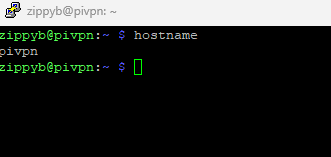
We can edit the hostname file with this command:
sudo nano /etc/hostnameOutput:
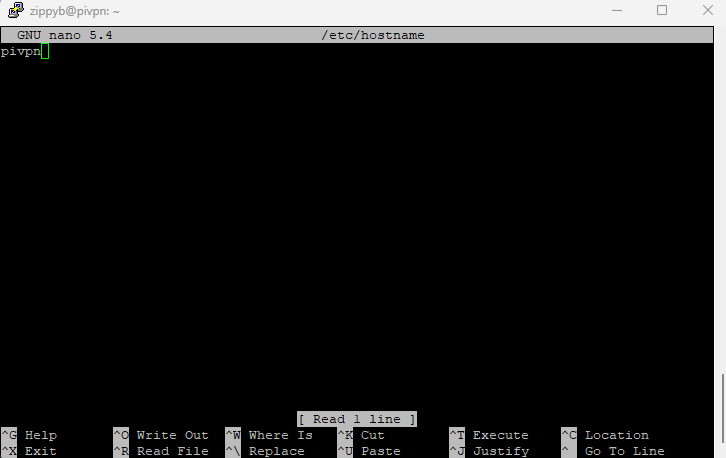
I'm going to change the name to PI-DT-02 because I already have another pi I named PI-DT-01.

CTRL+S to save and CTRL+X to exit.
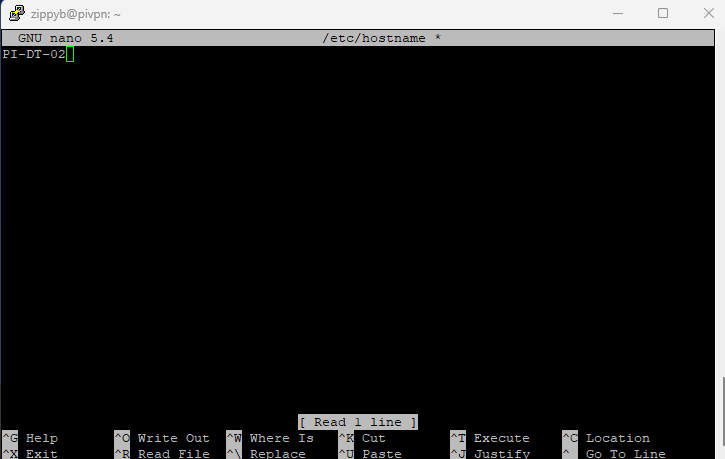
Now we need to edit the hosts file to update the name to match the new one with this command:
sudo nano /etc/hostsI'm going to change the box highlighted in green to my new hostname:

Save and exit that file.
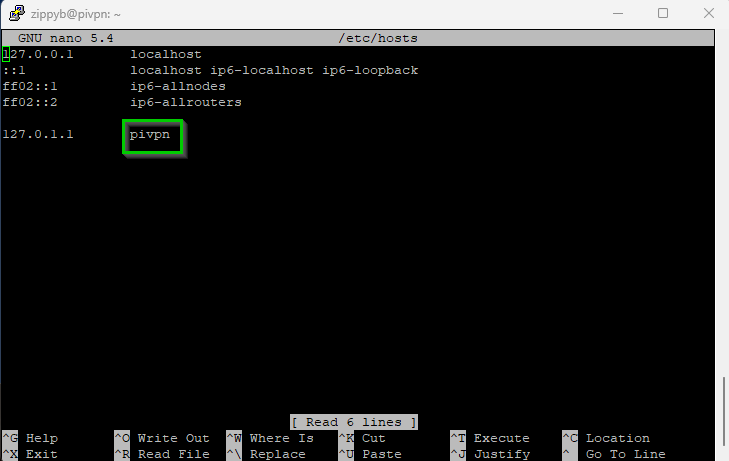
To apply those changes we will have to reboot.
sudo rebootThat disconnects the SSH session and I'll wait for it to come up.
If you want to know when it is reachable you can use the powershell command:
ping 192.168.1.16 -tBe sure to replace this with the address of your pi.
It will ping that IP address until you cancel it with CTRL+C

We see the IP reply back and we know that it is back online.
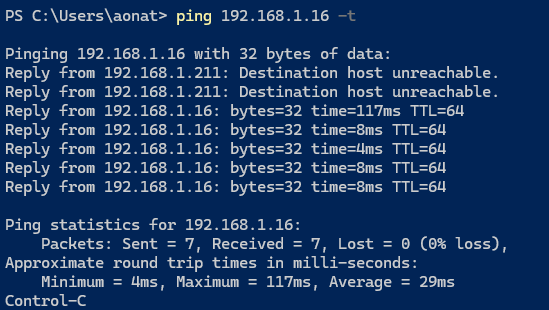
Lets take it a step further and see if we can ping the new hostname.
ping PI-DT-02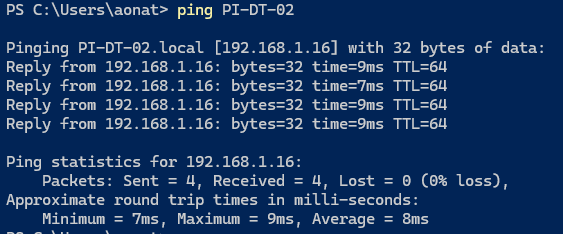
We see that worked as well.
Lets ssh back in and see it confirmed:

Good to Go!
The rest is specific to the old setup of my pivpn. I was using wireguard so lets remove these packages:
sudo pivpn uninstall
I'm removing the full stack so I'm using y for the answer to all the questions.
I'll go ahead and reboot now.
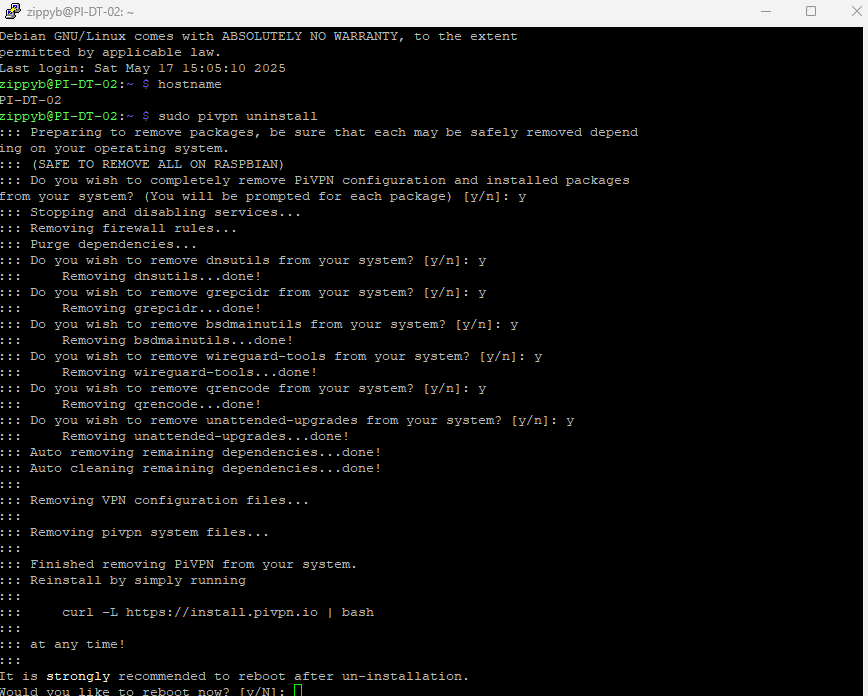
Lets strip the pi down to a Clean Base:
sudo rm -rf /etc/pivpnRemoves leftovers.
Final Touch:
If you want a clean slate without re-imaging:
sudo apt install deborphan
sudo deborphan | xargs sudo apt-get -y remove --purge
This removes orphaned libraries left behind by uninstalled apps.
Notice it didn't remove some of my home directory contents which I wish to keep:
