03 - RouteTrack Pi — gpsd Installation & GPS Validation
Date: December 24th, 2025
Category: Raspberry Pi / GPS / Linux Services
Backlink: RouteTrack Pi — Connecting GPS Hardware
Goal
This page covers:
-
Installing
gpsdand GPS tools (Global Positioning Satellite Daemon Tools) -
Confirming the USB GPS receiver is outputting raw NMEA sentences
-
Creating a stable
/dev/gps0device symlink via udev rules -
Running
gpsdreliably as a standalone systemd service -
Validating that GPS data is readable through
gpspipe - I had to use a stand alone service because
gpsdwouldn't work out of the box with my GPS Reciever. - This is a workaround for that on this page.
- Some GPS units will work without bypassing TTP and using a seperate standalone systemd service.
- This page is specific to the GPS I used that needed a workaround.
Device: GlobalSat BU‑353N USB GPS Receiver
Install gpsd + tools
Run:
sudo apt update
sudo apt install -y gpsd gpsd-clients
This installs:
-
gpsd(daemon) -
gpspipe,cgps(client tools)
Confirm the GPS receiver is detected
Plug in the USB GPS receiver, then verify the device appears:
ls -l /dev/ttyUSB*example:

Linux sees the GPS receiver.
Validate raw NMEA output from the GPS
Before involving gpsd, verify the GPS is actually transmitting:
sudo stty -F /dev/ttyUSB0 4800 cs8 -cstopb -parenb -ixon -ixoff -crtscts -echo
sudo timeout 8 cat /dev/ttyUSB0 | head -n 20
Expected output should look like:
$GPGGA,...
$GPGSA,...
$GPRMC,...
If you see NMEA sentences, the receiver is working at 4800 baud.
Create a stable GPS symlink /dev/gps0 (udev rule)
The GPS device may sometimes appear as a different tty device, so we create a stable symlink called /dev/gps0.
Create the udev rule
sudo nano /etc/udev/rules.d/10-gps-pl2303.rulesPaste:
SUBSYSTEM=="tty", ATTRS{idVendor}=="067b", ATTRS{idProduct}=="23a3", SYMLINK+="gps0"These id's come from udev's info:
-
idVendor=067b -
idProduct=23a3
Reload udev and trigger:
sudo udevadm control --reload-rules
sudo udevadm trigger
sudo udevadm settle
Verify:
ls -l /dev/gps0Expected:

Disable gpsd.socket and build a standalone gpsd service
Socket activation can cause inconsistent behavior during testing, so this project uses a dedicated standalone systemd service.
Disable/mask the socket unit
sudo systemctl disable --now gpsd.socket
sudo systemctl mask gpsd.socket
Create gpsd-standalone.service
Create the service:
sudo nano /etc/systemd/system/gpsd-standalone.serviceThis is the code for setting up the new service:
[Unit]
Description=GPSD Standalone (RouteTrack)
After=network.target
Wants=network.target

[Service]
Type=simple
User=gpsd
Group=dialout
ExecStart=/usr/sbin/gpsd -N -n -b -s 4800 -S 2947 /dev/gps0
Restart=on-failure
RestartSec=2

[Install]
WantedBy=multi-user.target
Important Notes
-
-s 4800forces correct baud rate -
-S 2947binds gpsd to port 2947 (localhost) -
We intentionally do not use
-F /run/gpsd.sockbecause it caused permission errors for thegpsduser under systemd. -
This service uses
/dev/gps0so the device name stays consistent.
Enable + start:
sudo systemctl daemon-reload
sudo systemctl enable --now gpsd-standalone.service
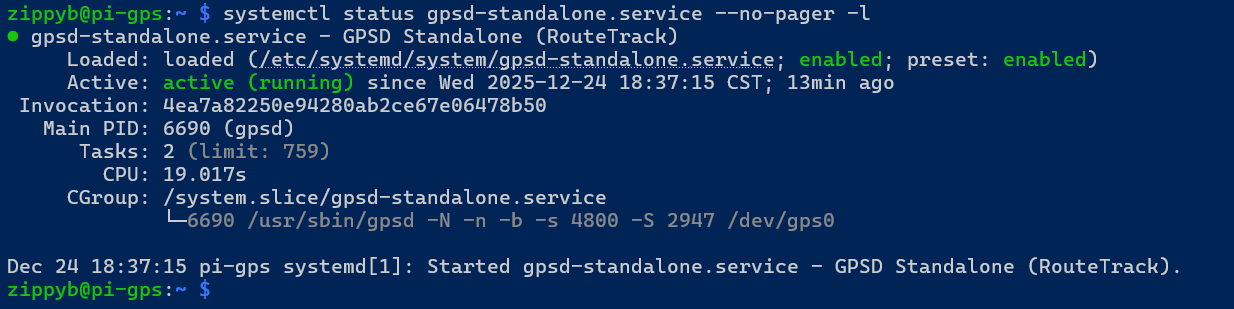
Check status:
systemctl status gpsd-standalone.service --no-pager -lNotice it is enabled, active and running the line from the ExecStart:
Confirm gpsd is listening on port 2947
Run:
ss -ltnp | grep 2947It is listening on ipv4 and ipv6 ports:

Validate GPS data through gpsd (JSON output)
Run:
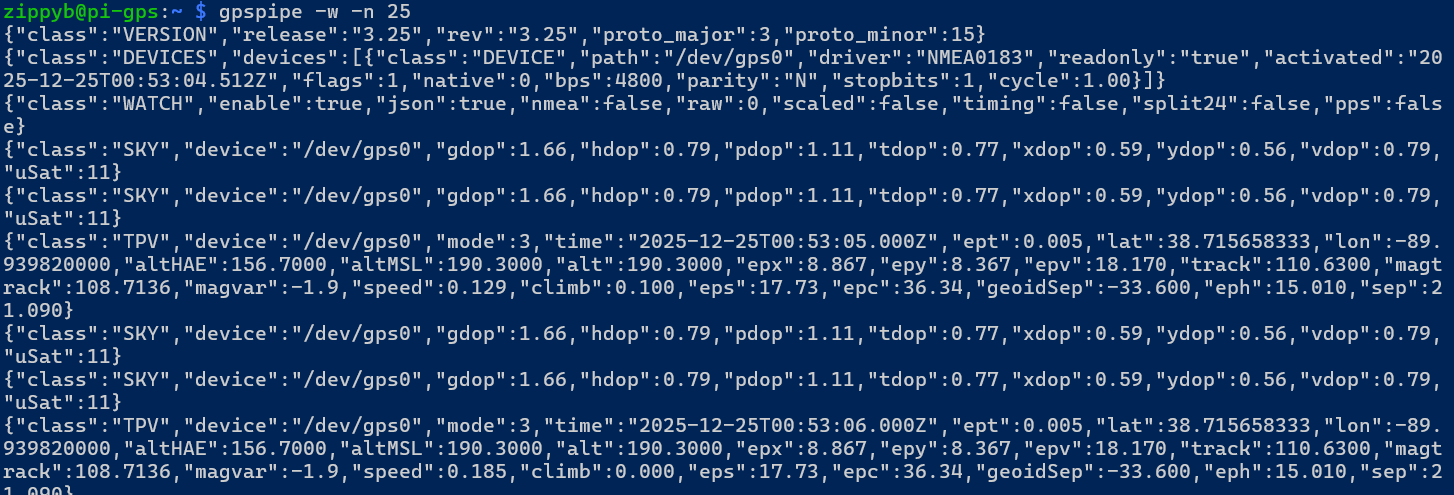
gpspipe -w -n 25✅ Expected:
-
TPVmessages -
SKYmessages -
mode: 3when a fix is established -
latitude/longitude values updating
Example indicators showing some GPS coordinates:
Verifying Satellites and that everything is working:
use:
cgps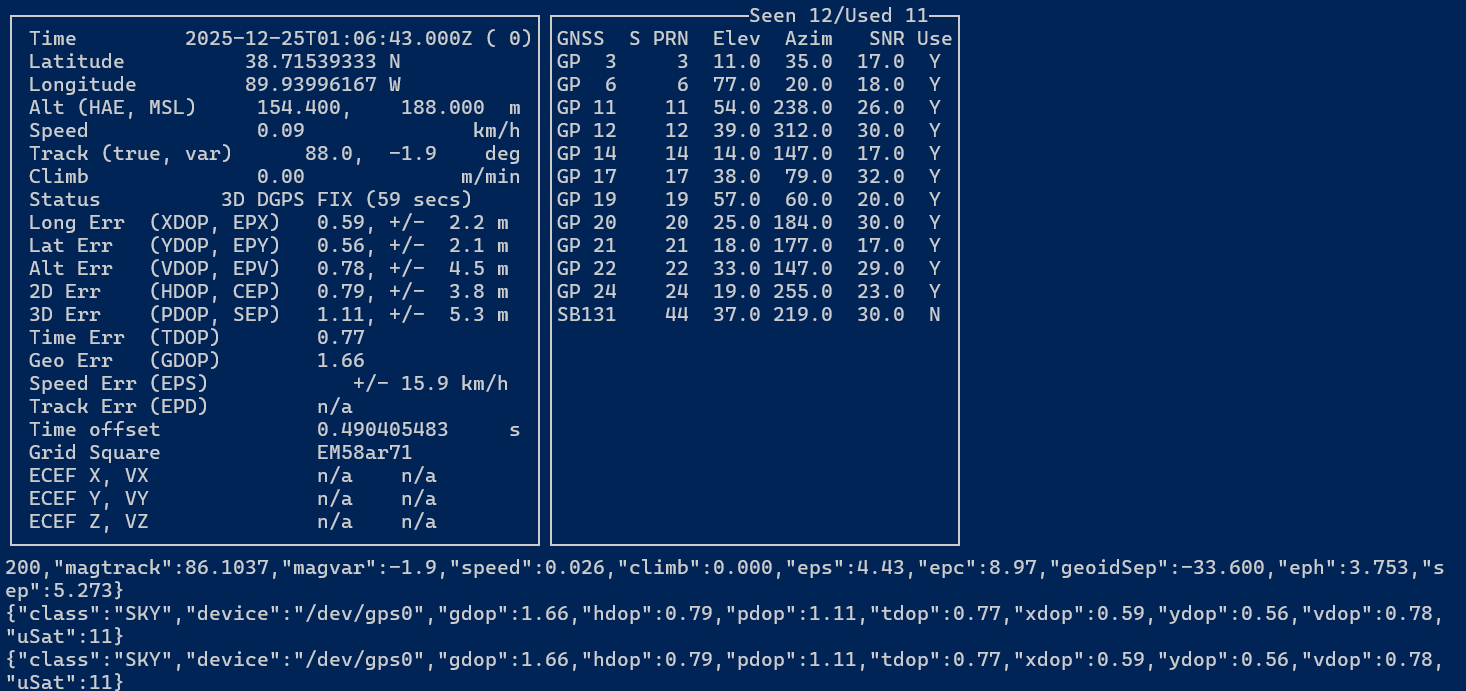
Next Steps
The GPS subsystem is now stable, validated, and running as a dedicated systemd service. Upcoming work will build on this foundation:
-
Integrate gpsd with RouteTrack
-
Consume GPS data via localhost port
2947 -
Parse TPV updates for real-time position tracking
-
-
Add health checks
-
Monitor gpsd service status
-
Alert if GPS fix drops below
mode: 3
-
-
Visualization
-
Map GPS coordinates to a live or logged route view
-
Export NMEA or JSON logs for later analysis
-